EasyManua.ls Logo

Hitachi DZ-GX5020A - User Manual

Hitachi DZ-GX5020A
154 pages
Print Icon
To Next Page IconTo Next Page
Loading...
SERVICE MANUAL
SPECIFICATIONS AND PARTS ARE SUBJECT TO CHANGE FOR IMPROVEMENT
No. 0614E
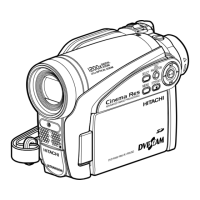
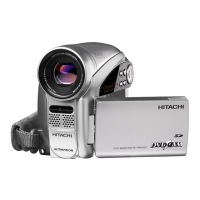
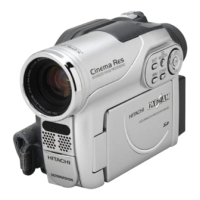
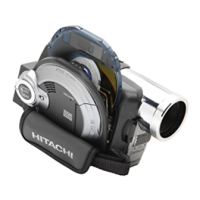
DVD VIDEO CAMERA/RECORDER
TK
DZ-GX5080A
DZ-GX5020A
DZ-GX5020A (K)
DZ-GX5000A
DO NOT RESELL OR DIVERT IMPROPERLY
DZ-GX5080A
DZ-GX5000A
DZ-GX5020A
December 2006

Table of Contents

Questions and Answers

  • V
    Victor JordanSep 23, 2025
    Why does my Hitachi DZ-GX5020A say 'Cannot delete scenes'?
    • C
      Cheryl TorresSep 23, 2025
      If your Hitachi Camcorder displays 'Cannot delete scenes', it is because you performed deletion at the upper limit of 999 scenes registered. Combine divided scenes, and then delete if necessary.
  • L
    Laura HannaAug 25, 2025
    What to do if my Hitachi Camcorder says 'CHECK DISC'?
    • A
      Anthony AndersonAug 25, 2025
      If your Hitachi Camcorder displays 'CHECK DISC', it may be because the disc is dirty, scratched, or distorted. Clean the disc, or if it's damaged, replace it with a new one. Also, ensure that the disc type is compatible with your camcorder.
  • L
    Lucas Barnes PhDAug 25, 2025
    What to do if my Hitachi DZ-GX5020A says 'Card full'?
    • E
      Eric BaldwinAug 26, 2025
      If your Hitachi Camcorder displays 'Card full', it means the recording capacity of the card has reached its limit. You can either replace the card with a new one or delete unnecessary stills to free up space.
  • E
    Erica MurrayAug 27, 2025
    What does 'Disc error has occurred' mean on my Hitachi Camcorder?
    • M
      Michael AdamsAug 27, 2025
      If your Hitachi Camcorder shows 'Disc error has occurred', it might be due to a dirty disc. Clean the disc. It could also be because the disc has been edited on another device, causing a data mismatch. In this case, format the disc (this will erase all data) or replace it.
  • R
    robrienAug 27, 2025
    Why does my Hitachi DZ-GX5020A Camcorder show 'Card error'?
    • R
      robert52Aug 27, 2025
      If your Hitachi Camcorder displays 'Card error', it could be because the card terminals are dirty. Try cleaning them with a dry cloth. It can also appear if data other than photos is recorded on the card, in which case you should replace the card.
  • G
    Geoffrey StarkSep 14, 2025
    Why does my Hitachi DZ-GX5020A display 'COPY PROTECTED'?
    • B
      Bobby DavisSep 14, 2025
      If your Hitachi Camcorder displays 'COPY PROTECTED', it means you are trying to record a copy-guarded image. Copy-guarded images cannot be recorded on the DVD video camera/recorder. Stop trying to record.
  • G
    gregory94Sep 12, 2025
    Why does my Hitachi DZ-GX5020A Camcorder display 'CANNOT RECORD PHOTOS'?
    • J
      jason64Sep 12, 2025
      If your Hitachi Camcorder displays 'CANNOT RECORD PHOTOS', it means you are trying to record stills on a DVD-RW/DVD-R/+RW. Still images cannot be recorded on these disc types. Use a DVD-RAM or card when recording photos.
  • C
    Craig ValdezSep 13, 2025
    Why does my Hitachi Camcorder display 'Cannot replace thumbnail on PHOTO scenes'?
    • T
      Timothy BaileySep 13, 2025
      If your Hitachi Camcorder displays 'Cannot replace thumbnail on PHOTO scenes', it means you are trying to change a photo thumbnail in the scene editing menu. The thumbnail of a still image cannot be changed. Select a movie to change the thumbnail.
  • B
    Brittney TurnerSep 4, 2025
    Why does my Hitachi DZ-GX5020A Camcorder say 'Cannot combine. Deselect PHOTO scenes'?
    • J
      Jennifer BlackburnSep 5, 2025
      If your Hitachi Camcorder displays 'Cannot combine. Deselect PHOTO scenes', it means you're trying to combine scenes when a photo is selected. Only video scenes can be combined, so select only video scenes or stop trying to combine scenes.
  • J
    Jillian RiceSep 2, 2025
    What to do if my Hitachi DZ-GX5020A Camcorder says 'Data error in a part of image file'?
    • J
      Jeremiah HartmanSep 2, 2025
      If your Hitachi Camcorder displays 'Data error in a part of image file. Repair data now? YES NO', it could be because the disc is dirty, so first check for dirt. This message also appears if writing to the file was interrupted, like if the power was turned off during recording. Choose 'YES' to attempt automatic repair. Choosing 'NO' will prompt you to verify initialization.

Summary

1 Safety Precaution for Repair

1-1 Cautions

Safety precautions for handling batteries, laser, and high voltage.

1-2 Electrostatic Protection Measures

Measures to protect components from static electricity.

1-3 Cautions When Handling DVD Drive

Specific precautions for handling the high-precision optical pickup.

1-4 Lead-Free Solder

Guidelines for using lead-free solder and soldering iron.

1-5 Notes When Using Service Manual

Units in parts list, schematic symbols, and board identification.

2 General Description

2-1 Overview

Product introduction, CCD sensor, and media compatibility.

2-1-1 Servicing method

Details on servicing methods for various parts and circuit boards.

2-2 Features

Description of key product features like LED light and LCD monitor.

2-3 Specifications

Technical specifications of the camera, including lens, zoom, and recording.

2-4 Major Differences from Previous Models

Comparison of key features and specifications with older models.

2-5 Compatibility of Recorded DVD and Corresponding Recording Media

Details on recorded disc and media compatibility.

2-6 Names of Parts

Identification of major external parts via numbered diagrams.

2-7 List of Abbreviations and Terms for DVD Video Camera;Recorders

Definitions of technical terms and abbreviations used.

3 Description of Operation

3-1 Description of Structure

Overview of the camera's internal structure and major circuit boards.

3-2 Description of Newly Adapted Technology

Explanation of new features like the LED light.

4 Troubleshooting

4-1 Procedure for Troubleshooting

Step-by-step flowchart for diagnosing operational issues.

4-2 Messages and Troubleshooting

Resolution steps for common error messages.

4-3 Display of Error Codes and Troubleshooting

Information on error code display and major error codes.

4-4 Checking Versions of Firmware and Updating

Procedures for checking and updating firmware.

4-5 Trouble Diagnosis

General guide for diagnosing system and component failures.

4-6 Procedure for Removing Disc from Faulty DVD Video Camera;Recorder

Method for safely removing discs from faulty units.

4-7 System Resetting;Resetting Camera Functions

Procedures for system and camera function resets.

5 Disassembly and Reassembly

5-1 Items to Be Checked

Pre-disassembly checks for essential components.

5-2 Order of Disassembly

Flowchart guiding the sequence of component removal.

5-3 Disassembly

Detailed steps for disassembling various parts and units.

5-4 EEPROM Data Backup and Write

Procedure for backing up and writing EEPROM data.

6 Adjustment

6-1 Creating Reference Data

Process for creating reference data for accurate adjustments.

6-2 Setups for Adjustment

Equipment setup and connections for performing adjustments.

6-4 Adjustment Procedure

Step-by-step guide for performing various camera adjustments.

7 Exploded View

7-1 DZ-GX5080 A

Exploded view showing parts for the DZ-GX5080A model.

7-2 DZ-GX5020 A; GX5000 A

Exploded view showing parts for DZ-GX5020A/GX5000A models.

S Wiring and Schematic Diagrams

S-1 Wiring

Block diagram illustrating system interconnections.

S-2 SCL2-L;SCL3-L [GSL2-L;GSL3-L]

Schematic diagram for the GSL2-L/GSL3-L circuit.

S-8 CAMERA DSP [MAN]

Schematic diagram for the CAMERA DSP circuit.

S-10 CODEC [MAN]

Schematic diagram for the CODEC circuit.

S-12 USB [MAN] (For GX5080 A)

Schematic diagram for the USB interface circuit.

C Circuit Board Diagrams

C-1 GSL2-L;GSL3-L

Component layout for the GSL2-L/GSL3-L circuit board.

C-6 MAN

Component layout for the MAN circuit board.

B Block Diagrams

B-1 Overall Block Diagram

High-level block diagram of the camera system architecture.

Hitachi DZ-GX5020A Specifications

General IconGeneral
TypeCamcorder
Sensor TypeCCD
Video Resolution720 x 480
LCD Screen Size2.7 inches
Image StabilizerElectronic
Focus AdjustmentAutomatic, Manual
Display TypeLCD
Battery TypeLithium Ion
ViewfinderColor
Video Recording FormatMPEG-2
Still Image FormatJPEG
InterfaceUSB
Display Size2.7 inches
Connector TypeUSB, AV
Image Sensor1/3.6" CCD
Optical Sensor Size1/3.6-inch

Related product manuals