EasyManua.ls Logo

Hitachi UHD8610PC - Connectivity; Internet Browser

Hitachi UHD8610PC
43 pages
Print Icon
To Next Page IconTo Next Page
To Previous Page IconTo Previous Page
Loading...
English - 19 -
Connectivity
ξ˜·ξ™’ξ˜ƒξ™†ξ™’ξ™‘ξ™‰οŽˆξ™Šξ™˜ξ™•ξ™ˆξ˜ƒξ™šοŽˆξ™•ξ™ˆξ™‡ξ˜ƒξ™’ξ™•ξ˜ƒξ™šοŽˆξ™•ξ™ˆξ™ξ™ˆξ™–ξ™–ξ˜ƒξ™–ξ™ˆξ™—ξ™—οŽˆξ™‘ξ™Šξ™–ξ˜ƒξ™“ξ™ξ™ˆξ™„ξ™–ξ™ˆξ˜ƒξ™•ξ™ˆξ™‰ξ™ˆξ™•ξ˜ƒ
to the ξ˜±ξ™ˆξ™—ξ™šξ™’ξ™•ξ™Žξ˜’ξ˜¬ξ™‘ξ™—ξ™ˆξ™•ξ™‘ξ™ˆξ™—ξ˜ƒ ξ˜Άξ™ˆξ™—ξ™—οŽˆξ™‘ξ™Šξ™–ξ˜ƒ ξ™–ξ™ˆξ™†ξ™—οŽˆξ™’ξ™‘ξ˜ƒ οŽˆξ™‘ξ˜ƒ ξ™—ξ™‹ξ™ˆξ˜ƒ
System>Settings menu.
Wired Connectivity
To Connect to a Wired Network
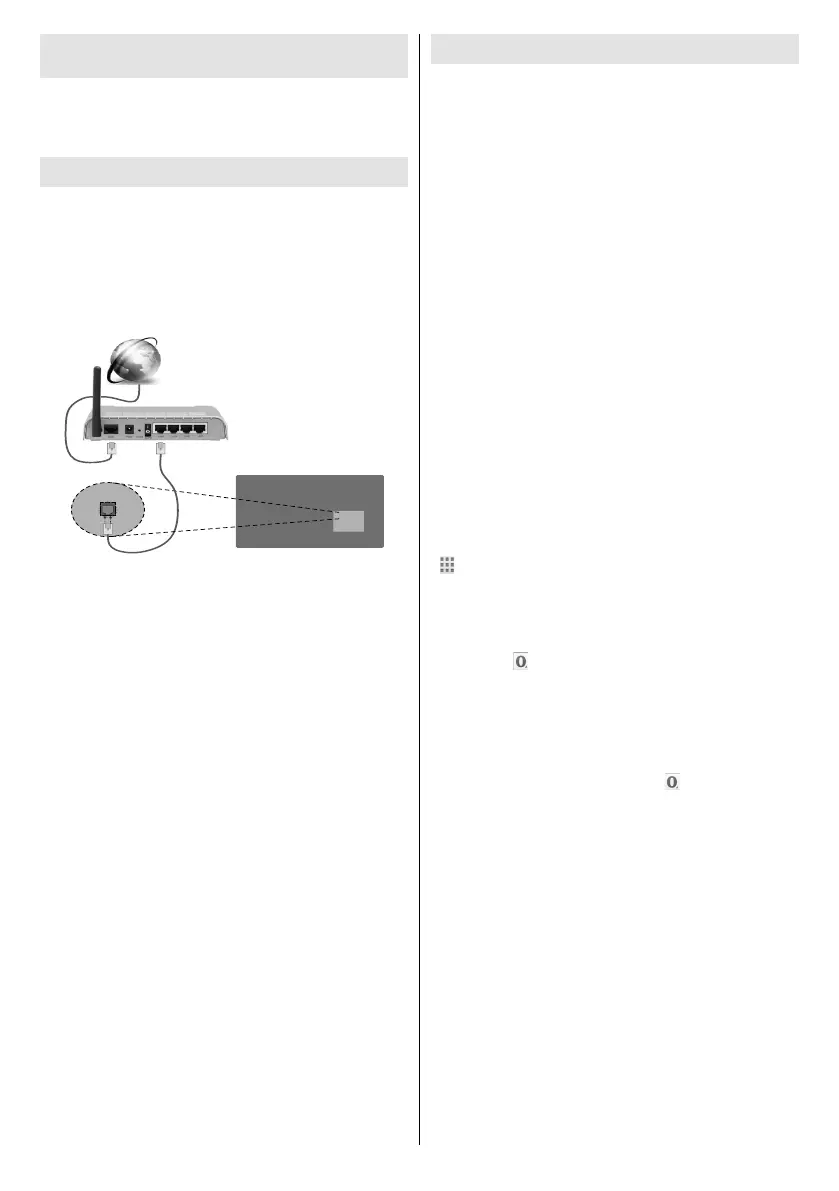
β€’ You must have a modem/router connected to an
ξ™„ξ™†ξ™—οŽˆξ™™ξ™ˆξ˜ƒξ™…ξ™•ξ™’ξ™„ξ™‡ξ™…ξ™„ξ™‘ξ™‡ξ˜ƒξ™†ξ™’ξ™‘ξ™‘ξ™ˆξ™†ξ™—οŽˆξ™’ξ™‘ξ˜‘
β€’ ξ˜¦ξ™’ξ™‘ξ™‘ξ™ˆξ™†ξ™—ξ˜ƒξ™œξ™’ξ™˜ξ™•ξ˜ƒξ˜§οŽˆξ™–ξ™“ξ™ξ™„ξ™œξ˜ƒξ™—ξ™’ξ˜ƒξ™œξ™’ξ™˜ξ™•ξ˜ƒξ™ξ™’ξ™‡ξ™ˆξ™ξ˜’ξ™•ξ™’ξ™˜ξ™—ξ™ˆξ™•ξ˜ƒξ™™οŽˆξ™„ξ˜ƒξ™„ξ™‘ξ˜ƒ
ξ™ˆξ™—ξ™‹ξ™ˆξ™•ξ™‘ξ™ˆξ™—ξ˜ƒξ™†ξ™„ξ™…ξ™ξ™ˆξ˜‘ξ˜ƒξ˜·ξ™‹ξ™ˆξ™•ξ™ˆξ˜ƒοŽˆξ™–ξ˜ƒξ™„ξ˜ƒξ˜―ξ˜€ξ˜±ξ˜ƒξ™“ξ™’ξ™•ξ™—ξ˜ƒξ™„ξ™—ξ˜ƒξ™—ξ™‹ξ™ˆξ˜ƒξ™•ξ™ˆξ™„ξ™•ξ˜ƒξ˜‹ξ™…ξ™„ξ™†ξ™Žξ˜Œξ˜ƒ
ξ™’ξ™‰ξ˜ƒξ™œξ™’ξ™˜ξ™•ξ˜ƒξ˜§οŽˆξ™–ξ™“ξ™ξ™„ξ™œξ˜‘
Broadband ISP connection
LAN (ethernet) cable
LAN input on the rear
side of the Display
ξ˜¦ξ™’ξ™‘ξšΏξ™Šξ™˜ξ™•ξ™Œξ™‘ξ™Šξ˜ƒξ˜Ίξ™Œξ™•ξ™ˆξ™‡ξ˜ƒξ˜§ξ™ˆξ™™ξ™Œξ™†ξ™ˆξ˜ƒξ˜Άξ™ˆξ™—ξ™—ξ™Œξ™‘ξ™Šξ™–
Network Type
The Network Type can be selected as Wired Device,
Wireless Device or Disabledξ˜ξ˜ƒ ξ™Œξ™‘ξ˜ƒ ξ™„ξ™†ξ™†ξ™’ξ™•ξ™‡ξ™„ξ™‘ξ™†ξ™ˆξ˜ƒ ξ™šξ™Œξ™—ξ™‹ξ˜ƒξ™—ξ™‹ξ™ˆξ˜ƒ
active connection to the Display. Select this as Wired
Device if you are connecting via an ethernet.
Internet Speed Test
ξ˜«οŽˆξ™Šξ™‹ξ™οŽˆξ™Šξ™‹ξ™—ξ˜ƒ Internet Speed Test and press the OK
ξ™…ξ™˜ξ™—ξ™—ξ™’ξ™‘ξ˜‘ξ˜ƒ ξ˜§ξ™Œξ™–ξ™“ξ™ξ™„ξ™œξ˜ƒξ™šοŽˆξ™ξ™ξ˜ƒ ξ™†ξ™‹ξ™ˆξ™†ξ™Žξ˜ƒ ξ™—ξ™‹ξ™ˆξ˜ƒ οŽˆξ™‘ξ™—ξ™ˆξ™•ξ™‘ξ™ˆξ™—ξ˜ƒ ξ™†ξ™’ξ™‘ξ™‘ξ™ˆξ™†ξ™—οŽˆξ™’ξ™‘ξ˜ƒ
ξ™…ξ™„ξ™‘ξ™‡ξ™šοŽˆξ™‡ξ™—ξ™‹ξ˜ƒξ™„ξ™‘ξ™‡ξ˜ƒξ™‡οŽˆξ™–ξ™“ξ™ξ™„ξ™œξ˜ƒξ™—ξ™‹ξ™ˆξ˜ƒξ™•ξ™ˆξ™–ξ™˜ξ™ξ™—ξ˜ƒξ™šξ™‹ξ™ˆξ™‘ξ˜ƒξ™†ξ™’ξ™ξ™“ξ™ξ™ˆξ™—ξ™ˆξ˜‘ξ˜ƒ
Advanced Settings
ξ˜«οŽˆξ™Šξ™‹ξ™οŽˆξ™Šξ™‹ξ™—ξ˜ƒAdvanced ξ˜Άξ™ˆξ™—ξ™—οŽˆξ™‘ξ™Šξ™– and press the OK but-
ton. On the next screen you can change the IP and
ξ˜§ξ˜±ξ˜Άξ˜ƒξ™–ξ™ˆξ™—ξ™—οŽˆξ™‘ξ™Šξ™–ξ˜ƒξ™’ξ™‰ξ˜ƒξ™—ξ™‹ξ™ˆξ˜ƒξ˜§οŽˆξ™–ξ™“ξ™ξ™„ξ™œξ˜‘ξ˜ƒξ˜«οŽˆξ™Šξ™‹ξ™οŽˆξ™Šξ™‹ξ™—ξ˜ƒξ™—ξ™‹ξ™ˆξ˜ƒξ™‡ξ™ˆξ™–οŽˆξ™•ξ™ˆξ™‡ξ˜ƒξ™’ξ™‘ξ™ˆξ˜ƒ
ξ™„ξ™‘ξ™‡ξ˜ƒξ™“ξ™•ξ™ˆξ™–ξ™–ξ˜ƒξ˜―ξ™ˆξ™‰ξ™—ξ˜ƒξ™’ξ™•ξ˜ƒξ˜΅οŽˆξ™Šξ™‹ξ™—ξ˜ƒξ™…ξ™˜ξ™—ξ™—ξ™’ξ™‘ξ˜ƒξ™—ξ™’ξ˜ƒξ™†ξ™‹ξ™„ξ™‘ξ™Šξ™ˆξ˜ƒξ™—ξ™‹ξ™ˆξ˜ƒξ™–ξ™ˆξ™—ξ™—οŽˆξ™‘ξ™Šξ˜ƒ
from ξ˜€ξ™˜ξ™—ξ™’ξ™ξ™„ξ™—οŽˆξ™† to Manual. Now you can enter the
Manual IP and / or Manual DNS values. Select the
ξ™•ξ™ˆξ™ξ™„ξ™—ξ™ˆξ™‡ξ˜ƒ οŽˆξ™—ξ™ˆξ™ξ˜ƒ οŽˆξ™‘ξ˜ƒ ξ™—ξ™‹ξ™ˆξ˜ƒ ξ™‡ξ™•ξ™’ξ™“ξ˜ƒ ξ™‡ξ™’ξ™šξ™‘ξ˜ƒ ξ™ξ™ˆξ™‘ξ™˜ξ˜ƒ ξ™„ξ™‘ξ™‡ξ˜ƒ ξ™ˆξ™‘ξ™—ξ™ˆξ™•ξ˜ƒ ξ™—ξ™‹ξ™ˆξ˜ƒ
ξ™‘ξ™ˆξ™šξ˜ƒξ™™ξ™„ξ™ξ™˜ξ™ˆξ™–ξ˜ƒξ™˜ξ™–οŽˆξ™‘ξ™Šξ˜ƒξ™—ξ™‹ξ™ˆξ˜ƒξ™‘ξ™˜ξ™ξ™ˆξ™•οŽˆξ™†ξ˜ƒξ™…ξ™˜ξ™—ξ™—ξ™’ξ™‘ξ™–ξ˜ƒξ™’ξ™‘ξ˜ƒξ™—ξ™‹ξ™ˆξ˜ƒξ™•ξ™ˆξ™ξ™’ξ™—ξ™ˆξ˜‘ξ˜ƒ
Press the OKξ˜ƒξ™…ξ™˜ξ™—ξ™—ξ™’ξ™‘ξ˜ƒξ™—ξ™’ξ˜ƒξ™–ξ™„ξ™™ξ™ˆξ˜ƒξ™–ξ™ˆξ™—ξ™—οŽˆξ™‘ξ™Šξ™–ξ˜ƒξ™šξ™‹ξ™ˆξ™‘ξ˜ƒξ™†ξ™’ξ™ξ™“ξ™ξ™ˆξ™—ξ™ˆξ˜‘ξ˜ƒ
Internet Browser
To use the internet browser enter the main menu
ξšΏξ™•ξ™–ξ™—ξ˜ƒξ™…ξ™œξ˜ƒξ™“ξ™•ξ™ˆξ™–ξ™–ξ™Œξ™‘ξ™Šξ˜ƒξ™—ξ™‹ξ™ˆξ˜ƒMenu botton. Then launch the
Internet Browser application from the Internet menu.
(*) The appearance of the internet browser logo may change
ξ˜¬ξ™‘ξ˜ƒξ™—ξ™‹ξ™ˆξ˜ƒξ™Œξ™‘ξ™Œξ™—ξ™Œξ™„ξ™ξ˜ƒξ™–ξ™†ξ™•ξ™ˆξ™ˆξ™‘ξ˜ƒξ™’ξ™‰ξ˜ƒξ™—ξ™‹ξ™ˆξ˜ƒξ™…ξ™•ξ™’ξ™šξ™–ξ™ˆξ™•ξ˜ξ˜ƒξ™—ξ™‹ξ™ˆξ˜ƒξ™—ξ™‹ξ™˜ξ™ξ™…ξ™‘ξ™„ξ™Œξ™ξ™–ξ˜ƒξ™’ξ™‰ξ˜ƒ
ξ™—ξ™‹ξ™ˆξ˜ƒξ™“ξ™•ξ™ˆξ™‡ξ™ˆξšΏξ™‘ξ™ˆξ™‡ξ˜ƒξ˜‹ξ™Œξ™‰ξ˜ƒξ™„ξ™‘ξ™œξ˜Œξ˜ƒξ™ξ™Œξ™‘ξ™Žξ™–ξ˜ƒξ™—ξ™’ξ˜ƒξ™šξ™ˆξ™…ξ˜ƒξ™–ξ™Œξ™—ξ™ˆξ™–ξ˜ƒξ™„ξ™™ξ™„ξ™Œξ™ξ™„ξ™…ξ™ξ™ˆξ˜ƒξ™šξ™Œξ™ξ™ξ˜ƒ
be displayed as Speed Dial options along with the
Edit Speed Dial and the Add to Speed Dial options.
You can press the Internet button on the remote
to open the initial internet browser page. If the
Open browser initial page URL in the Signage
Settings>Link Optionsξ˜ƒξ™ξ™ˆξ™‘ξ™˜ξ˜ƒξ™Œξ™–ξ˜ƒξ™‡ξ™ˆξšΏξ™‘ξ™ˆξ™‡ξ˜ξ˜ƒξ™—ξ™‹ξ™ˆξ˜ƒξ™…ξ™•ξ™’ξ™šξ™–ξ™ˆξ™•ξ˜ƒ
will open on this page. Otherwise this button will not
be functional.
ξ˜·ξ™’ξ˜ƒ ξ™‘ξ™„ξ™™ξ™Œξ™Šξ™„ξ™—ξ™ˆξ˜ƒ ξ™—ξ™‹ξ™ˆξ˜ƒ ξ™šξ™ˆξ™…ξ˜ƒ ξ™…ξ™•ξ™’ξ™šξ™–ξ™ˆξ™•ξ˜ξ˜ƒ ξ™˜ξ™–ξ™ˆξ˜ƒ ξ™—ξ™‹ξ™ˆξ˜ƒ ξ™‡ξ™Œξ™•ξ™ˆξ™†ξ™—ξ™Œξ™’ξ™‘ξ™„ξ™ξ˜ƒ
buttons on the remote or a connected mouse. To see
ξ™—ξ™‹ξ™ˆξ˜ƒξ™…ξ™•ξ™’ξ™šξ™–ξ™ˆξ™•ξ˜ƒξ™’ξ™“ξ™—ξ™Œξ™’ξ™‘ξ™–ξ˜ƒξ™…ξ™„ξ™•ξ˜ξ˜ƒξ™ξ™’ξ™™ξ™ˆξ˜ƒξ™—ξ™‹ξ™ˆξ˜ƒξ™†ξ™˜ξ™•ξ™–ξ™’ξ™•ξ˜ƒξ™—ξ™’ξ˜ƒξ™—ξ™‹ξ™ˆξ˜ƒξ™—ξ™’ξ™“ξ˜ƒξ™’ξ™‰ξ˜ƒ
the page. Historyξ˜ξ˜ƒTabs and Bookmarks options and
ξ™—ξ™‹ξ™ˆξ˜ƒξ™…ξ™•ξ™’ξ™šξ™–ξ™ˆξ™•ξ˜ƒξ™…ξ™„ξ™•ξ˜ƒξ™šξ™‹ξ™Œξ™†ξ™‹ξ˜ƒξ™†ξ™’ξ™‘ξ™—ξ™„ξ™Œξ™‘ξ™–ξ˜ƒξ™“ξ™•ξ™ˆξ™™ξ™Œξ™’ξ™˜ξ™–ξ˜’ξ™‘ξ™ˆξ™›ξ™—ξ˜ƒξ™…ξ™˜ξ™—ξ™—ξ™’ξ™‘ξ™–ξ˜ξ˜ƒ
ξ™—ξ™‹ξ™ˆξ˜ƒξ™•ξ™ˆξ™‰ξ™•ξ™ˆξ™–ξ™‹ξ˜ƒξ™…ξ™˜ξ™—ξ™—ξ™’ξ™‘ξ˜ξ˜ƒξ™—ξ™‹ξ™ˆξ˜ƒξ™„ξ™‡ξ™•ξ™ˆξ™–ξ™–ξ˜’ξ™–ξ™ˆξ™„ξ™•ξ™†ξ™‹ξ˜ƒξ™…ξ™„ξ™•ξ˜ξ˜ƒξ™—ξ™‹ξ™ˆξ˜ƒSpeed
Dial and the Opera buttons are available.
To add a desired website to the Speed Dial list for
ξ™”ξ™˜ξ™Œξ™†ξ™Žξ˜ƒξ™„ξ™†ξ™†ξ™ˆξ™–ξ™–ξ˜ξ˜ƒξ™ξ™’ξ™™ξ™ˆξ˜ƒξ™—ξ™‹ξ™ˆξ˜ƒξ™†ξ™˜ξ™•ξ™–ξ™’ξ™•ξ˜ƒξ™—ξ™’ξ˜ƒξ™—ξ™‹ξ™ˆξ˜ƒξ™—ξ™’ξ™“ξ˜ƒξ™’ξ™‰ξ˜ƒξ™—ξ™‹ξ™ˆξ˜ƒξ™“ξ™„ξ™Šξ™ˆξ˜‘ξ˜ƒ
The browser bar will appear. Highlight the Speed Dial
-
button and press the OK button. Then select Add
to Speed Dial option and press the OK button. Fill in
the blanks for Name and Addressξ˜ξ˜ƒξ™‹ξ™Œξ™Šξ™‹ξ™ξ™Œξ™Šξ™‹ξ™—ξ˜ƒOK and
press the OK button to add. Whilst you are on the
site you wish to add to the Speed Dialξ˜ƒξ™ξ™Œξ™–ξ™—ξ˜ξ˜ƒξ™‹ξ™Œξ™Šξ™‹ξ™ξ™Œξ™Šξ™‹ξ™—ξ˜ƒ
the Opera- button and press the OK button. Then
highlight Add to Speed Dial option in the submenu
and press the OK button again. Name and Address
ξ™šξ™Œξ™ξ™ξ˜ƒξ™…ξ™ˆξ˜ƒξšΏξ™ξ™ξ™ˆξ™‡ξ˜ƒξ™„ξ™˜ξ™—ξ™’ξ™ξ™„ξ™—ξ™Œξ™†ξ™„ξ™ξ™ξ™œξ˜ƒξ™„ξ™†ξ™†ξ™’ξ™•ξ™‡ξ™Œξ™‘ξ™Šξ˜ƒξ™—ξ™’ξ˜ƒξ™—ξ™‹ξ™ˆξ˜ƒξ™–ξ™Œξ™—ξ™ˆξ˜ƒξ™œξ™’ξ™˜ξ˜ƒξ™„ξ™•ξ™ˆξ˜ƒ
visiting. Highlight OK and press the OK button to add.
You can also use the Opera menu options to manage
the browser. Highlight the Opera-
button and press
the OKξ˜ƒ ξ™…ξ™˜ξ™—ξ™—ξ™’ξ™‘ξ˜ƒ ξ™—ξ™’ξ˜ƒ ξ™–ξ™ˆξ™ˆξ˜ƒ ξ™„ξ™™ξ™„ξ™Œξ™ξ™„ξ™…ξ™ξ™ˆξ˜ƒ ξ™“ξ™„ξ™Šξ™ˆξ˜ƒ ξ™–ξ™“ξ™ˆξ™†ξ™ŒξšΏξ™†ξ˜ƒ ξ™„ξ™‘ξ™‡ξ˜ƒ
general options.
There are various ways to search or visit websites
using the web browser.
Enter the address of a website(URL) into the search/
address bar and highlight the Submit button on the
virtual keyboard and press the OK button to visit the
site.
Enter keyword/s into the search/address bar and
highlight the Submit button on the virtual keyboard
and press the OK button to start a search for the
related websites.
Highlight a Speed Dial thumbnail and press the OK
button to visit the related website.
Your Display is compatible with USB keyboard/mice.
Plug your device into the USB input of your Display
for easier and quicker navigation.


Related product manuals