−21−
5.ANALOG MODE
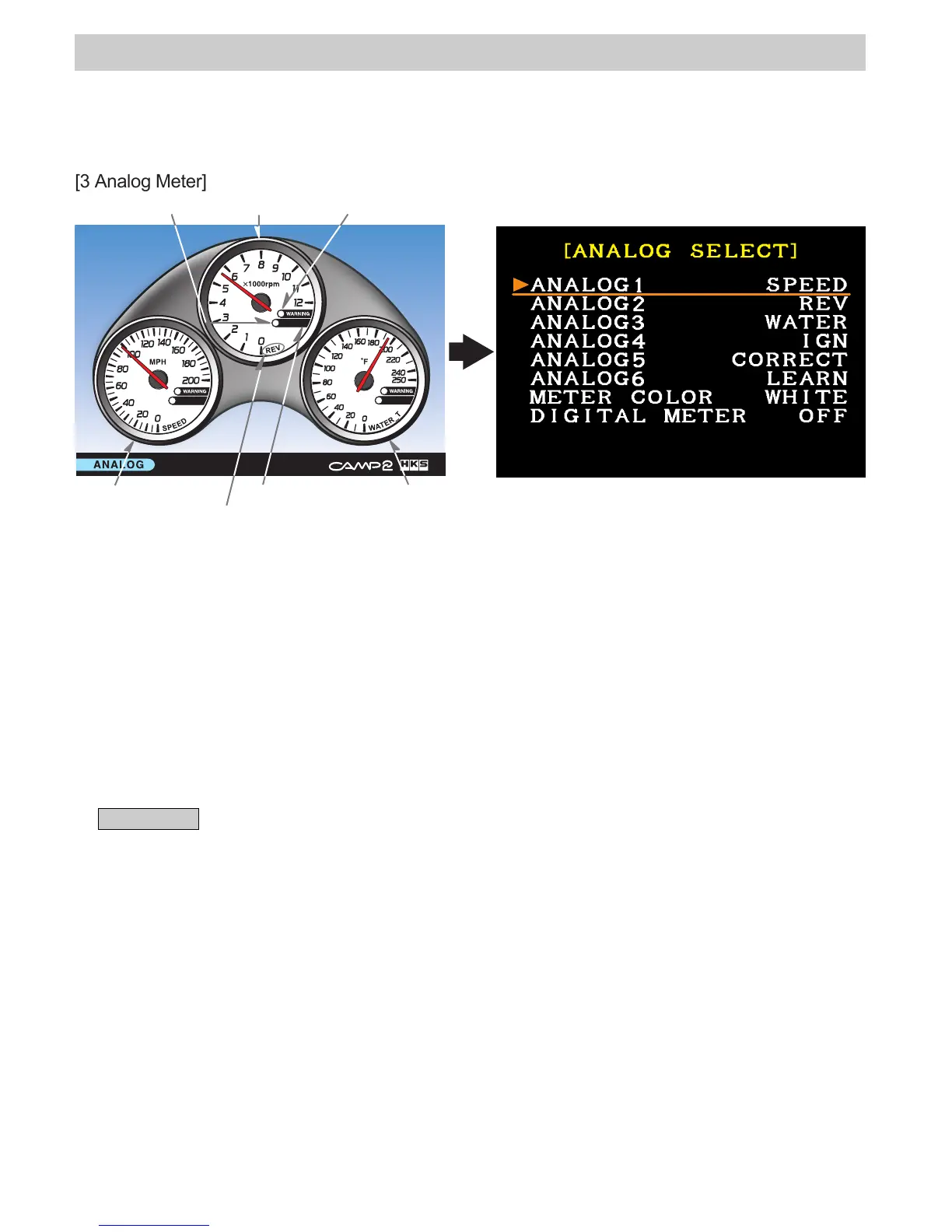
・Selected item(s) can be shown in the analog meter.
・Select from two modes: either a 3 analog meter display, or 1 analog meter with 6 digital
indicators below it.
・Analog meters accurately show continuously changing data.
[3 Analog Meter]
ANALOG 3
Peak Indicator ANALOG 2 Warning Indicator
ANALOG 1
Meter Name
Digital Indication
<Setting>
・From the menu, select [ANALOG] using the directional arrow buttons. Press ENTER.
・Press the SELECT button of the controller to switch to [ANALOG SELECT] on the right
illustration above.
●ANALOG 1 - 6 (Selecting items to indicate)
・To change individual settings, select from ANALOG 1 - 3 using the directional arrow buttons.
Press ENTER. After the character color changes from white to orange, the setting can be edited.
・To edit, select 1 from a possible 25 items using the directional arrow buttons. Press ENTER.
When the character color changes from orange to white, the edit is complete. (When "NONE"
appears, it means that there is no item to show.)
・ANALOG 1 appears on the left, 2 in the center, 3 on the right.
・If more items needed to be edited, repeat the procedure above.
Advice
・Only ANALOG 1 to 3 can be shown on the screen as the analog meter. ANALOG 4 to 6
will not be shown on the screen.
●METER COLOR
・Select the color of the meter from white, black, or red.
WHITE
BLACK
RED
●DIGITAL METER (Digital data in the analog meters)
・Digital data appears in a black portion on the bottom right section of each analog meter.
DIGITAL METER ON : Digital data are shown.
DIGITAL METER OFF: Digital data are NOT shown.
After setting is complete, press the BACK button of the controller to go back to [ANALOG] on
the left illustration above.
: White panel/ Black scale
: Black panel/White scale
: Black panel/ Red scale



 To Next Page