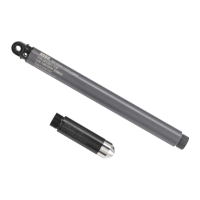
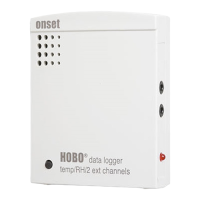
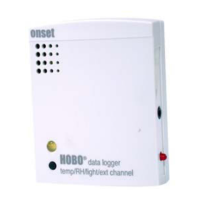
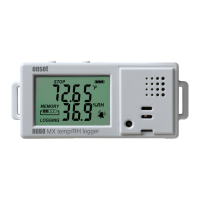
HOBO MX Temp/RH Data Logger (MX1101) Manual
1-800-LOGGERS 4 www.onsetcomp.com
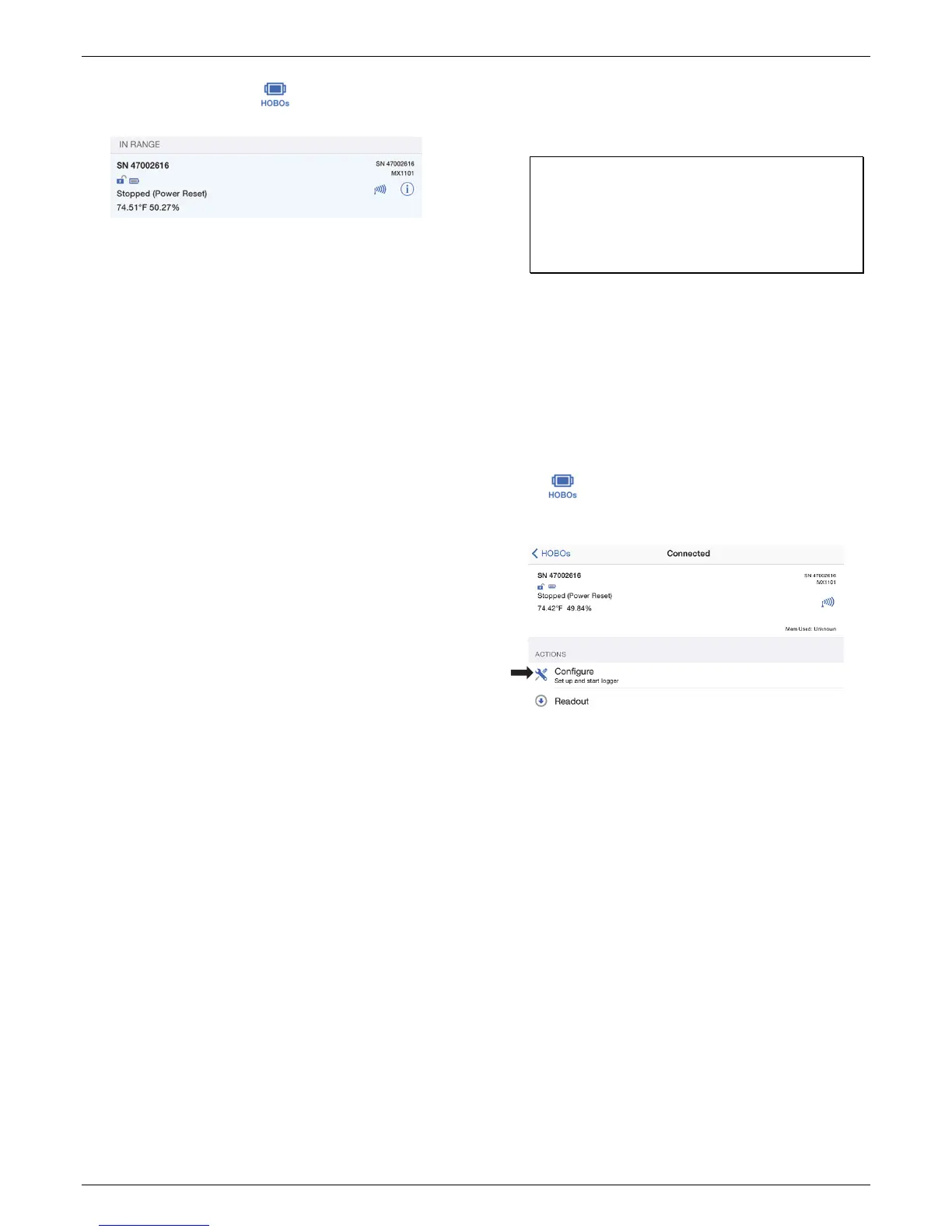
4. Connect to the logger. Tap . The logger should appear
in the In Range list as shown here.
Tap the row in the list to connect to the logger. If it does not
appear in the list, make sure the logger is within range of
your mobile device. Note that current sensor readings are
always visible in this list even if the logger is not logging.
Tips for connecting:
• Make sure the logger is within range of your mobile
device. The range for successful wireless communication
is approximately 30.5 m (100 ft) with full line-of-sight.
• If your device can connect to the logger intermittently or
loses its connection, move closer to the logger, within
sight if possible.
• If the logger appears in the In Range list, but you cannot
connect to it, close HOBOmobile and power cycle the
mobile device. This forces the previous Bluetooth
connection to close.
Once connected to the logger you can select one of the
following actions:
• Configure. Select logger settings and load them onto the
logger to start logging. See Setting up the Logger.
• Readout. Offload logger data. See Reading Out the
Logger.
• Full Status Details. Check the battery level and view the
configuration settings currently selected for the logger.
• Start Logging or Restart Logging. These options appear
depending on the Start Logging and Stop Logging settings
selected in the next section.
• Stop Logging. Stop the logger from recording data (this
overrides any Stop Logging settings described in Setting
up the Logger).
• Page. Press and hold the Page icon and the logger will
beep to help you locate a deployed logger (tap the Page
icon if you only want the logger to beep once). “HELLO”
also appears on the LCD when the logger is paged.
• Clear Audible Alarm. If audible alarms are enabled as
described in Setting up Alarms, use this to clear a
beeping alarm on the logger.
• Logger Password. Select this to create a password for the
logger that will be required if another mobile device
attempts to connect to it. To reset a password,
simultaneously press both the Start/Stop button and the
Alarm/Stats button on the top of the logger for 3 seconds
or tap Reset to Factory Default in the Set Logger
Password screen.
• Update Firmware. When new logger firmware is
available, this action appears in the list. Select it and
follow the instructions on the screen. A logger readout
will be completed automatically at the beginning of the
firmware update process. If the connection is lost
between the logger and the mobile device during the
firmware update, a Firmware Update Pending Status
displays for the logger in the HOBOs list. Connect to the
logger and select Restore Logger (or Update Firmware if
that option is available) to continue updating the
firmware.
Important: Before updating the firmware on the
logger, check the remaining battery level by selecting
Full Status Details and make sure it is no less than 30%.
Make sure you have the time to complete the entire
update process, which requires that the logger remains
connected to the device during the upgrade.
• Force Offload. This may appear if an error was
encountered when loading configure settings. Select this
to offload all the data on the logger before reconfiguring
the logger.
Setting up the Logger
Use HOBOmobile to set up the logger, including setting alarms,
selecting the options to start and stop logging, and choosing a
logging mode. These steps provide an overview of setting up
the logger. For complete details, see the HOBOmobile User’s
Guide.
1. Tap and select a logger in the In Range list to connect
to it.
2. Once connected, tap Configure.
3. Tap Name and type a name for the logger up to 20
characters (optional). Tap Done.
4. Tap Group to add the logger to the Favorites group, an
existing custom group, or create a new group name with up
to 20 characters (optional). Tap Done.
5. Tap Logging Interval and choose how frequently the logger
will record data unless operating in burst logging mode (see
Burst Logging).
6. Tap Start Logging and select when logging will begin:
• Now. Logging will begin immediately after tapping Start
in the Configure screen.
• On Next Logging Interval. Logging will begin at the next
even interval as determined by the selected logging
interval.
• On Button Push. Logging will begin once you press the
Start/Stop logging button on the logger for 3 seconds.
• On Date/Time. Logging will begin at a date and time you
specify. Select the Date and time
Tap Done.
7. Tap Stop Logging and select the options for when logging
will end.


 To Next Page
 Loading...