17 of 20
Saving Schedules
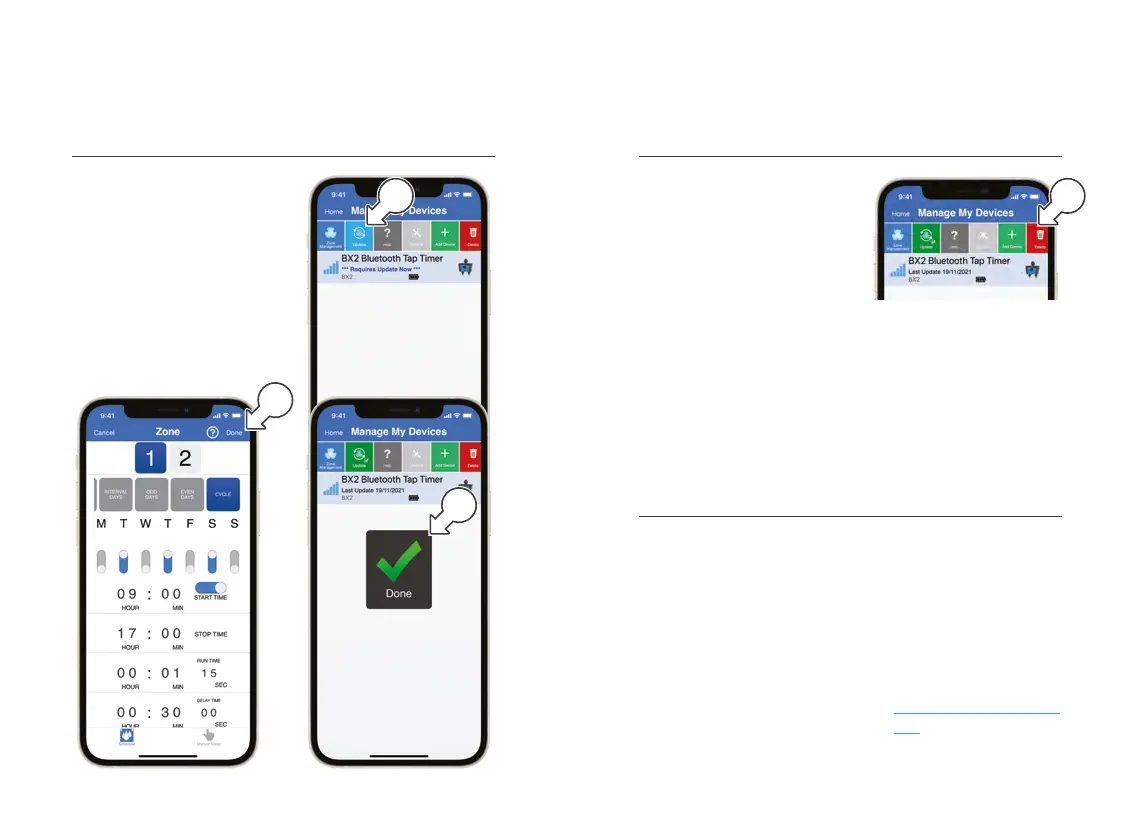
® After entering any schedule
details, tap DONE [a]
1. To send the new schedule to
your BX2, tap UPDATE[b]
above the device list
2. A DONE symbol [c] will
appear when the new
schedule has been
synced with your BX2
Scheduling
a
c
b
Support
Unpairing your BX2 from iGardener
®
® This may be necessary if
you wish to move your BX2
to a different smartphone
To unpair your BX2 via
your smartphone:
® Ensure your BX2 is
selected in the device
menu and tap DELETE [a]
To unpair your BX2 manually:
® Your BX2 can be unpaired by
removing the batteries
® If a schedule is set on your BX2 when it is unpaired, the schedule will
continue to run until it is paired with a new smartphone and a new
schedule is saved
BX2 Connection Issues
1. Ensure your BX2 is
fitted with alkaline
batteries correctly as
per the instructions
2. Ensure your smartphone is
within 20m Bluetooth
®
range
3. Ensure no other smartphone
is currently paired with
your BX2 –this can be
resolved by following
the unpairing process
4. Your BX2 is designed to be
operated from iGardener
®
–
without the app, it cannot
be programmed
5. For additional help press
where possible, or visit
www.holmanindustries.com.au
/BX2
for more information
a


 To Next Page