This document outlines the quick start guide for the Honeywell E-Mon® App, designed for commissioning and managing E-Mon meters. The E-Mon App facilitates the setup and configuration of these meters through a smartphone, leveraging Bluetooth Low Energy (BLE) technology for wireless communication.
Function Description:
The Honeywell E-Mon App serves as a mobile interface for commissioning E-Mon meters. It allows users to connect to a meter, configure its operational parameters, and manage its settings. The primary function is to streamline the initial setup process, enabling users to pair their smartphone with an E-Mon meter, confirm pairing through a secure PIN, and then proceed with setting various commissioning parameters. This eliminates the need for direct physical interaction with the meter's interface for complex configurations, making the process more efficient and user-friendly.
Usage Features:
-
App Download: The first step involves downloading the E-Mon App from either the Google Play Store (for Android devices) or the Apple App Store (for iOS devices). A QR code is provided in the manual for easy access to online guides, which likely include links to the app stores.
-
Bluetooth Activation: Before using the app, users must ensure that Bluetooth is enabled on their smartphone. This is a prerequisite for the app to discover and communicate with E-Mon meters.
-
Initiating Commissioning:
- Once the app is launched, users will tap on the "Commission Device" option. This action initiates the search for nearby E-Mon meters available for commissioning.
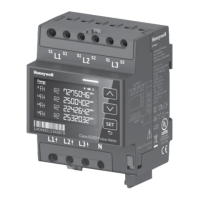
- Simultaneously, the E-Mon meter itself needs to be put into a pairing mode. This is achieved by pressing the "UP" button on the meter for 3 seconds.
- Upon successful initiation of pairing mode, the meter's LED status bar will begin to blink blue, indicating that it is ready to be discovered and paired.
-
Meter Discovery and Selection:
- The app will display a list of discovered E-Mon meters on the smartphone screen. Each meter will be identified by its serial number (e.g., "1HONA116446535").
- Users can tap the refresh icon to update the list of available BLE connections if needed.
- The user then selects the specific meter serial number they wish to connect to or commission.
- Tapping on the selected meter initiates the pairing process.
-
Secure Pairing Process:
- A critical security feature is the 6-digit pairing code. This code will simultaneously appear on both the E-Mon meter's display and the smartphone screen within the app.
- On the meter, the user must use the "Up" or "Down" buttons to select "Yes" to confirm the pairing or "No" to decline it. After making the selection, the "SET" button must be pressed to confirm.
- Concurrently, on the smartphone, the user must confirm or decline the pairing PIN code displayed in the app.
- Successful confirmation on both the meter and the phone is required for the pairing to proceed.
-
Pairing Confirmation:
- Once successfully paired, the meter's LED status bar will illuminate with a solid blue color for 3 seconds, providing a visual confirmation of the successful connection.
-
Parameter Setting:
- After successful pairing, the app will guide the user through a series of "commissioning workflow wizards." These wizards allow the user to save or set all necessary commissioning parameters for the meter. This could include settings related to measurement units, communication protocols, network configurations, and other operational specifics of the E-Mon meter. The "Set Parameters" screen in the app indicates this stage.
Important Technical Specifications (Inferred):
- Wireless Communication: Bluetooth Low Energy (BLE) is the primary wireless technology used for communication between the smartphone and the E-Mon meter. This ensures low power consumption and secure, short-range connectivity.
- Security: A 6-digit pairing code is implemented to ensure secure pairing, preventing unauthorized access to the meter's configuration.
- User Interface: The meter itself features "UP" and "DOWN" buttons for navigation and a "SET" button for confirmation, along with an LED status bar for visual feedback during the pairing process.
- Compatibility: The app is available for both Android (Google Play Store) and iOS (Apple App Store) platforms, indicating broad smartphone compatibility.
- Meter Identification: Each meter has a unique serial number (e.g., "1HONA116446535") for clear identification during the discovery process.
Maintenance Features:
While the document primarily focuses on the initial commissioning, the app's ability to set and save parameters implies that it can also be used for:
- Reconfiguration: Modifying existing meter settings as operational requirements change.
- Troubleshooting: Potentially accessing diagnostic information or resetting certain parameters if issues arise (though not explicitly detailed, this is a common feature of such apps).
- Firmware Updates: While not mentioned, similar apps often facilitate over-the-air (OTA) firmware updates for the connected devices, which would be a significant maintenance feature.
The Honeywell E-Mon App significantly enhances the user experience for E-Mon meter deployment by providing a convenient, secure, and guided mobile interface for commissioning and parameter management.

 Need help?
 General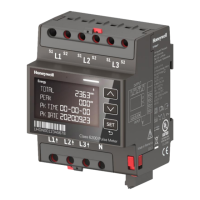





 To Next Page