
 Need help?
Do you have a question about the Honeywell Friedland GlobalGuard and is the answer not in the manual?
Hardware and OS requirements for the PC setup software.
Internet and PC requirements for remote web access.
List of mobile devices supported by the remote access app.
Step-by-step guide for installing the PC setup software.
Procedures for changing the Control Panel's administrator PIN code.
Overview of the Home Page module and its primary functions.
Assigning programmes to specific function keys (I, II, III).
How to activate programmed actions using function keys.
Synchronizing settings between the PC software and the Control Panel.
Accessing and viewing the historical event log from the Control Panel.
Guide to adding new security and home automation devices via the software.
Step-by-step process for adding a new device using the software interface.
Procedure for replacing a faulty device without reconfiguring settings.
Configuring security devices for partial arming modes (Part-Arm I/II).
Creating and maintaining automated programmes for system control.
Steps to create a new programme, defining name, icon, and actions.
Editing, enabling, disabling, and managing existing programme configurations.
Steps to create new events, specifying triggers and actions.
Modifying existing events, including trigger type, security mode, and timing.
How to create a new schedule for time-based automated actions.
Editing, enabling, disabling, and managing existing schedule configurations.
Managing user accounts, PIN codes, and remote access permissions.
Setting up siren behaviour, including alarm times and testing.
This document outlines the operation and maintenance of the GlobalGuard Alarm System, focusing on its PC setup software, remote access web software, and mobile application. The system is designed to provide comprehensive security and home automation control.
The GlobalGuard PC Setup Software is a key component for configuring the system. It allows users to set up system parameters, add and manage devices, and configure home automation controls. This software is essential for initial setup and for making detailed adjustments to the system's behavior. When using the PC setup software, it's crucial to ensure that the PC and the IP gateway are connected to the same broadband router. The software automatically detects the IP Gateway and accesses data from the Control Panel, a process that may take a few minutes. During this time, the 2nd LED (RF indication) on the gateway will change from green to orange, indicating data transfer. For optimal performance, both the router and PC should have DHCP function enabled, and firewalls should be temporarily disabled if data transfer is slow.
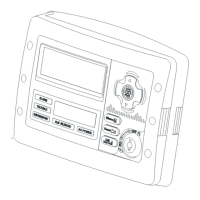
A critical aspect of the PC setup software is the Control Panel PIN code. This code is required to access the Control Panel for programming or control. The factory preset Admin PIN code is "1234," but it is strongly recommended to change this for security reasons via the Settings – System – User menu.
The software's Home Page serves as the main operating screen, offering several primary functional modules: Home Page, Sync, Event Log, Add Device, and Settings. From the Home Page, users can view device information, configure Programme Keys, and execute Programme Keys. Clicking on any device icon reveals specific information such as device name, type, number, and location.
Programme Keys are a core feature for activating sets of actions. These keys (I, II, III) correspond to function buttons on the Control Panel and can be configured to trigger various actions, such as turning ON/OFF plugs or changing the security mode. Users can assign existing programmes or create new ones for these keys. It's important to note that a programme assigned to one Programme Key cannot be assigned to another. Detailed configuration of programmes, including setting security modes (Fully Arm, Part-Arm-I, Part-Arm-II, Disarm, Holiday Arm) and home automation actions (No Action, All On, All Off, Individual), is done through the Settings – Programmes menu. The system supports up to 16 programmes.
The Sync function is vital for applying any settings made in the PC setup software to the Control Panel. It is imperative to sync after each modification to ensure the Control Panel recognizes the new configurations. During the synchronization process, security functions and home automation programmes, schedules, and events will not operate.
The Event Log provides a record of all activities executed by the Control Panel. This log is stored in the Control Panel itself and can be retrieved and displayed on the PC screen. The event log includes information such as time, location, device/user/action, name, and message, offering a comprehensive overview of system events.
Adding Devices to the system can be done intuitively through the PC setup software. Users click the "Add New Device" button, select the desired device icon (e.g., PIR Detector, Door Contact), and follow the on-screen prompts. The system will request the Control Panel to enter code learning mode, after which the user presses the learn/tamper button on the device to transmit its code. Once learned, a device setting window appears, allowing configuration of the device's name, location, and security type. Specifying the device's location carefully is crucial, as it affects camera recording and notifications. The first two wireless security devices added will have a preconfigured 30-second entry/exit delay. The system supports up to 32 wireless PIR or magnetic door/window contact detectors, 8 remote controls, and 6 remote keypads.
Part-Arm I/II setup allows security devices to operate in specific arming modes. For instance, part-arming the ground floor while sleeping means only detectors configured for Part-Arm I will be active. This setup can be done during the adding process or later in "Settings – Devices."
The Replace Device function is useful when a device becomes faulty. It allows users to replace an existing device with a new one of the same type without reconfiguring all settings, as the new device will adopt the previous settings.
Settings is a comprehensive module that allows users to manage Programmes, Events, Schedules, Devices, and System parameters. Programmes are user-activated sets of actions, such as turning lights on/off or changing security modes. Events are triggered by detectors or changes in security settings, such as turning on a porch light when a door opens. The system supports up to 32 events. An event must comprise a detector/device trigger and activate actions. Users can specify the trigger device, security mode for the trigger, and valid time for the trigger. Actions can include controlling devices or executing preselected programmes. Schedules are time-based actions, like turning a lamp ON at 6 pm and OFF at 11 pm daily. The system supports up to 16 schedules. Schedules can be set for a fixed time or on a weekly basis, with options to specify action time and security mode. Actions can involve controlling devices or executing programmes.
The Device settings allow users to maintain and edit device information. Clicking on a device icon brings up an edit window where properties like name, location, and advanced settings can be adjusted. The "Where Used" function displays which programmes, events, or schedules a device is associated with. The "Remove" function deletes a device from the Control Panel, along with all associated functions.
System settings include User, Siren, Time, Control Panel, and Spectra Lighting Controller. User settings allow maintaining user information, including names and PIN codes. The Admin PIN code cannot be left blank, and identical PIN codes for multiple users are not accepted. PIN codes must be 4 digits long. Siren settings allow configuring internal and external siren behavior, including alarm time and auto-test functions.
It is crucial to ensure the correct time/date is set on the Control Panel for accurate event logging and CCTV live view. The PC setup software should not be operated in parallel with the online remote access web software or mobile app to avoid data inconsistencies and remote control issues. Always remember to "Sync" to save settings and exit the PC software before using online remote access.
 General
| Tamper Protection | Yes |
|---|---|
| Type | Wireless Security System |
| Wireless Range | 200 meters |
| Power Source | Mains power with battery backup |
| Arming Modes | Night |
| Power Supply | 230V AC |
| Battery Backup | Yes |
| Operating Temperature | -10°C to +40°C |
| Compatibility | Compatible with Honeywell |





 To Next Page