EasyManua.ls Logo

Honeywell IFP-75 - User Manual

Honeywell IFP-75
152 pages
Print Icon
To Next Page IconTo Next Page
Loading...
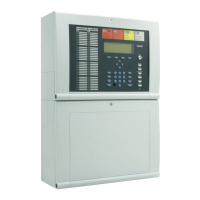
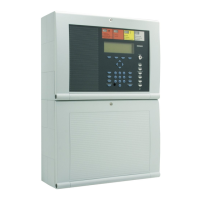
IFP-75/IFP-75HV
Addressable Fire Alarm Control Panel
Installation/Operation Manual
Document LS10147-001SK-E Rev: D
06/25/2021 ECN: 3220
Farenhyt™ Series

Table of Contents

Questions and Answers

  • A
    Amanda YangAug 18, 2025
    What to do if Honeywell Control Panel SLC devices are not being recognized and displays 'Missing' on the annunciator?
    • P
      paul18Aug 18, 2025
      Check that the SLC loop impedance is within the required range. To measure impedance, use the following procedure. Disconnect both wires from the terminal block at the panel (SLC devices can remain connected). Measure the impedance from positive to negative and from negative to positive. Both measurements should be greater than 500 K ohms. If the installation uses T-taps, test each T-tap individually. Temporarily connect the positive wire to the negative wire of the SLC loop at the point farthest from the panel (SLC devices can remain connected). Measure the impedance from positive to negative and from negative to positive. Both measurements must be less than 40 ohms.
  • J
    John NguyenAug 25, 2025
    Why does the Honeywell Control Panel display a “DBL ADDR” (Double Address) trouble message?
    • D
      Derrick WhiteAug 25, 2025
      The “DBL ADDR” message on the Honeywell Control Panel indicates that an address has been assigned to more than one detector. Correct the address following the procedure described in Section 7.7 for SK & IDP devices or Section 7.9 for SD devices.
  • S
    Sarah RogersAug 30, 2025
    How to correct incorrect polarity on Honeywell Control Panel auxiliary power or notification circuits?
    • L
      Linda KellyAug 31, 2025
      To correct polarity on notification and auxiliary power circuits: When in alarm or powered, terminals labeled “X” are positive, terminals labeled “O” are negative.
  • M
    Michael RobinsonNov 5, 2025
    What to do if SLC devices are not being recognized on the Honeywell Control Panel?
    • K
      Kimberly MillerNov 5, 2025
      If SLC devices are not being recognized, start by checking the hardware connections to ensure they are correctly wired as described in Section 7.6. Specifically, for the main panel, verify that the positive side of the device is connected to terminal 34 and the negative side to terminal 33. For SLC devices, ensure they connect to the SLC loop via the SLC OUT terminals. Also, make sure SLC devices have been addressed properly following the procedure described in Section 7. For contact monitor modules, which are addressed using DIP switches, the DIP switch must be set to the correct address before power is applied to the SLC loop. If this procedure is not followed, the device will have an incorrect address. Finally, confirm that correct polarity has been observed for SLC device wiring. See S...
  • D
    Dr. Peter WalkerNov 11, 2025
    How to fix Honeywell IFP-75 Control Panel when the 5496 module is not being recognized?
    • A
      Anne SuttonNov 11, 2025
      If the 5496 module is physically connected to the Honeywell Control Panel but isn't recognized, first check the status of the 5496 green LED. If it flashes in a pattern of 0.5 seconds on and 0.5 seconds off, the 5496 likely hasn't been added to the system through programming. JumpStart will add any 5496s connected to the panel. If you've already run JumpStart, 5496s can be added manually (see Section 8.2.2). Verify that the correct ID for the 5496 module has been set using the DIP switches, assigning ID#1 to the first 5496 and ID#2 to the second 5496. See Section 4.11.1 for complete details. If the wiring between the 5496 and the panel is correct, measure the voltage from 5496 Terminal (+) to Terminal (-). Voltage should be in the range 27.2-27.4V when AC power is present. If the green LED...

Summary

Appendix E: Panel Security

Security and Data Protection

Outlines essential cyber security tasks and data protection measures for panel installation.

Section 1: Introduction

1.1 Overview of Basic System

Details system hardware, network capabilities, software features, and compatible modules.

1.3 Compatible Products

Lists all compatible devices and modules for the IFP-75 system.

Section 3: Prerequisites for Installation

3.4 Electrical Specifications

Details terminal descriptions and electrical ratings for the IFP-75, crucial for wiring.

3.5 Wiring Specifications

Provides guidelines to prevent induced noise and ensure proper wiring connections for system reliability.

Section 4: Control Panel Installation

4.1 Mounting the Control Panel Cabinet

Instructions for physically mounting the control panel cabinet, including preventing water damage.

4.2 AC Connection

Details the procedure for connecting the control panel to the AC power source safely.

4.3 Battery Power

Explains how to connect batteries for system backup power, emphasizing safety and polarity.

4.5 RA-100 Remote Annunciator Installation

Provides instructions for mounting and connecting the RA-100 remote annunciator.

Section 7: IDP, SK, SD and SWIFT SLC Device Installation

7.6 Wiring Requirements for SLC Devices

Details wire sizing and requirements for IDP and SK SLC modules, including Class A/X configurations.

7.7 Addressing IDPSLC Devices

Explains the procedure for addressing IDP SLC devices using rotary dials.

Section 8: Programming Overview

8.1 JumpStart Auto-Programming

Describes the automated programming feature for faster system setup and device configuration.

8.2 Mapping Overview

Explains the concept of mapping input points to zones and output points to groups for event activation.

Section 9: Programming

9.3 Zone

Covers editing zone names, properties, and viewing zone points for system configuration.

9.6 System Options

Explains how to customize options for communication, sensitivity, holidays, and time settings.

Section 10: System Operation

10.4 Basic Operation

Guides users through fundamental operations like setting time/date and disabling/enabling points.

10.6 Panel Operation Mode Conditions

Details the seven operating modes (Normal, Alarm, Trouble, etc.) and system behavior in each.

Section 11: Reporting

11.1 Receivers Compatible with the Control Panel

Lists compatible receivers and reporting formats for SIA and Contact ID.

Section 12: Testing and Troubleshooting

12.2 Troubleshooting Common Problems

Provides solutions for common issues like incorrect polarity, missing SLC devices, and unrecognized modules.

12.3 Built-in Troubleshooting and Testing Tools

Introduces tools like SLC Device Locator and Multi Locator for testing and troubleshooting SLC devices.

Appendix A: Compatible Devices

A.1 Notification Appliances

Lists compatible notification appliances, including audio, visual, and type specifications.

A.2 Two-Wire Smoke Detectors

Lists compatible two-wire smoke detectors and their specifications per loop.

Honeywell IFP-75 Specifications

General IconGeneral
ModelIFP-75
TypeFire Alarm Control Panel
DisplayLCD
Zones75
Voltage24VDC
Operating Temperature32°F to 120°F (0°C to 49°C)
Humidity Range10% to 93% non-condensing
MountingWall Mount
Power Supply120VAC, 60Hz
Communication ProtocolsProprietary protocol
Signaling Line Circuits (SLCs)1
CompatibilityCompatible with Honeywell devices
CertificationsUL, CSFM
Notification Appliance Circuits (NACs)4

Related product manuals