EasyManua.ls Logo

Honeywell SUITEPRO TB8575 - User Manual

Honeywell SUITEPRO TB8575
20 pages
Print Icon
To Next Page IconTo Next Page
Loading...
INSTALLATION INSTRUCTIONS
62-0278—13
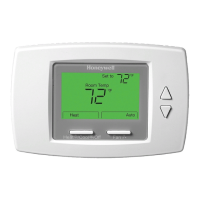
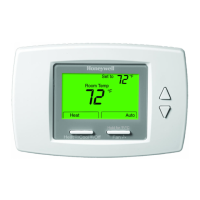
TB6575/TB8575 SuitePRO™
Digital Fan Coil Thermostats
PRODUCT DESCRIPTION
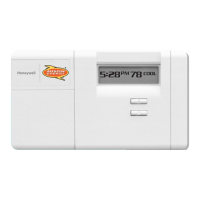
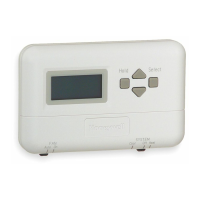
The SuitePRO™ is a family of digital fan coil thermostats
for residential and commercial applications such as
hotels, condominiums, school classrooms, etc.
Four models are available for your application:
TB6575A1000:
2-pipe or 4-pipe with seasonal/manual/
automatic heat/cool changeover; 120/240 Vac.
TB6575B1000: 2-pipe only with seasonal or manual
heat/cool changeover; 120/240 Vac.
TB6575C1000: 2-pipe or 4-pipe with seasonal/manual/
automatic
heat/cool changeover; 120/240/277 Vac.
TB8575A1000: 2-pipe or 4-pipe with seasonal heat/
cool changeover; 24Vac.
All four models are suitable for multiple applications.
Changes in output wiring and external links between
wiring terminals allow you to configure the thermostat for
the appropriate application.
The applications that are available are:
Heating or cooling only
Two pipes: heat or cool with manual changeover
Two pipes: heat or cool with seasonal changeover
(requires optional pipe sensor)
Two pipes: heat or cool with auxiliary heat and manual
or seasonal changeover (requires optional pipe
sensor)
Four pipes: mixed manual and auto changeover
Four pipes: manual changeover
Four pipes: auto changeover
The fan is controlled from the thermostat. The low,
medium, high, or auto fan settings are easily made with a
press of a key.
Valves and auxiliary electric heaters can be controlled using
a relay or contactor controlled by the system switch.
FEATURES
Simple, intuitive user interface.
Pre-installed lead wires for fast installation
(TB6575A, TB6575B and TB6575C models only)
Backlight display permits easy viewing in any
light.
Four buttons allow manual control of system
operation, fan speed, and temperature setpoint
adjustment.
Digital display of ambient temperature, setpoint,
heating or cooling mode, fan status, and remote
setback
Proportional plus Integral (P+I) control algorithm
for precision temperature regulation.
Single Setpoint and Heat/Cool setpoint methods
for 4-pipe Auto Changeover.
Adjustable maximum heating and minimum
cooling setpoint limits using range stops.
EEPROM permanently retains user settings,
including setpoints, during power loss (no
batteries required).
Selectable °C or °F display via Setup button on
thermostat.
Displayable pipe sensor temperature readout to
aid in troubleshooting.
Selectable to allow the fan motor to always begin
on high speed to ensure sufficient torque at
startup.
Option to wire a remote indoor temperature
sensor.
Freeze protect algorithm turns on heat when
needed.
Economy Setback options via dry contact or
Activity Sensing
Advanced fan control with VersaSpeed
TM
fan
ramp algorithm and Auto Fan Reset

Questions and Answers

  • P
    Patricia ParkerAug 20, 2025
    What to do if heating or cooling does not come on with Honeywell SUITEPRO TB8575?
    • S
      sheila61Aug 20, 2025
      If your Honeywell Thermostat is calling for heat or cool, but nothing is happening, the heating or cooling equipment might not be working. Check the wiring and make sure the System Type setting matches your equipment using Installer Setup code #2. You can also test the equipment in Installer Test mode.
  • A
    Adam CharlesAug 22, 2025
    Why Honeywell SUITEPRO TB8575 display does not come on?
    • A
      Amanda SimpsonAug 22, 2025
      If your Honeywell Thermostat display does not come on, the thermostat may not be getting power. For TB6575A/B/C models, check for 120/240/277 Vac between L and N. For TB8575A models, check for 24 Vac between R and C.
  • Y
    Yolanda JonesAug 25, 2025
    What to do if heat does not turn on with Honeywell SUITEPRO TB8575 Thermostat?
    • S
      Sophia PierceAug 25, 2025
      If the heat does not turn on, but “Heat On” is solid on your Honeywell Thermostat display, it could be due to heating equipment failure or a loose/broken wire. * For TB6575A/B/C: Check for 120/240/277 Vac at the equipment between power and common (L and N terminals), and between the heat (W) and common (N) terminals. If voltage is present, the thermostat is functional. * For TB8575A: Check for 24 Vac at the equipment on the secondary side of the transformer between power and common (R and C terminals), and between the heat terminal (W) and transformer common. If voltage is present, the thermostat is functional. If voltage is not present, check the wire connection between the thermostat and the heating equipment.
  • M
    Mike BeckAug 26, 2025
    What to do if cooling does not turn on with Honeywell SUITEPRO TB8575?
    • A
      Andrew BakerAug 26, 2025
      If the cool does not turn on, but “Cool On” is solid on your Honeywell Thermostat display, it could be due to cooling equipment failure or a loose/broken wire. * For TB6575A/B/C: Check for 120/240/277 Vac at the equipment between power and common (L and N terminals), and between the cool (Y) and common (N) terminals. If voltage is present, the thermostat is functional. * For TB8575A: Check for 24 Vac at the equipment on the secondary side of the transformer between power and common (R and C terminals), and between the cool terminal (Y) and transformer common. If voltage is present, the thermostat is functional. If voltage is not present, check the wire connection between the thermostat and the cooling equipment.
  • A
    Audrey SimsAug 27, 2025
    Why are both heating and cooling running on Honeywell SUITEPRO TB8575 Thermostat?
    • B
      Brian ChavezAug 27, 2025
      If both the heating and cooling equipment are running at the same time with your Honeywell Thermostat, it could be due to an incorrect System Type selection or shorted wires. Check that the Installer Setup code #2 (System Type) value matches the installed heating and/or cooling equipment. Also, separate any shorted heating and cooling wires.
  • D
    Donna BrooksAug 29, 2025
    Why is Honeywell Thermostat heating in cool mode?
    • D
      Donald BoydAug 29, 2025
      If the heating equipment is running in the Cool mode with your Honeywell Thermostat, the System Type is likely configured incorrectly. Verify that the Installer Setup code #2 (System Type) value matches the installed heating and/or cooling equipment.
  • D
    Daniel MunozAug 31, 2025
    Why Honeywell SUITEPRO TB8575 is not turning off?
    • S
      Shelley Gillespie MDAug 31, 2025
      If the heating equipment does not turn off and the heat temperature setting is below room temperature (Heat On is not in the display) for your Honeywell Thermostat, the System Type might be configured incorrectly. Check that the Installer Setup code #2 (System Type) value matches the installed heating and/or cooling equipment.
  • K
    Kyle RodriguezSep 2, 2025
    Why is remote sensor not displaying temperature on Honeywell SUITEPRO TB8575?
    • M
      mhoffmanSep 2, 2025
      If the remote sensor on your Honeywell Thermostat is not displaying temperatures, it could be due to an incorrect IS code or an incompatible sensor. Set the Installer Setup code #4 to Remote (value = 1). Also, ensure that the remote sensor is a TR21 or a compatible 20K NTC.
  • B
    bensonjuliaSep 4, 2025
    Why doesn't the fan turn on with heat on Honeywell Thermostat?
    • R
      Raymond GarciaSep 4, 2025
      If the fan does not turn on when your Honeywell Thermostat is calling for heat, there may be a wiring or connection issue. Check the wiring and ensure the connection is correct.
  • W
    williamjensenSep 6, 2025
    Why is 'Heat On' not showing on Honeywell SUITEPRO TB8575?
    • E
      Eric BensonSep 6, 2025
      If “Heat On” is not displayed on your Honeywell Thermostat, the System Type setting may not be set to Heat, or the temperature setting is not set above the room temperature. Set the Installer Setup code #2 to Heat and ensure the temperature setting is above the current room temperature.

Summary

Installation

Wiring and Connections

Instructions for connecting the thermostat's wiring to the HVAC system.

Terminal Wiring

Wiring Diagrams

120;240;277 Vac Diagrams (TB6575 A;B;C)

Illustrates typical wiring for higher voltage models based on application.

Installer Setup (IS) Mode

Installer Setup (IS) Codes and Options

Line Voltage and System Type Configuration

Settings for line voltage selection and configuring the HVAC system type.

Installer Setup (IS) Codes and Options (Continued)

Setpoint and Deadband Settings

Adjusts CPH, deadband, and setpoint range limits for precise control.

Installer Test (IT) Mode

IT Codes and Options

Lists diagnostic test codes for controls, sensors, and software versions.

Troubleshooting

Display, Settings, and Control Issues

Addresses problems with display, temperature settings, keypad lockout, and basic heating/cooling control.

Equipment and Wiring Issues

Covers troubleshooting for heating/cooling equipment failure, wiring faults, and simultaneous operation.

Troubleshooting (Continued)

Fan, Mode, and Sensor Issues

Solves problems related to fan operation, incorrect mode selection, and sensor readings.

Honeywell SUITEPRO TB8575 Specifications

General IconGeneral
ModelTB8575
DisplayTouchscreen
Wi-Fi CapabilityYes
Programming7-Day Programmable
Voltage24VAC
Power Source24VAC (Common wire required)

Related product manuals