2 Swipe down from the status bar to open the notication panel, then touch to turn on
Wi-Fi.
3 Swipe down further on the notication panel to enable Wireless Projection. Your device
will now search for the external display or the wireless HDMI adapter.
Alternatively, go to Settings > More connections > Easy Projection and enable
Wireless Projection.
4 Touch the name of the external display or the wireless HDMI adapter on the search result
list to start projecting.
Wired Projection
You can connect your device to an external display (for example, a TV) using a wired
connection.
It is recommended that you purchase the accessories recommended or specied by Huawei
from authorised sources.
Projection Using a Type-C Cable
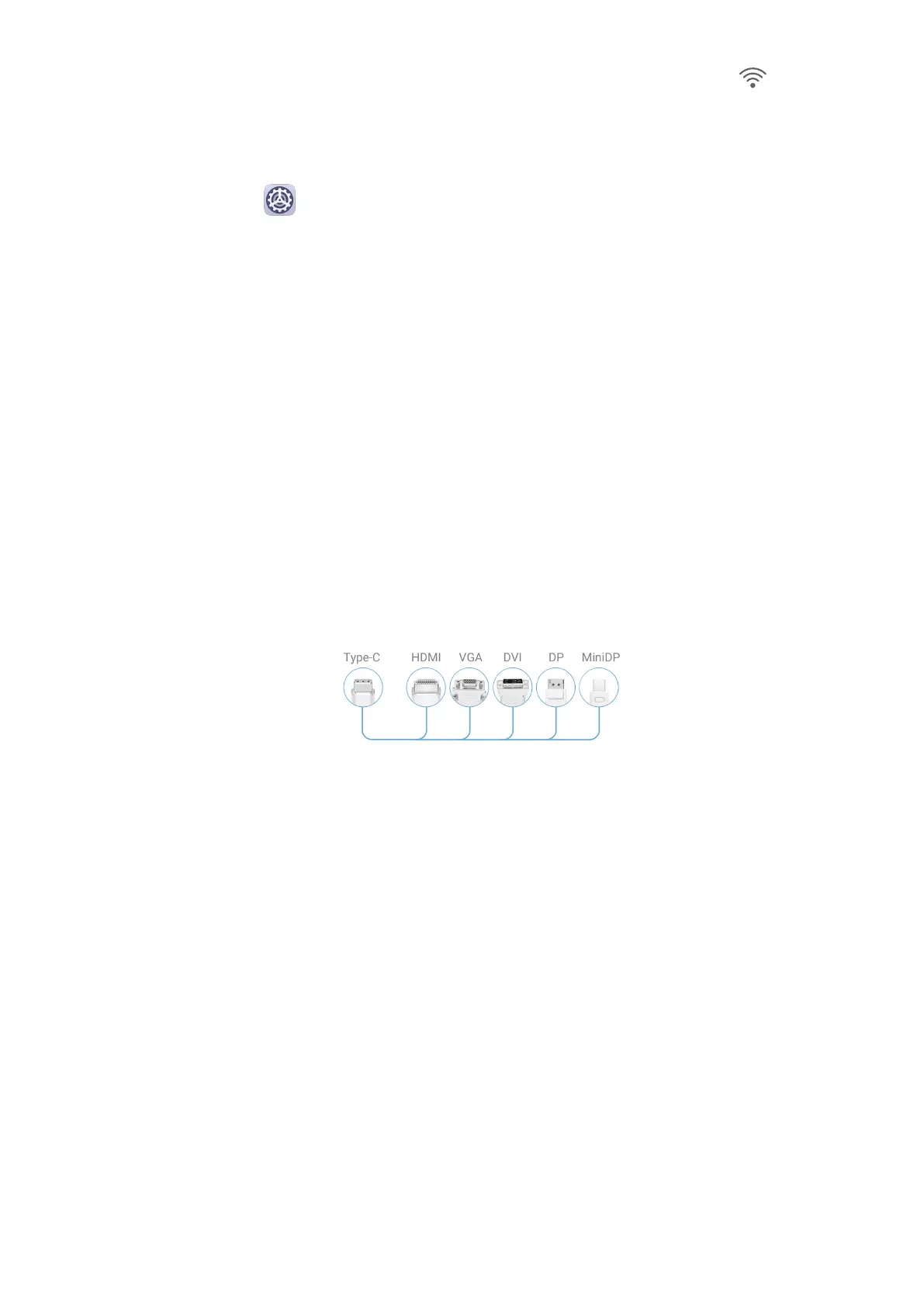
1 Prepare a Type-C cable.
Use a Type-C to HDMI, Type-C to DP, or Type-C to MiniDP cable depending on your
external display.
2 Connect the Type-C end to your device and the other end to the external display.
Settings
100



 To Next Page