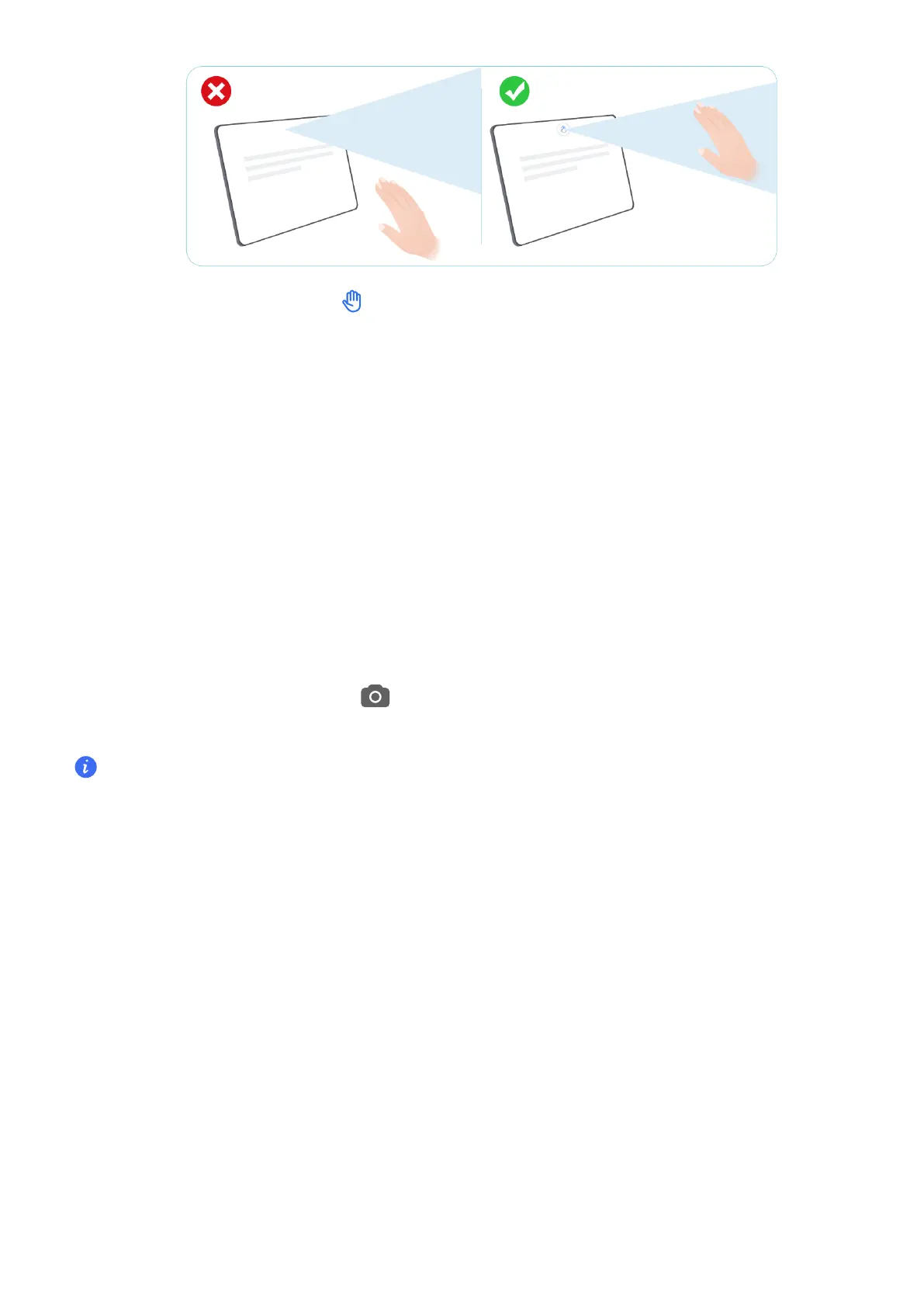
3 Please your palm when icon appears.
4 Please make sure to turn your palm 180 degrees.
Enable Frequently Used Features of the App Fast
Access Frequently Used App Features from the Home Screen
You can access frequently used features of apps from app icons on the home
screen, and even add for these features to the home screen.
Quickly Access Frequently Used App Features
Touch and hold an app icon until a pop-up menu is displayed, then touch a frequently used
feature to access it.
For example, touch and hold the
icon, then touch a shooting mode, such as or
Video, from the pop-up menu to access it.
If no pop-up menu is displayed after you touch and hold an app icon, it indicates that the app
does not this feature.
Add Frequently Used App Features to the Home Screen
Touch and hold an app icon on your home screen to bring up the pop-up menu. Touch and
hold the desired feature and drag it to your home screen to create a
Screenshot and Screen Recording
Take a Screenshot
Use Your Knuckle to Take a Screenshot
1 Go to Settings > Accessibility features > Shocuts & gestures > Screenshot/Global
Favorites, and ensure that Knuckle screenshots is enabled.
2 Knock the screen twice in quick succession with one knuckle to take a screenshot.
Tips
59



 To Next Page