APP INSTRUCTION
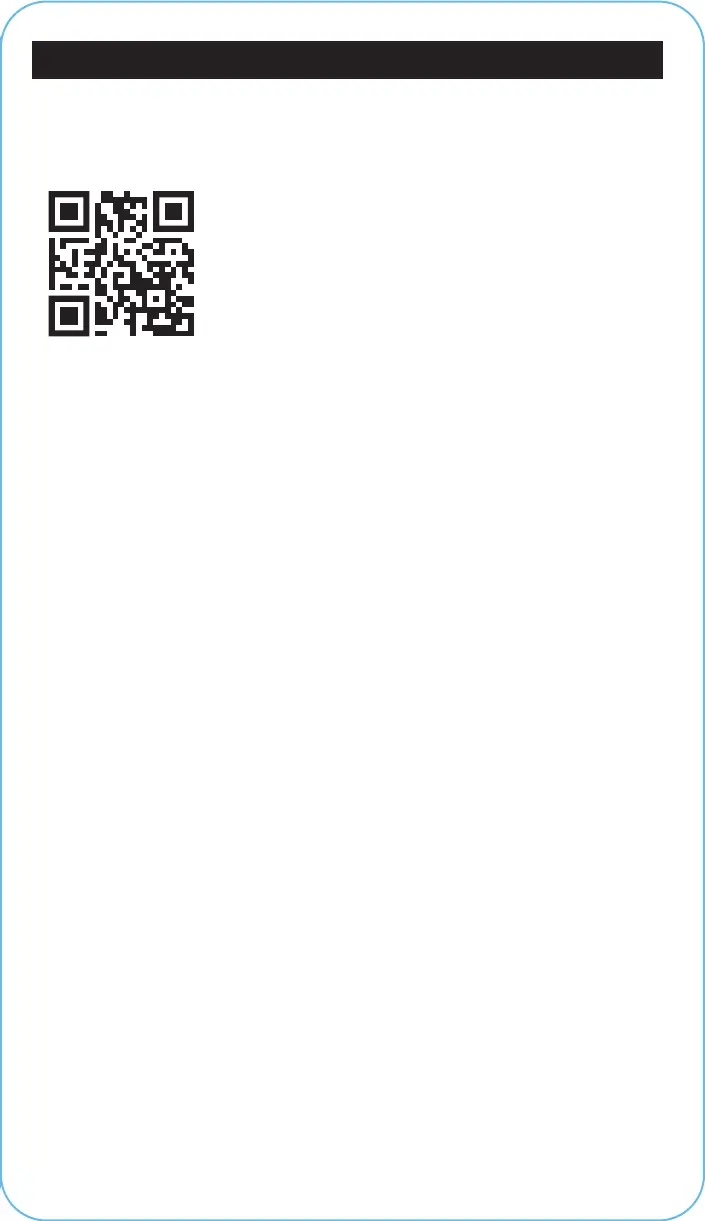
• Scan the QR code to download the Hover-1 EMobility App.
CONNECT THE HELIOS TO THE APP
DISCONNECT THE HELIOS FROM THE APP
• Open the app and select “Sign Up” or “Log In”.
• Complete any app updates that are needed.
• Select the gear icon in the top right corner of the Helios product screen.
• Click “Remove Device” at the bottom of the screen.
• Click “Disconnect and wipe data”, then “Conirm” to remove the Helios
from the app product panel.
• Click the button on the top right hand corner (+) to add the Helios.
• Select “Auto Scan” at the top of the screen and turn on your Helios.
• Select “Enable Bluetooth”, and then click “Start Scanning”.
• After searching, Helios should appear. Click “Next”.
• Once the connection is established, Helios will automatically be
added to the home page.
• Click “Done”.
QR CODE
PLACEMENT
19



 To Next Page