Using Digital Media
Using Digital Media 71
Using context buttons
Pressing a context button causes an action specific to
the current digital media menu or item. The button
function appears at the bottom of the screen.
Generally:
■ Red starts play or rotates a photo.
■ Green opens the listing as a list or as thumbnails,
or shuffles play.
■ Yellow opens the Search panel.
■ Blue adds the item to Favorites.
Searching
You can search by these criteria for the search type:
■ Photos: Name, Date, Keyword
■ Videos: Title, Actor, Date
■ Music: Artist, Album, Song
1 In the Photos, Videos, or Music media lists, press
the Yellow context button to open a search panel.
2 Enter the search criteria using the onscreen
keyboard for entries. To use the onscreen
keyboard:
■ Press the Arrow buttons on the remote control
to select an item, and then press OK to enter it.
Or
■ Press a number button on the remote control as
needed to scroll through and select a
character, and then press Enter.
The search criteria you enter is not case sensitive.
Also, the search criteria can be a single character
or a partial word.
To change the Search By criteria, press the Green
context button.
3 Click the OK button to conduct the search.
4 Press the Back button to go back to the original
screen.
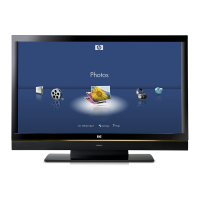
Viewing Photos
1 Press the Media button on your remote control to
open the main digital media menu.
2 Press an Arrow button to select Photos, and then
press OK.
3 Press an Arrow button to select a listing option,
and then press OK. You can see photos by these
listings:
■ All Photos
■ Keywords
■ Date
■ Playlists
■ Folders
■ Favorites
The screen shows your photos as thumbnail
images or as a list.
4 Press an Arrow button to select a photo. Press a
Channel button to show the next page of photos.
AB Next Press Next to jump to
the next item in music
or photos.
AC # Press # to enter the
pound sign.
AD 0 (space) Press 0 for the number
zero, or for a space.
AE Enter Press Enter to select or
perform an action on
the current media
selection, or after
entering a number.
Remote
button
Description
(Continued) Icon
#
0
Enter
CC
Aspect
SAP
Fav


 To Next Page
 Loading...