EasyManua.ls Logo

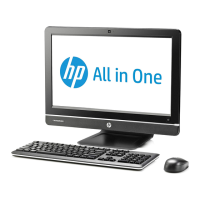
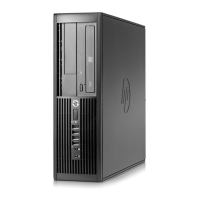
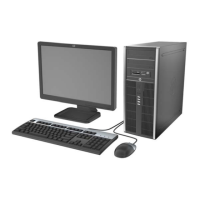
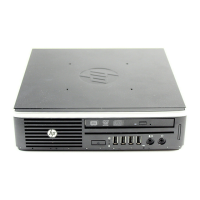
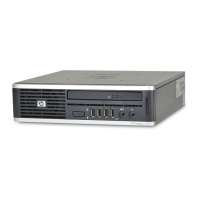
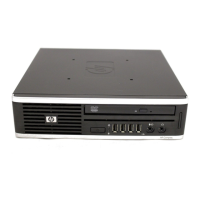
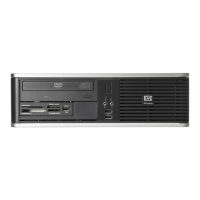
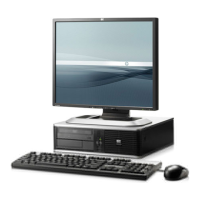
HP Compaq Pro 4300 - User Manual

HP Compaq Pro 4300
177 pages
Print Icon
To Next Page IconTo Next Page
Loading...
Maintenance and Service Guide
HP Compaq Pro 4300 Small Form Factor
Business PC

Table of Contents

Other manuals for HP Compaq Pro 4300

Questions and Answers

  • D
    David WilliamsSep 18, 2025
    Why won't the arrow keys move the cursor on my HP Desktop?
    • T
      trodriguezSep 18, 2025
      If the cursor will not move using the arrow keys on the keypad of your HP Desktop, press the Num Lock key. This is because the Num Lock key is turned on.
  • S
    Sharon ThomasSep 18, 2025
    How to troubleshoot when my HP Desktop doesn't recognize a drive?
    • C
      Cody WilliamsSep 18, 2025
      If your HP Desktop drive is not found (identified), check cable connections. If this is a newly installed drive, run the Computer Setup utility and try adding a POST delay. Run the Computer Setup utility and ensure Device Available is selected for the device's SATA port. This can happen if the cable is loose or the system has not automatically recognized a newly installed device.
  • P
    Paul LynnSep 23, 2025
    Why is my USB device not recognized by my HP Compaq Pro 4300?
    • S
      sampsondavidSep 23, 2025
      If a USB device, headphone, or microphone is not recognized by your HP Desktop, reconnect the device to the front of the computer and restart the computer. If the USB device requires AC power, be sure one end is connected to the device and one end is connected to a live outlet. Install the correct driver for the device. This can happen if the device is not properly connected, does not have power, or the correct device driver is not installed.
  • F
    Franklin WilliamsSep 23, 2025
    What does 'Nonsystem disk/NTLDR missing' mean on my HP Compaq Pro 4300 Desktop?
    • R
      Raymond FlowersSep 23, 2025
      If you see a Nonsystem disk/NTLDR missing message on your HP Desktop, perform Drive Protection System (DPS) testing in system ROM. Insert bootable media and restart the computer. This can happen if the system is trying to start from the hard drive, but the hard drive may have been damaged.
  • A
    Ashley MccartySep 23, 2025
    How to eject a stuck CD from my HP Compaq Pro 4300?
    • T
      Tyler PorterSep 23, 2025
      If you cannot eject a compact disc (tray-load unit) from your HP Desktop, turn off the computer and insert a thin metal rod into the emergency eject hole and push firmly. This can happen if the disc is not properly seated in the drive.
  • T
    Teresa LandryDec 1, 2025
    Why is my HP Compaq Pro 4300 performing so poorly?
    • A
      Ashley HawkinsDec 1, 2025
      If your HP Desktop is performing poorly, ensure airflow to the computer is not blocked. Also, make sure fans are connected and working properly, and that the processor heat sink is installed correctly. If the hard drive is full, transfer data to create more space. If memory is low, add more memory. Defragment the hard drive if it is fragmented. Restart the computer if a previously accessed program did not release reserved memory. Run a virus protection program if there is a virus. Close unnecessary applications to free up memory. Some applications run in the background and can be closed by right-clicking on their icons in the task tray. To prevent these applications from launching at startup, use msconfig. This can happen because the processor is too hot, the hard drive is full or fragment...
  • M
    Michelle BellDec 1, 2025
    Why won't my HP Desktop turn on, and no lights are flashing?
    • J
      Joy ZamoraDec 1, 2025
      If the HP Desktop system does not power on and the LEDs on the front of the computer are not flashing, press and hold the power button for less than 4 seconds. If equipped with a voltage selector, check that the voltage selector is set to the appropriate voltage. Remove the expansion cards one at a time until the 5V_aux light on the system board turns on. Replace the system board. Check that the unit is plugged into a working AC outlet. Open the access panel and check that the power button cable is properly connected to the system board. Check that the power supply cables are properly connected to the system board. Check to see if the 5V_aux light on the system board is turned on. If it is turned on, then replace the power button assembly. If the 5V_aux light on the system board is off, th...
  • K
    Kimberly AlvarezAug 23, 2025
    What to do if my HP Compaq Pro 4300 Desktop computer appears locked up?
    • T
      Tamara LawrenceAug 23, 2025
      If your HP Desktop appears locked up and won't turn off when you press the power button, it could be due to a software control issue. Try pressing and holding the power button for at least four seconds until the computer turns off. Alternatively, disconnect the power cord from the electrical outlet.
  • J
    Joel Byrd DVMSep 8, 2025
    How to fix a hard drive error on my HP Compaq Pro 4300 Desktop?
    • C
      cohenmarissaSep 8, 2025
      If a hard drive error occurs on your HP Desktop, it may be due to bad sectors or a failed hard disk. In Windows 7, click Start, click Computer, and right-click on a drive. Select Properties, and then select the Tools tab. Under Error-checking click Check Now. In Windows 8, on the Start screen type e, and then select File Explorer from the list of applications. In the left column, expand Computer, right-click on a drive, select Properties, and then select the Tools tab. Under Error checking click Check.
  • C
    Cynthia PetersonSep 7, 2025
    How to fix incorrect date and time on my HP Desktop?
    • D
      Deborah FieldsSep 7, 2025
      If the date and time display on your HP Desktop is incorrect, the RTC (real-time clock) battery may need replacement. Reset the date and time under Control Panel (Computer Setup can also be used). If the problem continues, replace the RTC battery.

Summary

Maintenance and Service Guide

HP Compaq Pro 4300 Small Form Factor Business PC

Identifies the specific computer model covered by the guide.

About This Book

Document Notations (WARNING, CAUTION, NOTE)

Explains document symbols for warnings, cautions, and notes.

1 Product Features

Standard Configuration Features

Describes the standard hardware and software features of the computer.

Front Panel Components

Details the components and ports located on the front of the computer.

Rear Panel Components

Details the components and ports located on the rear of the computer.

Serial Number Location

Explains where to find the unique serial and product ID numbers for the computer.

2 Activating and Customizing the Software

Software Setup for Windows 7

Guides on activating and customizing software for Windows 7.

Software Setup for Windows 8

Guides on activating and customizing software for Windows 8.

3 Computer Setup (F10) Utility

Computer Setup Utility Overview and Access

Lists functions and how to access the F10 Utility.

Computer Setup Options: File, Storage, Security, Power, Advanced

Details various configuration categories within the F10 utility.

Recovering Configuration Settings

Guides on saving and restoring system configuration settings.

4 Serial ATA (SATA) Drive Guidelines and Features

SATA Drive Characteristics and SMART Technology

Provides SATA drive specs and explains SMART ATA drives.

5 Identifying the Chassis, Routine Care, and Disassembly Preparation

Chassis Identification and ESD Prevention

Identifies chassis types and explains electrostatic discharge prevention.

Grounding, Operating, and Routine Care Guidelines

Covers work area grounding, operating, and routine care procedures.

Component Cleaning Procedures

Details cleaning procedures for the computer case, monitor, and mouse.

Service Considerations and Battery Information

Covers service considerations and details about the lithium coin cell battery.

6 Illustrated parts catalog

Spare Parts Catalog Overview

Introduces the section detailing available spare parts for the computer.

Major Component Spare Parts List

Lists major computer components and their spare part numbers.

Sequential Part Number Listing

Provides spare parts listed sequentially by part number.

7 Removal and Replacement Procedures Small Form Factor (SFF) Chassis

Disassembly Preparation and Basic Panel Removal

Prepares for disassembly and covers access panel and front bezel removal.

Installing Additional Memory and DIMM Specifications

Guides on installing memory and DIMM compatibility.

Expansion Card Installation and Removal

Procedures for installing or removing expansion cards.

Cable Management Guidelines

Best practices for routing and managing internal computer cables.

Drive Installation and Removal Procedures

Introduces the section on installing and removing various types of drives.

Removing and Installing Internal Drives

Guides for removing 5.25-inch and 3.5-inch drives.

Installing Optical Drives

Instructions for installing optical drives into a 5.25-inch bay.

Removing Internal 3.5-inch Drives

Procedure to remove a 3.5-inch internal drive.

Installing Drives into 3.5-inch Bays

Steps to install drives into the 3.5-inch internal bay.

Primary Hard Drive Replacement

Detailed guide for replacing the main SATA hard drive.

Baffle, Fan, and I;O Assembly Removal

Details removal of baffle, fan, and front panel I/O assembly.

Speaker and Heat Sink Removal

Instructions for removing speaker and heat sink components.

Processor Removal and Installation

Detailed guide for replacing the computer's processor.

Power Supply Removal and Replacement

Instructions for replacing the computer's power supply unit.

System Board Removal and Replacement

Guides on replacing the computer's system board.

Battery Replacement Procedures

Information about the computer's internal battery and replacement steps.

Tower Orientation and Security Lock Installation

Covers tower orientation and installing security locks.

Cable Lock and Padlock Installation

Details the installation of security cable locks and padlocks.

Front Bezel Security

How to install a security screw to lock the front bezel.

A Power Cord Set Requirements

General and Country-Specific Power Cord Requirements

Specifies general requirements for power cords applicable to all countries.

B POST Error Messages

Understanding POST Errors and Codes

Explains error codes, messages, and indicators during Power-On Self-Test (POST).

Interpreting Front Panel LEDs and Audible Codes

Guides on understanding front panel LED and audible error codes during POST.

C Troubleshooting Without Diagnostics

Safety, Pre-Support Checks, and Helpful Hints

Outlines safety, pre-support checks, and general troubleshooting tips.

Solving General Problems

Addresses common issues like system lockups, power button problems, and cursor movement.

Solving Power Problems

Common causes and solutions for intermittent power supply issues.

Solving Hard Drive Problems

Addresses hard drive errors, bad sectors, and detection problems.

Solving Media Card Reader Problems

Troubleshooting for media card recognition and write protection.

Solving Display Problems

Addresses blank screens, bad monitors, and incorrect cable connections.

Solving Audio Problems

Troubleshooting for sound cutting out or low volume issues.

Solving Printer Problems

Addresses common printer issues like not printing or garbled output.

Solving Keyboard and Mouse Problems

Troubleshooting for input devices and unrecognized commands.

Solving Hardware Installation Problems

Addresses issues with new hardware not being recognized or configured.

Solving Network Problems

Addresses Wake-on-LAN functionality and network controller detection.

Solving Memory Problems

Discusses issues related to memory installation and insufficient memory.

Solving Processor Problems

Addresses processor performance issues and seating problems.

Solving CD-ROM and DVD Problems

Troubleshooting for boot issues and media detection problems.

Solving USB Flash Drive Problems

Addresses USB flash drive recognition and boot issues.

Solving Front Panel Component Problems

Troubleshooting for USB devices, headphones, and microphones not recognized.

Solving Internet Access Problems

Addresses issues with connecting to the Internet, ISP, and browser setup.

Solving Software Problems

Troubleshooting for application installation, conflicts, and driver issues.

D HP PC Hardware Diagnostics

HP PC Hardware Diagnostics: Purpose and Access

Explains the purpose and how to run HP PC Hardware Diagnostics.

Downloading HP PC Hardware Diagnostics to a USB device

Instructions for downloading diagnostic tools to a USB drive.

E Backup and Recovery

Backup and Recovery Procedures for Windows 7

Procedures for backing up data and restoring the system in Windows 7.

System Restore and Recovery

How to create restore points and perform system recovery in Windows 7.

System Recovery Methods (Windows 7)

Details system recovery using recovery images or media.

Backup and Recovery Procedures for Windows 8

Guides on backing up files and performing system recovery in Windows 8.

Performing System Recovery in Windows 8

Overview of tools for system recovery in Windows 8.

Using Recovery Tools: Windows and F11

Explains Windows recovery tools and F11 recovery.

F Password Security and Resetting CMOS

Password Security and CMOS Reset Overview

Discusses computer password features and CMOS settings.

Resetting the Password Jumper

Procedure to clear passwords using the password jumper.

Clearing and Resetting the CMOS

Steps to clear and reset the computer's CMOS configuration.

G Drive Protection System (DPS)

Drive Protection System (DPS) Overview

Explains the DPS for diagnosing hard drive problems.

Accessing DPS Through Computer Setup

Guides on accessing and running the DPS diagnostic tool via Computer Setup.

H Specifications

Computer Hardware Specifications

Lists physical and environmental specifications for the computer.

Power Supply Specifications

Continues the listing of computer specifications, including power supply details.

HP Compaq Pro 4300 Specifications

General IconGeneral
Full HDNo
Panel typeTN
LED backlightYes
Display diagonal20 \
Display resolution1600 x 900 pixels
Native aspect ratio16:9
Tcase65.3 °C
Bus typeDMI
Processor cache3 MB
Processor cores2
Processor modeli3-3240
System bus rate5 GT/s
Processor familyIntel® Core™ i3
Processor seriesIntel Core i3-3200 Desktop Series
Processor socketLGA 1155 (Socket H2)
Processor threads4
Processor codenameIvy Bridge
Processor frequency3.4 GHz
Processor cache typeSmart Cache
Processor lithography22 nm
Processor manufacturerIntel
Processor front side bus- MHz
PCI Express slots version2.0
Processor operating modes64-bit
PCI Express configurations1x16, 2x8
Thermal Design Power (TDP)55 W
CPU multiplier (bus/core ratio)34
Memory types supported by processorDDR3-SDRAM
Memory channels supported by processorDual
Memory clock speeds supported by processor1333, 1600 MHz
Memory bandwidth supported by processor (max)25.6 GB/s
Maximum internal memory supported by processor32 GB
Product typeAll-in-One PC
Motherboard chipsetIntel® H61
Internal memory4 GB
Memory slots typeSO-DIMM
Memory clock speed1600 MHz
Maximum internal memory16 GB
Memory layout (slots x size)1 x 4 GB
HDD speed7200 RPM
HDD interfaceSATA
Storage mediaHDD
Optical drive typeDVD Super Multi
Total storage capacity500 GB
Compatible memory cardsSD
Autonomy mode-
Storage drive interfaceSerial ATA
On-board graphics card ID0x152
Discrete graphics card modelNot available
On-board graphics card modelIntel® HD Graphics 2500
On-board graphics card familyIntel® HD Graphics
On-board graphics card base frequency650 MHz
On-board graphics card dynamic frequency (max)1050 MHz
Number of displays supported (on-board graphics)3
RMS rated power4 W
Wi-Fi standardsNot supported
Ethernet LAN data rates10, 100, 1000 Mbit/s
Headphone outputs1
USB 2.0 ports quantity6
USB 3.2 Gen 1 (3.1 Gen 1) Type-A ports quantity0
Bundled softwareAdobe Flash Player\\r HP Marketplace\\r Bing\\r Microsoft Internet Explorer\\r PDF Complete Corporate Edition\\r WinZip Basic\\r Yahoo\\r Compre Office
Recovery operating systemWindows 8 Pro
Operating system installedWindows 7 Professional
Processor ARK ID65690
Processor package size37.5 x 37.5 mm
Supported instruction setsAVX, SSE4.1, SSE4.2
Thermal solution specificationPCG 2011C
Intel Secure Key Technology version0.00
Intel Identity Protection Technology version1.00
Product colorBlack
Country of originChina
Total megapixels1.3 MP
AC adapter power150 W
Operating temperature (T-T)5 - 35 °C
Operating relative humidity (H-H)15 - 80 %
Sustainability certificatesENERGY STAR
Weight and Dimensions IconWeight and Dimensions
Depth (with stand)220 mm
Width (with stand)507 mm
Height (with stand)406 mm
Weight (with stand)5730 g

Related product manuals