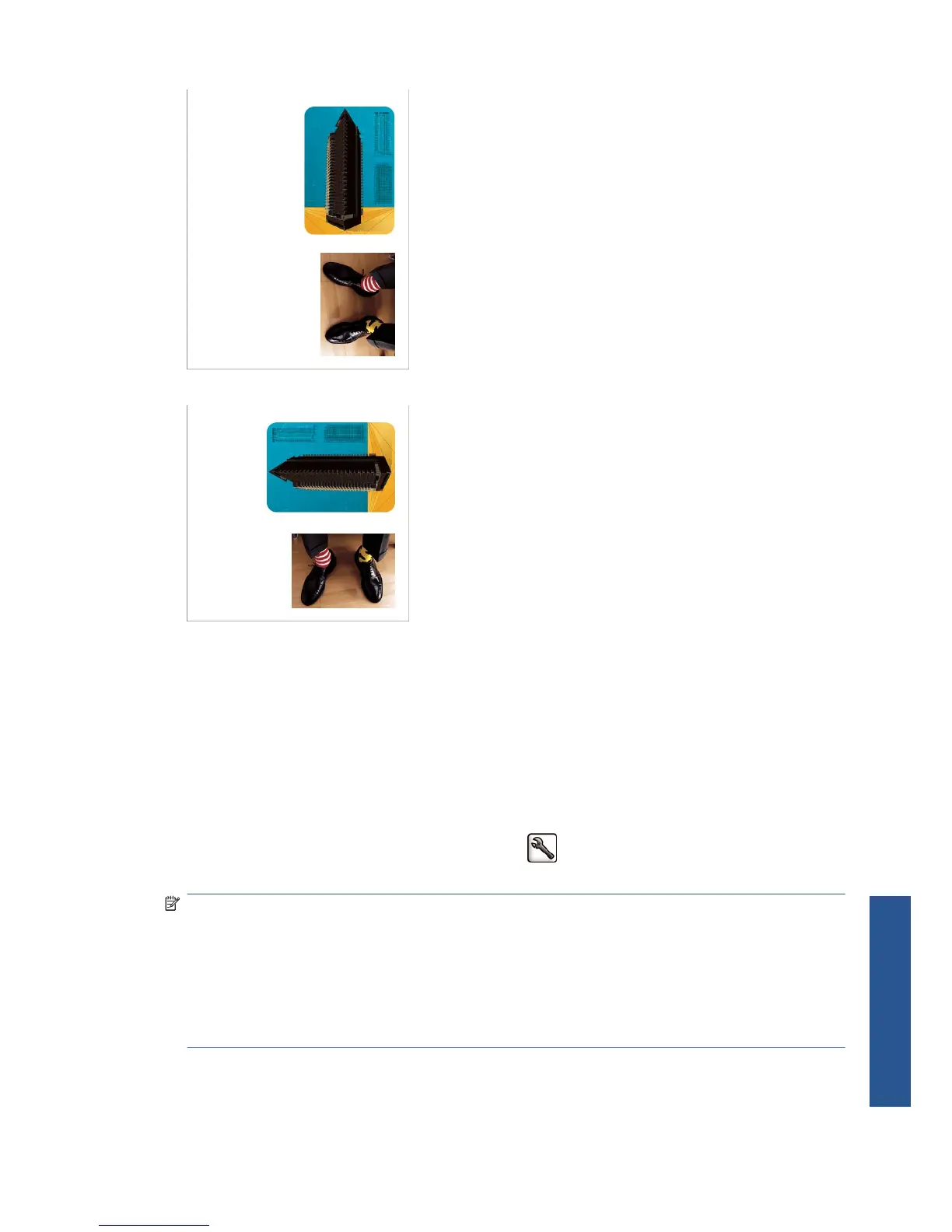
You may wish to rotate your images by 90 degrees in order to save paper, like this:
You can do this in the following ways:
●
In the Windows driver dialog: select the Features tab, then Rotate by 90 degrees.
●
In the Mac OS Print dialog (PCL3 driver): select the HP Print Preview and then Rotate by 90
degrees.
●
In the Mac OS Print dialog (PostScript driver): go to the Finishing panel and select Rotate
by 90 degrees.
●
On the Embedded Web Server's Submit Job page: select Advanced settings > Roll
options > Rotate.
●
In the front panel: select the Setup menu icon
, then Printing preferences > Paper >
Rotate.
NOTE: If rotation is set from your computer, it overrides the setting in the front panel.
NOTE: When you rotate a job, the page length may be increased to avoid clipping, because the top
and bottom margins are usually larger than the side margins.
NOTE: With either rolls or sheets, if you rotate an image to landscape whose original orientation
was portrait, the paper may not be wide enough for the image. For example, rotating a portrait D/A1-
size image on D/A1-size paper by 90 degrees will probably exceed the width of the paper. If you are
using the Embedded Web Server, the preview screen will confirm this with a warning triangle.
ENWW Rotate an image 55
Printing



 To Next Page