Entering the Service Calibrations Menu 155
Service Calibrations
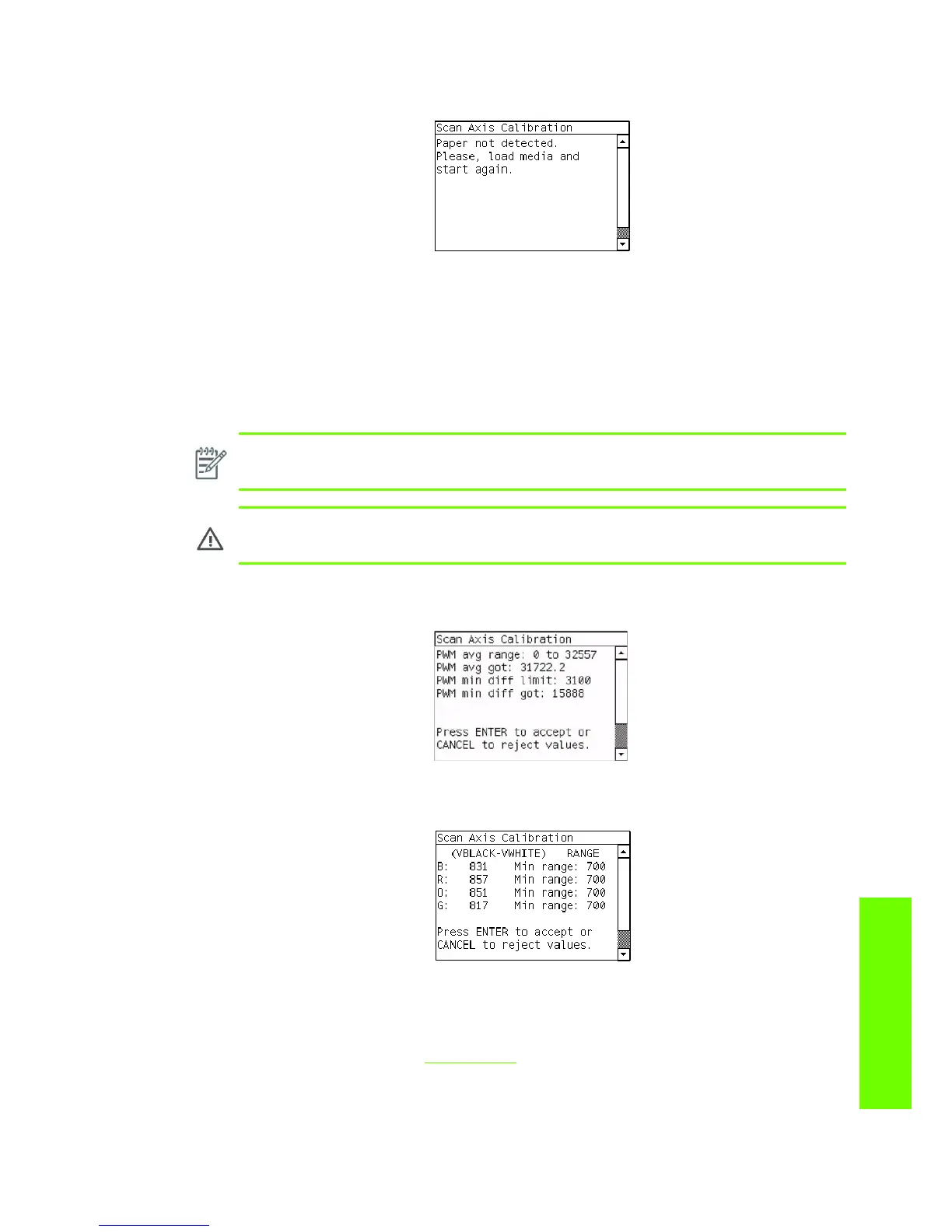
3. If media is not loaded, the following message appears on the front panel. Load media in to the
Printer and start again from step 1.
Before continuing, the Printer will check the following:
• The Media Lever is in the lowered position.
• The correct paper type is loaded (check list on previous page).
• The correct paper size (minimum paper size 24 inches).
If these conditions are not met, a warning will be displayed on the Front Panel and you will need to
restart the Calibration from step 1.
4. The Printer will start to check the PWM. Once the PWM has been checked, the results will be
displayed on the Front Panel. Press Enter to continue or press Back or Cancel to exit the
calibration.
5. The Printer will start to calibrate the Line Sensor. Once the Line Sensor has been calibrated, the
results will be displayed on the Front Panel. Press Enter to continue or press Back or Cancel to exit
the calibration.
If the values are not within the range specified, an error will appear on the Front Panel. In this case,
try the following:
• Try the Scan-Axis Calibration again.
• Replace the Line Sensor ⇒ See page 390.
NOTE: In order to perform this Calibration, you should order the Paper Advance Calibration
Kit (Part Number Q1273-60296) which contains two sheets of HP Productivity Gloss Media.
WARNING!: Make sure you keep your hands away from the Print Platen as the Carriage
will be moving at high speed and you could injure yourself or damage the Carriage Assembly.


 To Next Page
 Loading...