7
Read the following guidelines before you begin to install the CPU:
■ Make sure that the motherboard supports the CPU.
■ Always turn off the computer and unplug the power cord from the
power supply before installing the CPU to prevent hardware damage.
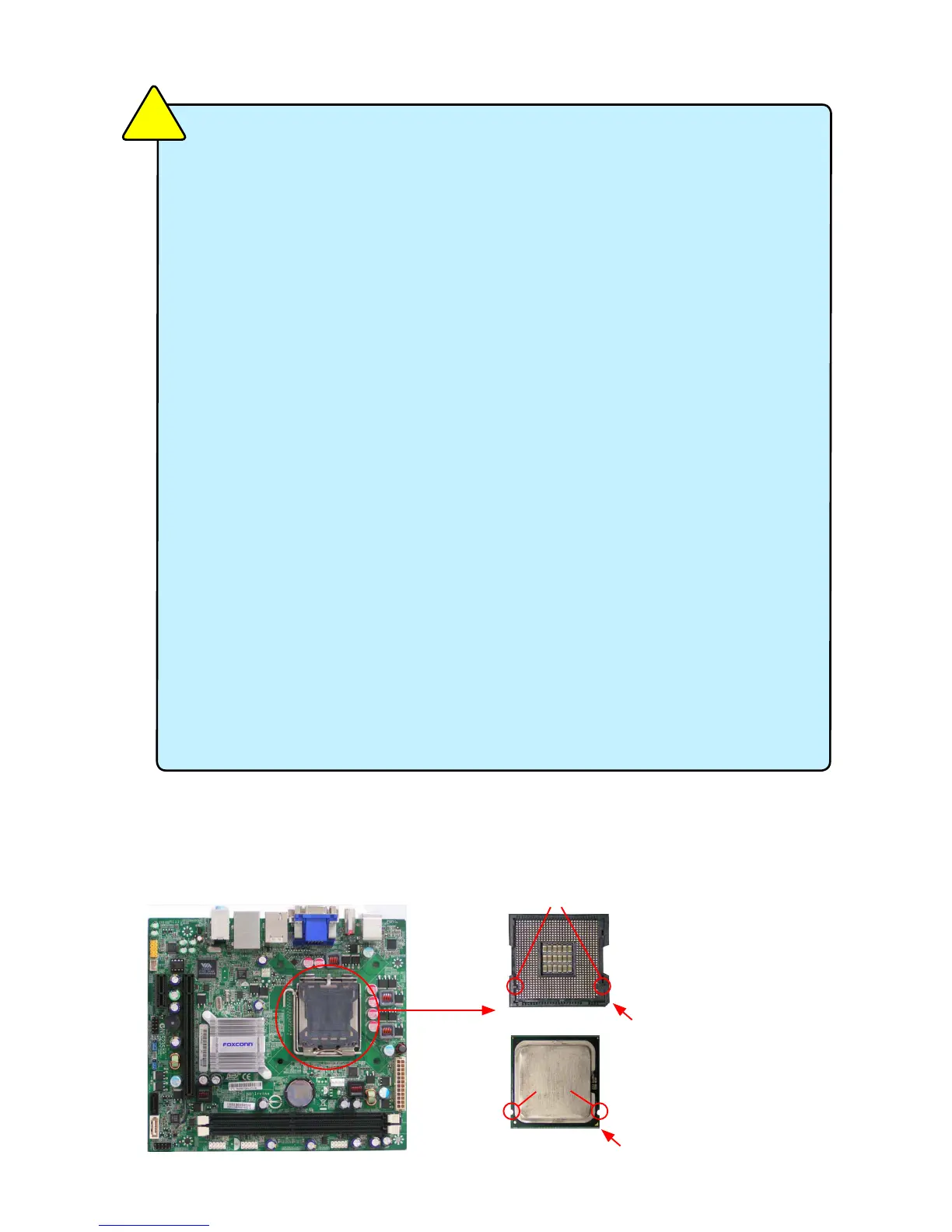
■ Locate the pin one of the CPU. The CPU cannot be inserted if oriented
incorrectly. (Or you may locate the notches on both sides of the CPU
and alignment keys on the CPU socket.)
■ Apply an even and thin layer of thermal grease on the surface of the
CPU.
■ Do not turn on the computer if the CPU cooler is not installed,
otherwise overheating and damage of the CPU may occur.
■ Set the CPU host frequency in accordance with the CPU
specications. It is not recommended that the system bus frequency be
set beyond hardware specications since it does not meet the standard
requirements for the peripherals. If you wish to set the frequency
beyond the standard specications, please do so according to your
hardware specications including the CPU, graphics card, memory,
hard drive, etc.
Hyper-Threading Technology System Requirements:
(Go to Intel's website for more information about the Hyper-
Threading Technology)
■ An Intel® CPU that supports HT Technology
■ A chipset that supports HT Technology
■ An operating system that is optimized for HT Technology
■ A BIOS that supports HT Technology and has it enabled
C
A
U
T
I
O
N
!
2-1 Install the CPU
Install the CPU
A. Locate the alignment keys on the motherboard CPU socket and the
notches on the CPU.
Pin one triangle marking of CPU
LGA775 CPU
Notch
LGA775 CPU Socket
Alignment Key
Pin One Corner of the CPU Socket



 To Next Page