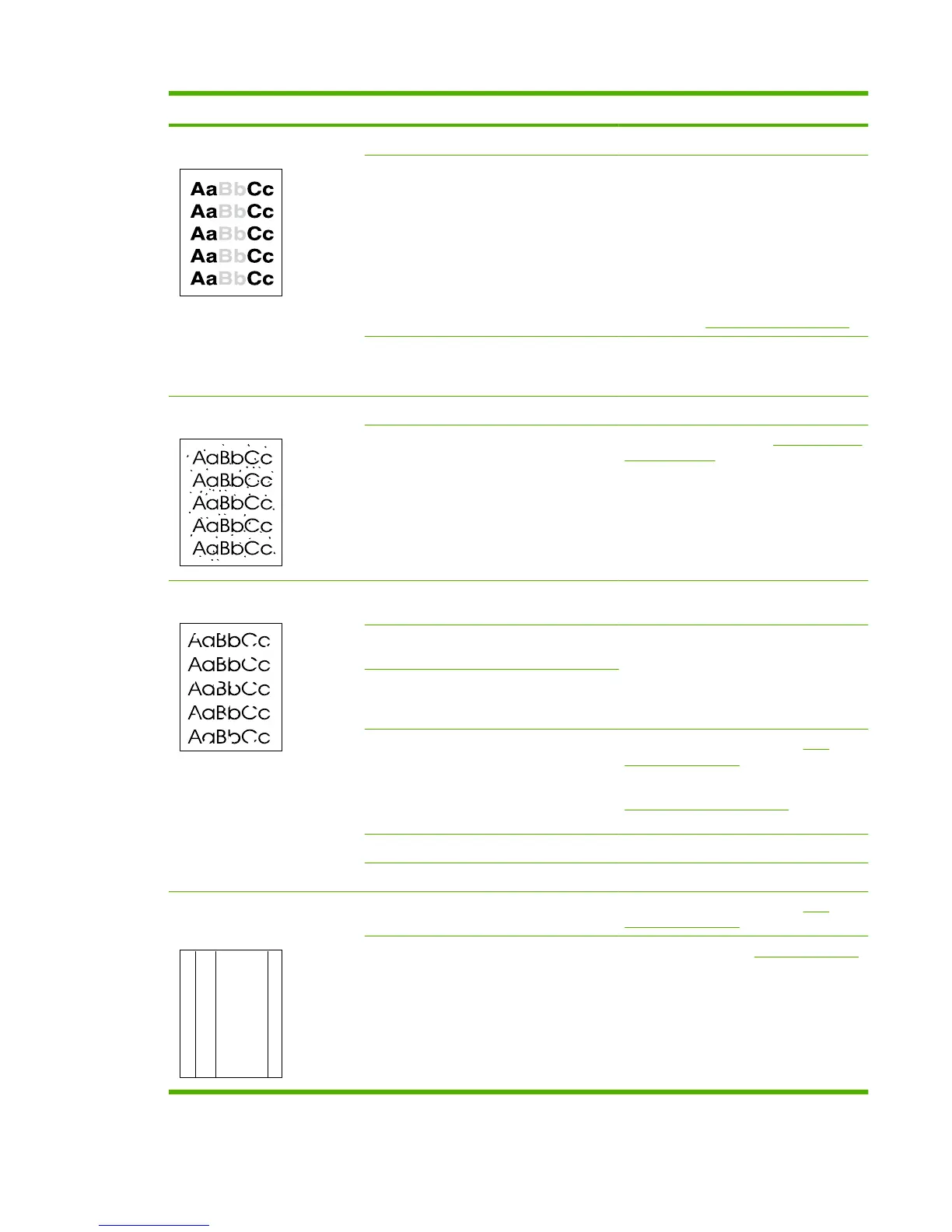
Problem Cause Solution
Print is light or faded. The media might not meet HP specifications. Use media that meets HP specifications.
The print cartridge might be defective or low. Remove the print cartridge, and then gently
rock it back and forth to redistribute the
toner. Rinstall the cartridge, and send the
job again.
If the print cartridge is not low or empty,
inspect the toner roller to see if the roller is
damaged. If it is, replace the print cartridge.
If the error persists, replace the print
cartridge. See
Print cartridge on page 33.
If the whole page is light, the print density
adjustment is too light or EconoMode might
be turned on.
Adjust the print density, and disable
EconoMode in the product Properties.
Toner specks appear. The media might not meet HP specifications. Use media that meets HP specifications.
The paper path might need cleaning. Clean the paper path. See Clean the paper
path on page 35.
Dropouts appear. A single sheet of print media might be
defective.
Try reprinting the job.
The moisture content of the paper is uneven
or the paper has moist spots on its surface.
Try different paper, such as high-quality
paper that is intended for laser printers.
The paper lot is flawed. The manufacturing
processes can cause some areas to reject
toner.
The print cartridge might be defective or low. Replace the print cartridge. See Print
cartridge on page 33.
If the error persists, contact HP. See
www.hp.com/support/ljm1319 or the
support flyer that came in the product box.
The print density needs to be adjusted. Adjust the print density from HP Toolbox.
EconoMode is selected in the driver. Try the normal or best setting.
Vertical streaks or bands appear
on the page.
A
A
A
A
A
B
B
B
B
B
C
C
C
C
C
a
a
a
a
a
c
c
c
c
c
b
b
b
b
b
The print cartridge might be defective. Replace the print cartridge. See Print
cartridge on page 33.
The fuser is damaged. Replace the fuser. See Fuser on page 134.
ENWW Solve image-quality problems 171



 To Next Page