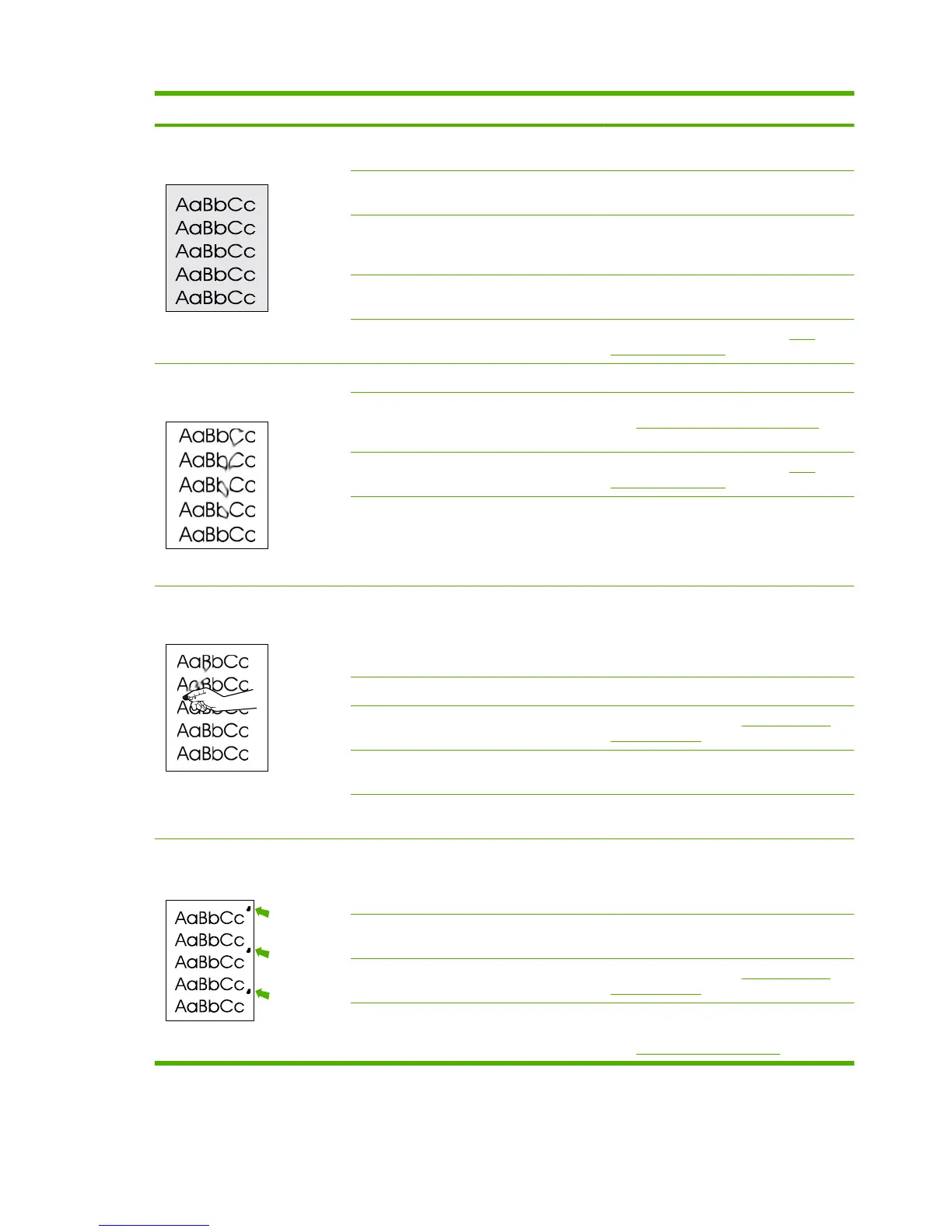
Problem Cause Solution
The amount of background toner
shading becomes unacceptable.
The media might not meet HP specifications. Use a different paper with a lighter basis
weight.
The single-sheet priority input tray might be
installed incorrectly.
Make sure that the single-sheet priority
input tray is in place.
The print-density setting is too high. Decrease the print-density setting. This
decreases the amount of background
shading.
Very dry (low humidity) conditions can
increase the amount of background shading.
Check the product environment.
The print cartridge might be defective or low. Replace the print cartridge. See Print
cartridge on page 33.
Toner smears appear on the
media.
The media might not meet HP specifications. Use media that meets HP specifications.
If toner smears appear on the leading edge
of the paper, the media guides are dirty, or
debris has accumulated in the print path.
Clean the media guides and the paper path.
See
Clean the paper path on page 35.
The print cartridge might be defective. Replace the print cartridge. See Print
cartridge on page 33.
The fuser temperature might be too low. In the printer driver, make sure the
appropriate media type is selected.
Use the archive print feature to improve
toner fusing.
The toner smears easily when
touched.
The product is not set to print on the type of
media on which you want to print.
In the printer driver, select the Paper/
Quality tab and set Paper Type to match
the type of media on which you are printing.
Print speed might be slower if you are using
heavy paper.
The media might not meet HP specifications. Use media that meets HP specifications.
The paper path might need cleaning. Clean the product. See Clean the paper
path on page 35.
The power source might be defective. Plug the product directly into an AC outlet
instead of into a power strip.
The fuser temperature might be too low. Use the archive print feature to improve
toner fusing.
Marks repeatedly appear at even
intervals on the page.
The product is not set to print on the type of
media on which you want to print.
In the printer driver, make sure that the
appropriate media type is selected. Print
speed might be slower if you are using
heavy paper.
Internal parts might have toner on them. The problem typically corrects itself after a
few more pages.
The paper path might need cleaning. Clean the product. See Clean the paper
path on page 35.
The print cartridge might be damaged. If a repetitive mark occurs at the same spot
on the page, install a new HP print cartridge.
See
Print cartridge on page 33.
172 Chapter 7 Solve problems ENWW



 To Next Page