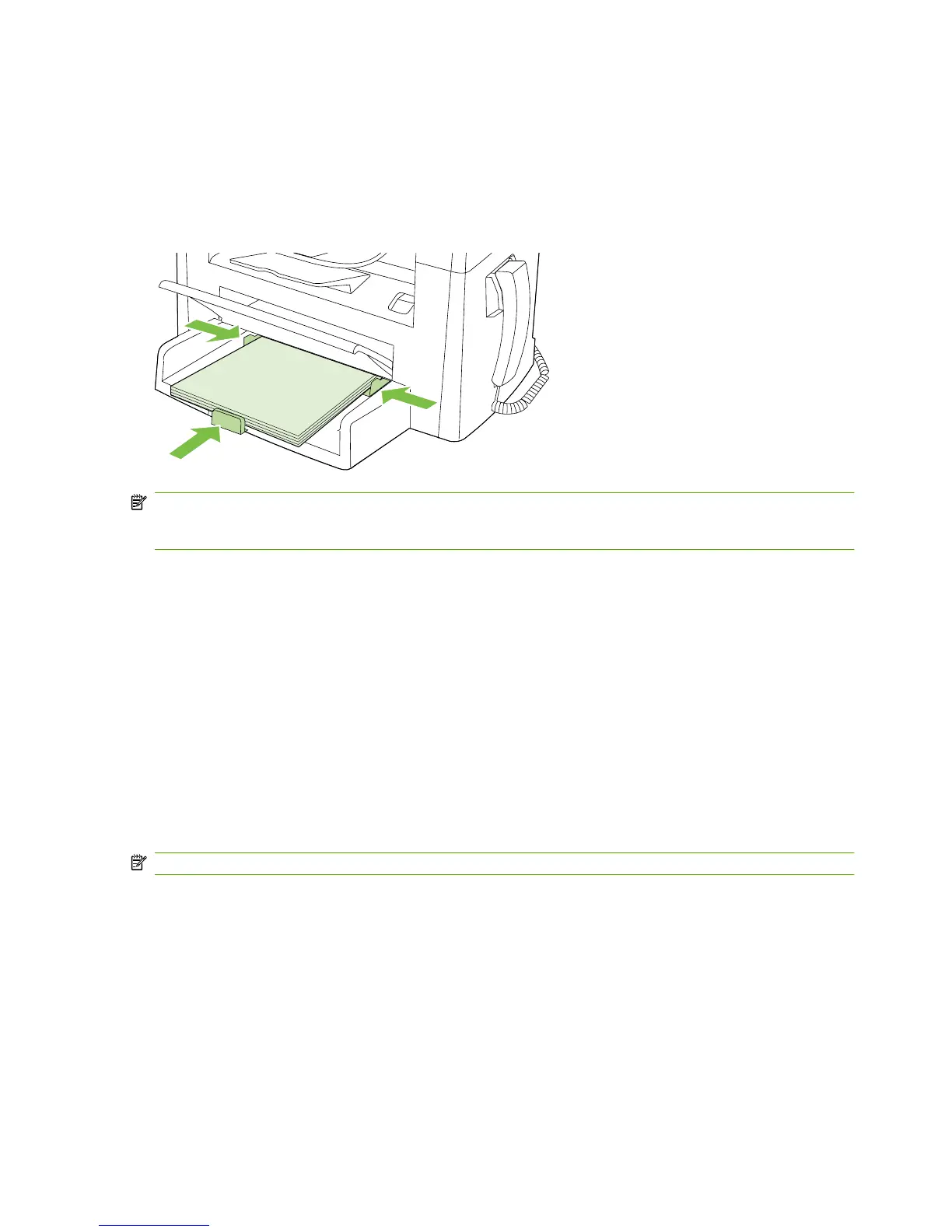
Tray 1
Tray 1 holds up to 250 pages of 75 g/m
2
(20 lb) paper, or fewer pages of heavier media (25 mm (0.9 in)
or less stack height). Load media with the top forward and the side to be printed on facing down.
Media guides ensure that the media feeds correctly into the product and that the print is not skewed.
Tray 1 has side and rear media guides. When loading media, adjust the media guides to match the
length and width of the media that you are using.
NOTE: When you add new media, make sure that you remove all of the media from the input tray and
straighten the stack of new media. Do not fan the media. This reduces jams by preventing multiple
sheets of media from feeding through the product at one time.
Configure trays
To set the default paper size or type from the control panel, complete the following steps.
Configure trays for copy jobs
1. On the product control panel, press Setup.
2. Use the arrow buttons to select System setup, and then press OK.
3. Use the arrow keys to select Paper setup, and then press OK.
4. Use the arrow keys to select either Def. paper size or Def. paper type, and then press OK.
5. Use the arrow keys to select a default type or size for the tray, and then press OK.
NOTE: To configure the product trays for print jobs, use the printer driver.
24 Chapter 3 Paper and print media ENWW



 To Next Page