Need help?
Do you have a question about the HP OMEN 27s and is the answer not in the manual?
This guide provides information about spare parts, removal and replacement of parts, diagnostic tests, and troubleshooting.
Critical safety warnings, precautions, and guidelines for service personnel to ensure safe operation and prevent damage.
Covers ERP Lot5, RoHS compliance, general service levels, firmware updates, and post-repair procedures.
Details on screen specifications, panel technology, color capabilities, and physical adjustments like tilt, swivel, and height.
Information on video inputs, USB hub, audio output, monitor stand, and VESA mounting.
Detailed explanation of each component on the rear of the monitor, including ports, buttons, and power connector.
Guidance on locating the serial and product numbers on the monitor's label, including regulatory compliance information.
Visual guide and list of major internal components with corresponding item numbers for identification.
Information on ordering the power board and other components from HP and authorized distributors.
Details on purchasing cables and internal/external power supplies through HP's part store and distributors.
Essential preparation steps including reading safety information and gathering tools for monitor disassembly.
Detailed instructions for safely removing the monitor's rear cover, including screw removal and prying techniques.
Procedure for removing the power board, including connector identification and a critical warning about charged capacitors.
Identifying main board connectors and preparing for repair, including ESD protection and referencing disassembly guides.
Step-by-step guide for repairing the HDMI 1 connector (CN5002) using soldering techniques.
Step-by-step guide for repairing the HDMI 2 connector (CN5001) using soldering techniques.
Step-by-step guide for repairing the DisplayPort connector (CN5101) using soldering techniques.
Guides for repairing USB Up (CN105), USB 1 (CN104), and USB 2 (CN106) connectors using soldering techniques.
Step-by-step guide for repairing the Phone Jack connector (CN6001) using soldering techniques.
Procedures for testing HDMI, DP, USB-C, and Audio functions to confirm successful repair.
Table of common monitor problems, their causes, and recommended solutions for troubleshooting.
This document serves as a Maintenance and Service Guide for the OMEN 27s monitor model, providing comprehensive information for trained service personnel regarding its components, repair procedures, and troubleshooting. It emphasizes safety, proper service methods, and adherence to environmental regulations like RoHS.
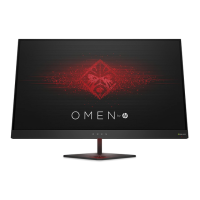
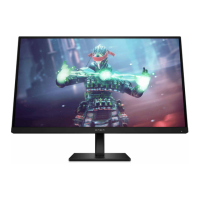
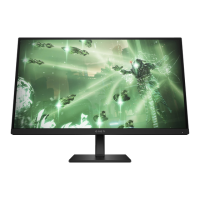
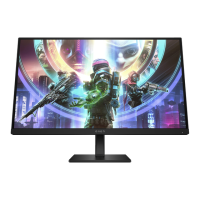
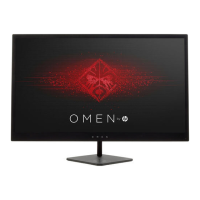
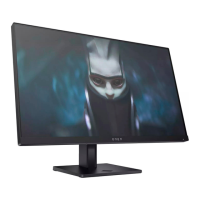
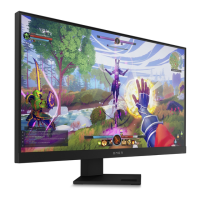
The OMEN 27s monitor is a high-performance display designed for an immersive visual experience. Its primary function is to provide a clear and vibrant display for various computing and gaming applications. The monitor is equipped with a range of features to enhance user interaction and visual quality.
The monitor boasts a 27-inch screen with a 1920 × 1080 resolution, offering full-screen support for lower resolutions and custom scaling to maintain image quality while maximizing size. It utilizes a liquid crystal display (LCD) with active matrix and in-plane switching (IPS) technology, ensuring wide viewing angles and consistent color reproduction. Select models may also feature VA panel technology. A wide color gamut provides extensive coverage of sRGB/DCI-P3 color spaces, resulting in rich and accurate colors. The nonglare panel with an LED backlight minimizes reflections, making it comfortable for extended use.
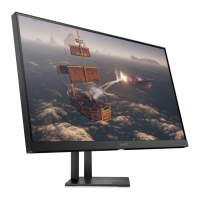
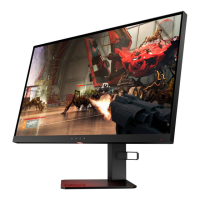
Ergonomically, the OMEN 27s offers tilt, swivel, and height adjustment capabilities, allowing users to customize the monitor's position for optimal comfort. Select models also include pivot capability, enabling the monitor head to rotate from landscape to portrait orientation, which can be beneficial for specific tasks like document editing or coding.
Advanced display functionalities include Dual Picture in Picture (PiP) and Picture beside Picture (PbP), which allow users to view inputs from DisplayPort™ and High-Definition Multimedia Interface® (HDMI) simultaneously on different halves of the screen. The on-screen display (OSD) provides intuitive adjustments in multiple languages for easy setup and screen optimization. For users with multiple devices, select models feature a Keyboard Video Mouse (KVM) button, simplifying the selection of the source device for the monitor.
Connectivity options are robust, including a DisplayPort video input (with cable included) and HDMI video input for connecting to various source devices like computers and game consoles. An audio-out (headphone) jack allows for the connection of external audio devices such as powered stereo speakers, headphones, or earbuds.
The monitor also integrates a USB hub, which, depending on the model, may include one USB Type-B port for upstream connection to a computer and two USB ports for downstream connection to USB devices. Some select models offer a USB Type-C® port for upstream connection and two USB ports for downstream USB devices. The package may include USB Type-B to USB Type-A, USB Type-C-to-USB Type-C, and HDMI 2.1 cables, depending on the specific model.
For ease of use, the monitor supports Plug and Play capability, if supported by the operating system, simplifying setup. The monitor stand is removable, offering flexibility for alternative mounting solutions. It features an HP Quick Release 2 device for easy attachment and removal of the monitor head from the stand. VESA® mounting brackets (100 × 100 mm) are supported, allowing the monitor to be attached to wall-mount devices or swing arms, and also for attaching a mounting bracket to a workstation. A cable management feature helps keep cables and cords organized.
The guide outlines a structured approach to maintenance and service, emphasizing that only trained service personnel familiar with the product should perform these tasks. Before any maintenance, it is crucial to read the "Important Safety Information" to minimize personal injury risks and prevent equipment damage. The working environment must be dry, clean, and meet all government safety requirements. Personnel are advised to use proper safety devices and approved tools. It is critical to ensure the product's power is disconnected before opening the cabinet.
The guide highlights that modules with electrical components are sensitive to electrostatic discharge (ESD), necessitating adherence to ESD safety procedures. It also warns about products containing multiple batteries, advising against disassembly or exposure to high temperatures to prevent explosions, and directs users to government requirements for battery recycling.
For service information, the guide specifies two levels: Level 1 for cosmetic/appearance/alignment service and Level 2 for circuit board or standard parts replacement. It notes that repairs must be performed by professional service technicians in a repair center, not by end-users. The primary side of the monitor is identified as a high voltage area, requiring caution.
Adherence to RoHS requirements is stressed, mandating the use of lead-free solder wire for soldering and ensuring that replacement parts are RoHS compliant if the original parts were. When replacing capacitors, technicians must match polarity, specification, part number, and location, and insert new parts carefully to avoid short circuits. Preventing the board from getting wet is crucial to avoid malfunctions. Soldering should be done quickly to prevent overheating, and the soldering iron tip must be kept clean and tinned. After repair, a thorough inspection of the circuit board and a function test are required to confirm proper operation.
The guide provides detailed instructions for ordering spare parts, including power boards, capacitors, and connectors, with specific part numbers and distributor information. It also includes a "Preparation for disassembly" section, detailing the necessary equipment and steps, such as using a press fixture, working table, screwdriver, knife, gloves, cleaning cloth, ESD protection, and a scraper bar of specific dimensions.
The "Removal and replacement procedures" section offers step-by-step instructions for disassembling the monitor, starting with the rear cover, then the power board, and subsequently various connectors like HDMI, DisplayPort, USB UP, USB1, USB 2, and Phone Jack. Each procedure includes visual aids and specific warnings, such as discharging capacitors after unplugging the power supply.
For connector repair, the guide specifies that it is only for out-of-warranty cases and must be performed by professional repairers. It reiterates the need for electrostatic protection, lead-free solder, and careful insertion of new parts. Technicians are warned against allowing liquids on the board and advised to work quickly during soldering. After any repair, connecting a source to each port and checking the main board function is mandatory.
Finally, a "Function test" section outlines various tests (HDMI, DP, USB-C, Audio) to confirm that all functions are working correctly after repair, using tools like a computer, DVD player, or USB-C player and a speaker. The "Support and troubleshooting" section provides a table of common issues, their possible causes, and recommended solutions, such as connecting cables properly, adjusting OSD settings, or disabling lockout features.
 General
| Screen Size | 27 inches |
|---|---|
| Resolution | 2560 x 1440 (QHD) |
| Refresh Rate | 165 Hz |
| Panel Type | IPS |
| Adaptive Sync | AMD FreeSync Premium |
| Contrast Ratio | 1000:1 |
| VESA Mount | 100 x 100 mm |
| Tilt | Yes |
| Swivel | Yes |
| Height Adjustment | Yes |
| Response Time | 1 ms |
| Brightness | 350 nits |
| Connectivity | DisplayPort 1.4, HDMI 2.0 |
| Color Gamut | 99% sRGB |


 To Next Page