Configuring and Expanding Your Computer
Installing RAM modules
44 Setup Guide
Installing RAM modules
The OmniBook provides an optional memory expansion slot for installing up to two
RAM expansion modules. Use HP SDRAM modules only; EDO RAM is not supported.
Your computer’s computer chips are extremely static-sensitive. Static electricity can
permanently damage computer chips. Carefully read the following caution information.
CAUTION
Handle the RAM module only by its edges. Otherwise, you may damage the module
due to electrostatic discharge. Static electricity can permanently damage computer
chips. It is therefore important to discharge the static electricity from your body
before installing the memory module. Discharge your body’s electricity by touching
the metal shielding around the connectors on the rear of the computer.
You’ll need a small Phillips screwdriver to complete this procedure.
1. Click the Start Button and select Shut down.
2. Unplug the AC adapter, if present, and remove the battery.
3. Remove the RAM expansion cover located on the bottom of the computer using a
Phillips screwdriver.
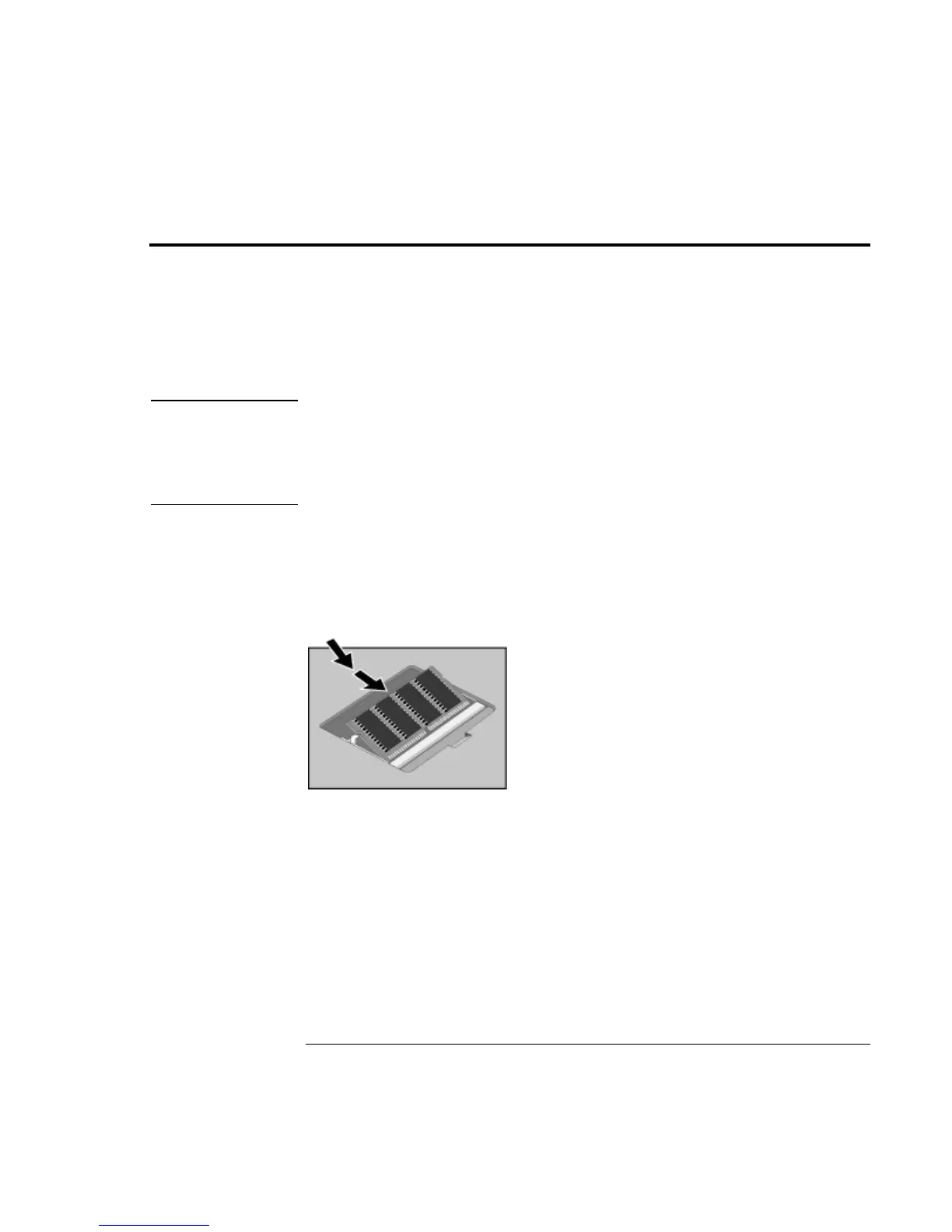
4. Insert the RAM expansion module into the connector at about a 30° angle until it’s
fully inserted. Then press down at both sides of the module until it latches.
5. Replace the RAM expansion module door.
6. Insert the battery.



 To Next Page