EnglishEnglish 17
HP 21” Color Monitor User’s Guide
Customizing Your Monitor
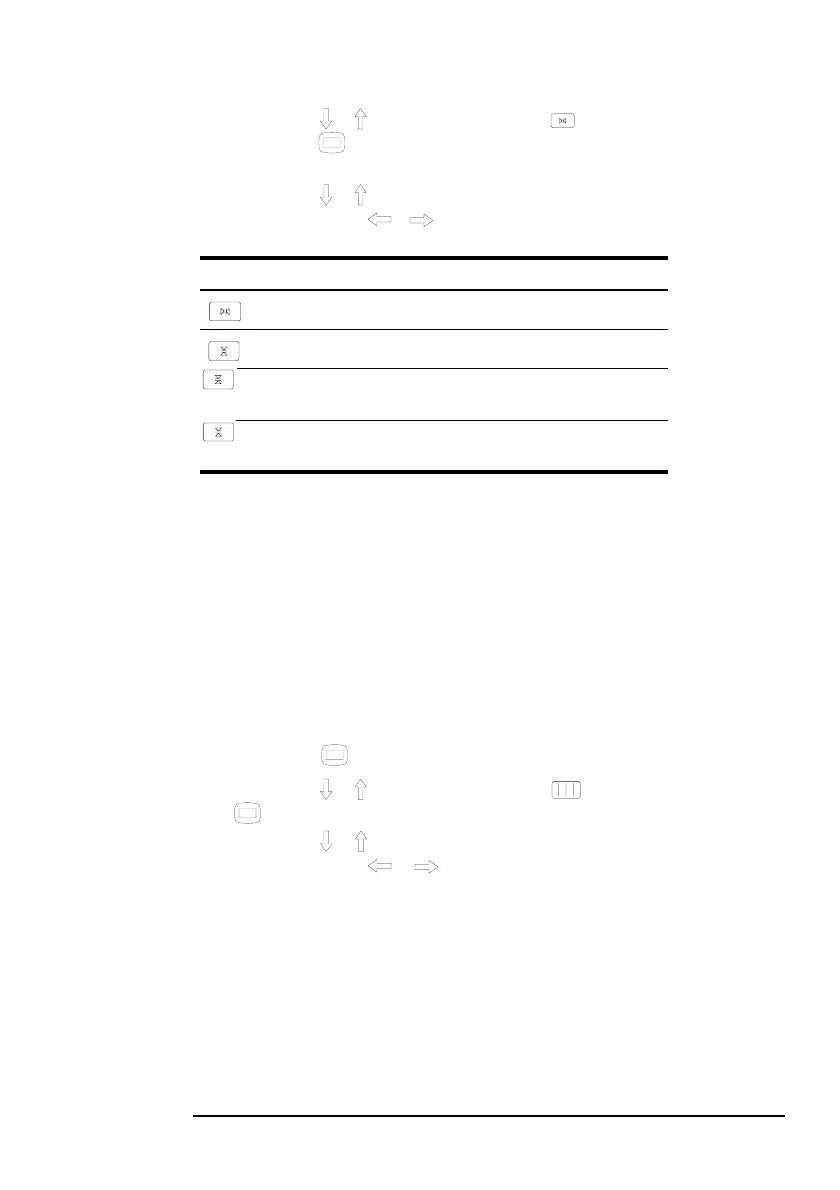
2 Press the / buttons to highlight CONVERGENCE and
press the button again. The CONVERGENCE menu appears
on the screen.
3 Press the / buttons to select the desired adjustment item.
Then press the
/ buttons to make the adjustment.
Adjusting the quality of the picture (SCREEN)
The SCREEN settings allow you to adjust the quality of the picture
by controlling the moire and the landing.
• If the color is irregular at the corners of the screen, adjust the
landing.
•
If elliptical or wavy patterns appear on the screen, cancel the
moire.
The CANCEL MOIRE and MOIRE ADJUST settings are stored in
memory for the current input signal. All other settings are stored in
memory for all input signals.
1 Press the button. The main MENU appears on the screen.
2
Press the
/
buttons to highlight SCREEN and press the
button again. The SCREEN menu appears on the screen.
3 Press the
/
buttons to select the desired adjustment item.
Then press the
/ buttons to make the adjustment.
Select To
horizontally shift red or blue shadows
vertically shift red or blue shadows
TOP
TOPTOP
TOP
V CONVER TOP
vertically shift red or blue shadows at the top of
the screen
BOT
BOTBOT
BOT
V CONVER BOTTOM
vertically shift red or blue shadows at the bottom
of the screen



 To Next Page