EasyManua.ls Logo

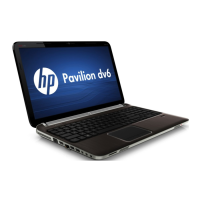
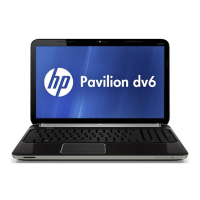
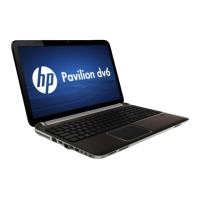
HP Pavilion DV6-6C - User Manual

HP Pavilion DV6-6C
117 pages
Print Icon
To Next Page IconTo Next Page
Loading...
User Guide
HP Notebook

Table of Contents

Questions and Answers

  • U
    unobleAug 16, 2025
    What to do if my HP Laptop is on but not responding?
    • D
      Dr. Terry SantiagoAug 16, 2025
      If your HP Laptop is on but not responding, try the following: * Press ctrl+alt+delete, and then click the Power button. * Press and hold the power button for at least 5 seconds. * Disconnect the computer from external power and remove the battery.
  • K
    Kristen ClarkAug 19, 2025
    What to do if the HP Pavilion DV6-6C screen is blank?
    • S
      Sarah LeeSep 12, 2025
      If your HP Laptop screen is blank, press the f4 action key to transfer the image to the computer screen.
  • R
    Robert BoothAug 22, 2025
    How to fix HP Pavilion DV6-6C that is unable to start up?
    • M
      Mrs. Sue AliAug 22, 2025
      If your HP Laptop is unable to start up, check the following: * If the computer is plugged into an AC outlet, plug another electrical device into the outlet to be sure that the outlet is providing adequate power. * If the computer is running on battery power or is plugged into an external power source other than an AC outlet, plug the computer into an AC outlet using the AC adapter. Be sure that the power cord and AC adapter connections are secure.
  • L
    Linda HamiltonAug 25, 2025
    How to fix wireless network connection that is not working on HP Pavilion DV6-6C?
    • B
      Barbara WintersAug 26, 2025
      If the wireless network connection on your HP Laptop is not working, make sure that: * The wireless light on your computer is on (white). If the wireless light is off, press the f12 action key to turn it on. * The device wireless antennas are free from obstructions. * The DSL or the cable modem and its power cord are properly connected and the lights are on. * The wireless router or access point is properly connected to its power adapter and the DSL or cable modem, and that the lights are on. * All cables are disconnected and then reconnected, and the power is turned off and then back on.
  • R
    Regina RoweAug 28, 2025
    Why HP Laptop does not detect the disc drive?
    • H
      Howard ToddAug 28, 2025
      If your HP Laptop does not detect the disc drive, it may be due to missing or corrupted device driver software. Verify that the optical drive is listed in the Device Manager utility. You can also try to update the driver software, disable, uninstall, scan for hardware changes, and click Properties to verify that the device is working properly.
  • R
    Raymond BrooksAug 30, 2025
    Why is my HP Laptop unusually warm?
    • H
      Heather EstradaAug 30, 2025
      If your HP Laptop is unusually warm, it could be overheating, possibly due to a blocked vent. Allow the computer to cool to room temperature. Then be sure to keep all vents free from obstructions while you are using the computer.
  • K
    Keith BeckerSep 2, 2025
    How to fix software that is functioning abnormally on HP Pavilion DV6-6C Laptop?
    • K
      Kevin LowerySep 2, 2025
      If software on your HP Laptop is functioning abnormally: * Restart the computer by selecting Start > Shut down > Restart. * Run a virus scan. For information about using the antivirus resources on the computer, refer to.
  • D
    Daniel FieldsSep 5, 2025
    What to do if an external device is not working with my HP Laptop?
    • M
      Melissa MartinezSep 5, 2025
      If an external device is not working with your HP Laptop, check the following: * Turn on the device according to the manufacturer’s instructions. * Be sure that all device connections are secure. * Be sure that the device is receiving electrical power. * Be sure that the device, especially if it is older, is compatible with the operating system. * Be sure that the correct drivers are installed and updated.
  • T
    travisaustinSep 7, 2025
    What to do if the optical disc tray does not open for removal of a disc on HP Pavilion DV6-6C?
    • A
      anthony51Sep 7, 2025
      If the optical disc tray on your HP Laptop does not open for removal of a disc: * Insert the end of a paper clip into the release access in the front bezel of the drive. * Press in gently on the paper clip until the disc tray is released, and then pull out the tray until it stops. * Remove the disc from the tray by gently pressing down on the spindle while lifting the outer edges of the disc. * Close the disc tray, and then place the disc in a protective case.
  • A
    Alexandra FosterSep 10, 2025
    What to do if a disc does not play on HP Laptop?
    • A
      Amanda HendrixSep 10, 2025
      If a disc does not play on your HP Laptop, try the following: * Save your work and close all open programs before playing a disc. * Log off the Internet before playing a disc. * Be sure that you insert the disc properly. * Be sure that the disc is clean. * Check the disc for scratches. * Disable Sleep before playing the disc. * Increase system resources.

Summary

Introduction

Important first steps

Essential actions after setting up the computer, including network and software setup.

Finding information

Resources for locating user manual and support information.

Getting to know your computer

Top Panel Components

Details on TouchPad, lights, buttons, and keys on the computer's top surface.

Front Panel Features

Describes the Digital Media Slot and speakers on the computer's front.

Right Side Ports and Indicators

Identifies optical drive, power/HDD lights, USB ports, security slot, battery light.

Left Side Ports and Audio Jacks

Details vents, monitor/HDMI ports, network jack, USB ports, and audio jacks.

Display Features

Information on WLAN antennas, microphones, webcam, and webcam light.

Bottom Panel Components

Describes battery bay, vents, and hard drive/memory compartment access.

HP QuickWeb (select models only)

Getting Started with HP QuickWeb

Introduction to HP QuickWeb features for browsing and communication.

Starting HP QuickWeb

Instructions on how to launch HP QuickWeb using the dedicated button.

Networking

Creating a Wireless Connection

Guide to connecting to WLAN, WWAN, and Bluetooth devices.

Connecting to a Wired Network

Instructions for connecting the computer to a local area network (LAN) using an Ethernet cable.

Pointing devices and keyboard

Using the TouchPad

Detailed guide on moving the pointer, selecting, and using TouchPad gestures.

Using the Keyboard

Explanation of action keys, hotkeys, and the integrated numeric keypad.

Multimedia and other features

Audio Features

Information on adjusting volume, checking audio functions, and using Beats Audio.

Video Output Ports

Details on VGA and HDMI ports for connecting external displays.

Power management

Inserting or Removing the Battery

Step-by-step instructions for battery installation and removal.

Using Power-Saving States

Explanation of Sleep and Hibernation modes for power conservation.

Managing Battery Power

Finding battery info, using Battery Check, and maximizing battery discharge time.

External cards and devices

Using Digital Media Slot Cards

Instructions for inserting and removing digital cards into the media slot.

Using USB Devices

Connecting and disconnecting USB devices, including port types.

Drives

Handling Drives Safely

Precautions for handling internal and external drives to prevent damage.

Improving Hard Drive Performance

Using Disk Defragmenter and Disk Cleanup for optimal performance.

Memory modules

Adding or Replacing Memory Modules

Step-by-step guide for upgrading or replacing RAM modules.

Security

Protecting the Computer

Overview of security features like QuickLock, passwords, antivirus, and firewall.

Setting Passwords

Procedures for setting administrator and power-on passwords in Windows and BIOS.

Backup and recovery

Restoring the System

How to restore the computer using recovery media or partition.

Backing Up and Recovering Your Information

Guidance on backing up files and using Windows Backup and Restore.

Setup Utility (BIOS) and System Diagnostics

Using Setup Utility (BIOS)

Instructions for navigating, changing settings, and restoring factory defaults in BIOS.

System Diagnostics

How to run diagnostic tests to check hardware functionality.

Appendix A Troubleshooting and support

Troubleshooting Common Issues

Solutions for startup problems, blank screens, unresponsive software, and overheating.

External Device and Network Issues

Troubleshooting steps for external devices and wireless network connections.

Appendix B Cleaning your computer

Cleaning Procedures

Guidelines for cleaning the display, sides, cover, TouchPad, and keyboard.

Appendix C Traveling with the computer

Travel and Shipping Tips

Advice on preparing the computer for travel, including backups and security.

Appendix D Updating programs and drivers

Updating Software and Drivers

Recommendation to update programs and drivers from the HP support website.

Appendix E Electrostatic Discharge

Preventing ESD Damage

Precautions to avoid damage from static electricity during component handling.

Appendix F Specifications

Input Power and Connectors

Details on AC power requirements, voltage, and DC plug specifications.

Operating Environment Details

Specifications for temperature, humidity, and altitude limits.

Appendix G Using SoftPaq Download Manager

Downloading SoftPaqs

Instructions for using HP's tool to download software and driver updates.

HP Pavilion DV6-6C Specifications

General IconGeneral
BrandHP
ModelPavilion DV6-6C
CategoryLaptop
LanguageEnglish

Related product manuals