28
3.6 Collision Detection
If the Collision Detection function is enabled, this camcorder begins emergency
recording once it detects any collision. Sensitivity of the Collision Detection
function is set to Normal by default, if user wants to change the settings of
Collision Detection, do the following:
1. Press the button to enter the OSD menu.
2. Press the / button to select Collision Detection, and then press
the
OK
button for entering function menu.
3. Press the / button to change the sensitivity of this camcorder’s
collision detection (High Sensitivity / Normal Sensitivity / Low Sensitivity /
Off), and then press the
OK
button for entering function menu.
4. Press the button return to recording screen.
3.7 HUD Drive Info
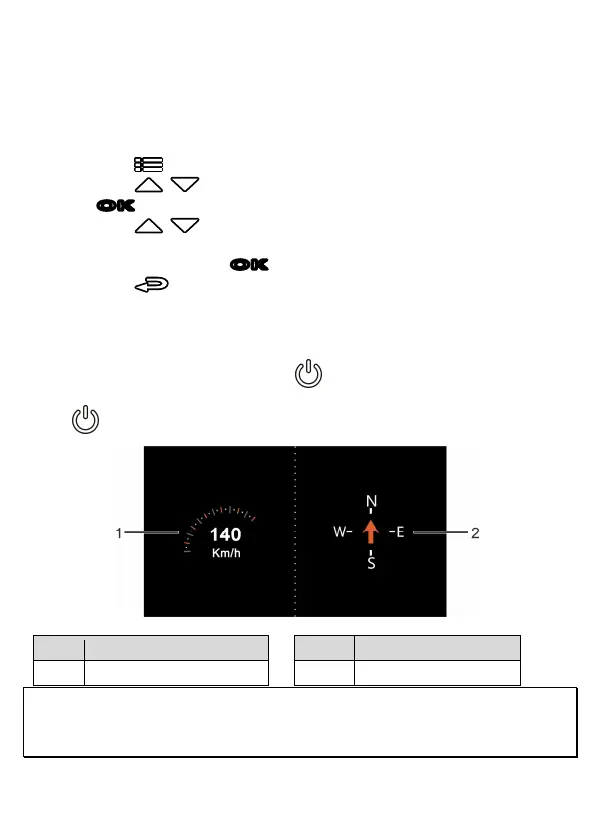
When the camcorder is recording, press Power button will enter 2 GRID
FUNCTION CHART in the LCD screen, users can check vehicular information here.
Press Power button once again will go back into your recording.
No. Item No. Item
1 Driving Speed 2 Driving direction
Note:
Driving Speed and Driving Direction are only applicable when satellite positioning of
the camcorder is ready; otherwise, they will be displayed in gray scale only. Satellite
positioning function is dependent on the model purchased.


 To Next Page