7. When you've finished copying, tap . The person you've copied is then pasted on the target
photo.
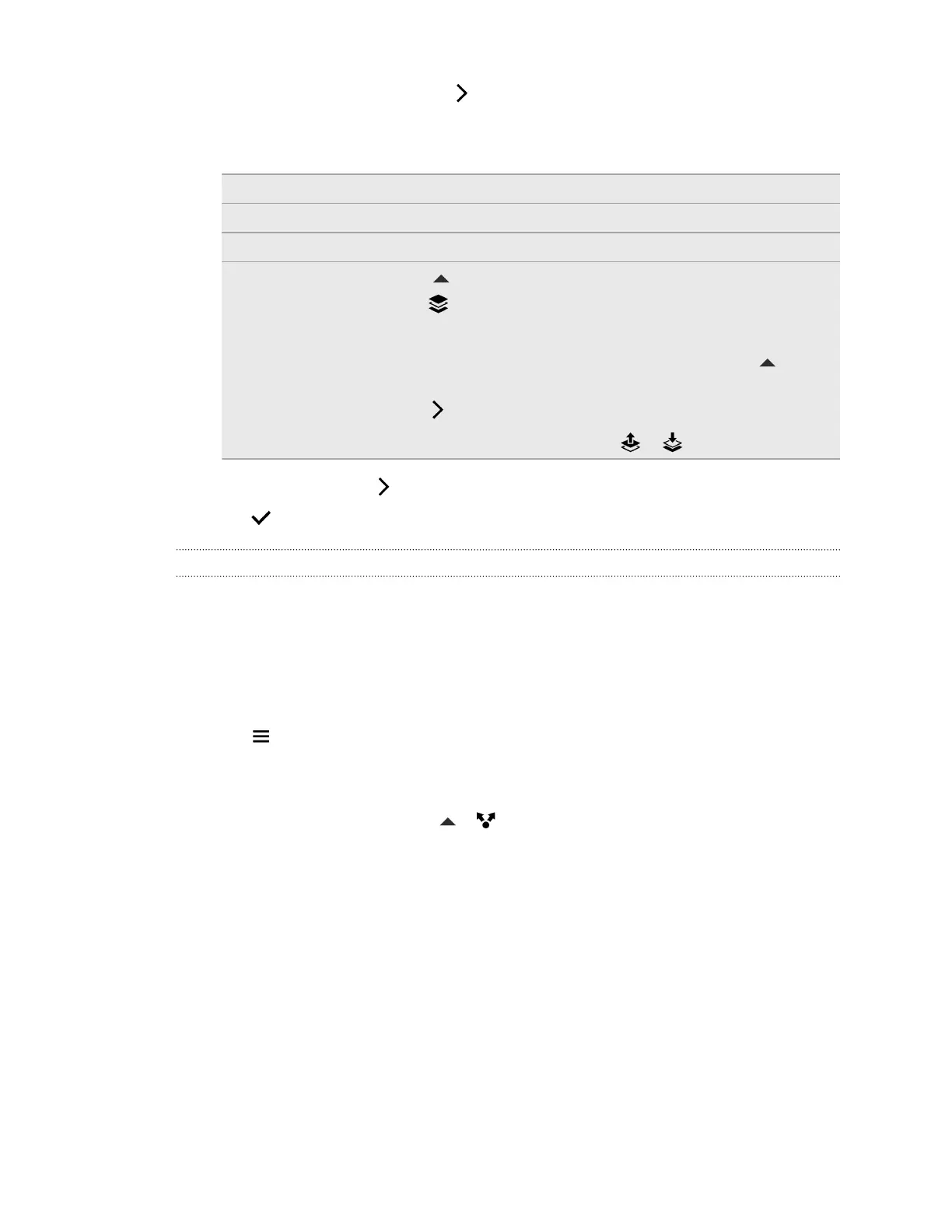
8. Try any of the following:
Scaling the copy Slide two fingers together or apart.
Rotating the copy Rotate two fingertips on the screen.
Moving the copy Drag the copy to a new position.
Placing the copy
behind another
person
1. Tap to open the toolbar.
2. Tap .
3. Tap a face to select a person.
To refine the selection for the foreground person, tap again
and use the selection tools.
4. Tap .
If you want to change the order, tap or .
9. When you're done, tap .
10. Tap to save changes.
Sharing photos that have Duo Effects on the Web
Want your friends to play with some of the Duo Effects even without an HTC phone? Share the link
to photos that have UFocus, Foregrounder, or Dimension Plus effects applied, and let your friends
experience these effects on their web browser.
1. From Photo Editor, choose the photo you want to edit.
See Choosing a photo to edit on page 87 to find out how.
2. Tap to open the slideout menu.
3. In the slideout menu that opens, tap Effects, and then apply UFocus, Foregrounder, or
Dimension Plus.
4. When you're ready to share, tap > > Link to photo.
5. Sign into your cloud storage account, if you haven't done so.
6. Slide the Notifications panel open to check the upload status.
7. When the notification shows that the photo has been saved to the cloud storage, tap the
notification.
8. Choose how you want to share the link, and then tap Done.
95 Photo Editor


 To Next Page