Fine tuning your 3D subject
1. While viewing your photo with the Dimension Plus effect, tap to open the toolbar.
2. Tap .
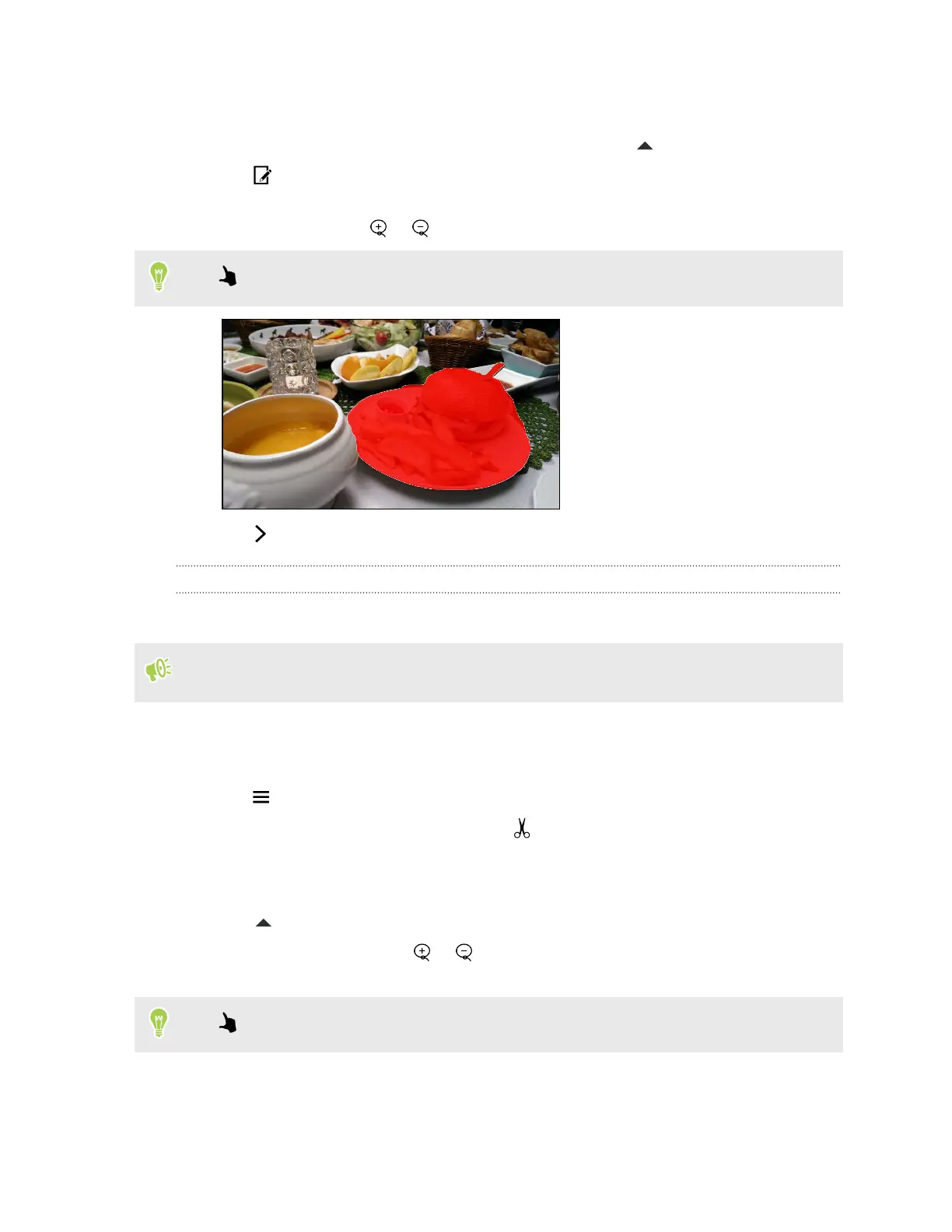
3. Draw an outline around the objects you want as your main subjects. You can refine your
selection by using the or tools.
Tap to zoom and pan for a more accurate selection.
4. Tap to finish selecting your subjects.
Copy & Paste
Copy & Paste lets you copy a person from one photo and paste it into another photo.
The two photos that you use must have been both taken with the
Duo Camera. The photo from
which you want to copy from needs to clearly show a person's face.
1. From Photo Editor, choose the photo you want to edit.
See Choosing a photo to edit on page 87 to find out how.
2. Tap to open the slideout menu.
3. In the slideout menu that opens, tap Flair > .
4. Find the photo you want to copy a person from and tap it.
5. Tap a face to select a person.
6. Tap to open the toolbar.
To refine your selection, tap or , and then drag on an area to add or remove it from the
selection.
Tap
to zoom and pan for a more accurate selection.
94 Photo Editor


 To Next Page