Internet 149
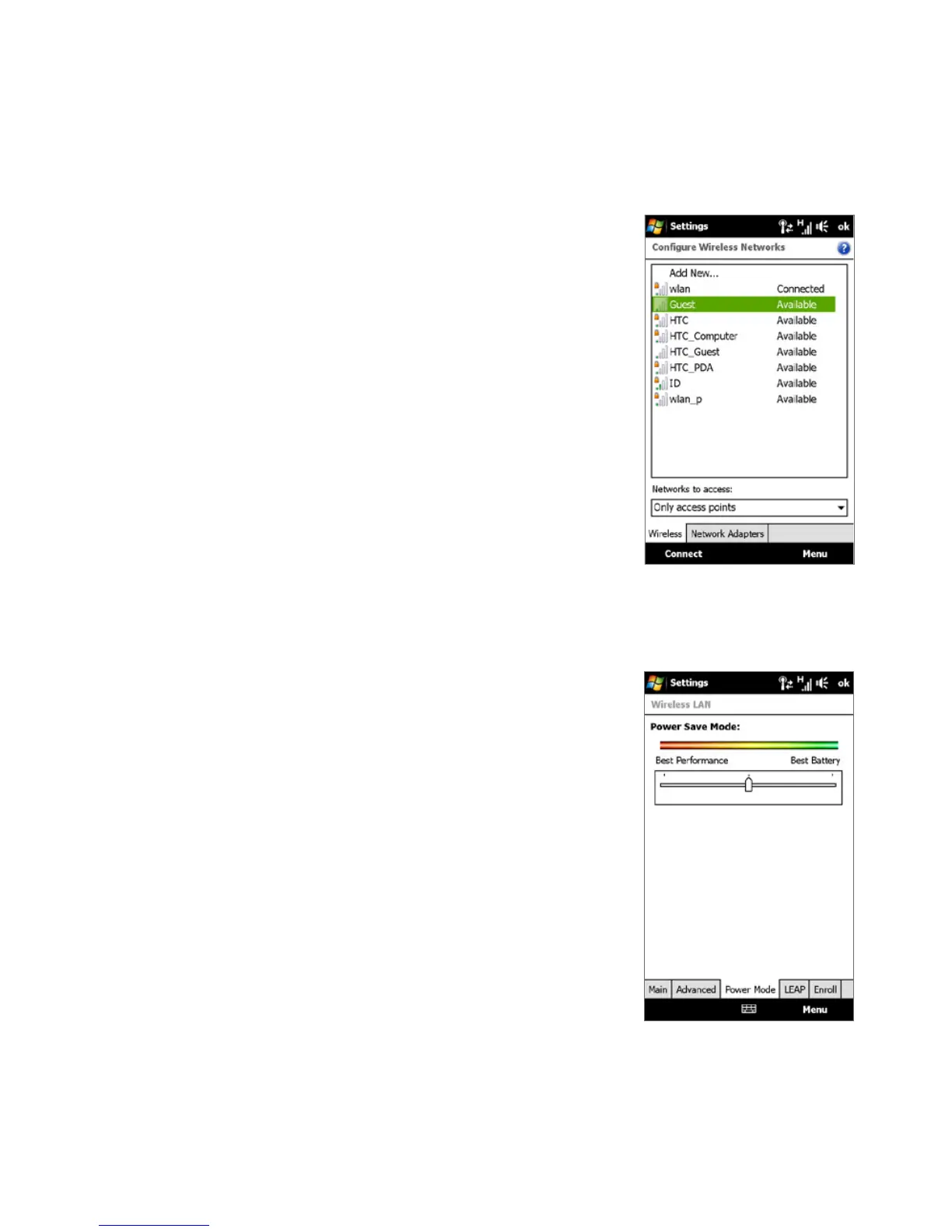
• Configure Wireless Networks screen
On the Home screen, slide to the Settings tab
and then tap All Settings. In the Connections
tab, tap Wi-Fi, then tap the Wireless Networks
button. This screen displays the Wi-Fi networks
currently available.
To connect to a Wi-Fi network in the list, tap and
hold on the desired network, then tap Connect.
Tap a Wi-Fi network in the list to view or change
its connection settings.
You can also add new Wi-Fi networks, if
available, by tapping Add New.
To save battery power while connected to a Wi-Fi network
Using Wi-Fi quickly consumes battery power. Turn off Wi-Fi when not in use. You can
also enable power saving settings.
1. On the Home screen, slide to the Settings tab.
2. On the Settings screen, tap Menu > Wireless
Networks > Power Mode tab.
3. On the Power Mode tab, move the Power
Save Mode slider to a position that optimizes
performance with the least power consumption.
For example, move the slider to the left (Best
Performance) to have the optimal wireless
network performance; move to the right (Best
Battery) to obtain the maximum battery usage.



 To Next Page