10
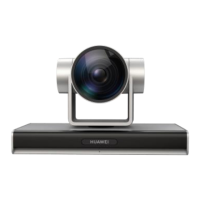
Control the camera individually using the IR remote control included with the Camera 200.
Use the Menu button to hide or display the On-Screen Display (OSD) configuration screen.
There you can set the image output format, image parameters, and image inversion mode.
IR Remote Control
"+" refers to button combination sequence.
Standby button: Pressing once enables the device to enter into
standby mode. Pressing again causes device re-check and returns
it to HOME position. If preset position is 0, PTZ will go to the
preset position 0 when idle for 12 seconds or more
Camera address selection button
Number buttons: set or call preset 0–9
* + # + 3: Chinese menu
* + # + 4: English menu
* + # + 6: Restore factory defaults
* + # + 9: Flip image upside down
4K video format:
# + # + 0: 4K30
# + # + 1: 4K25
# + # + 2: 1080p 60
# + # + 3: 1080p 50
# + # + 4: 1080p 30
# + # + 5: 1080p 25
1080p video format
# + # + 2: 1080p 60
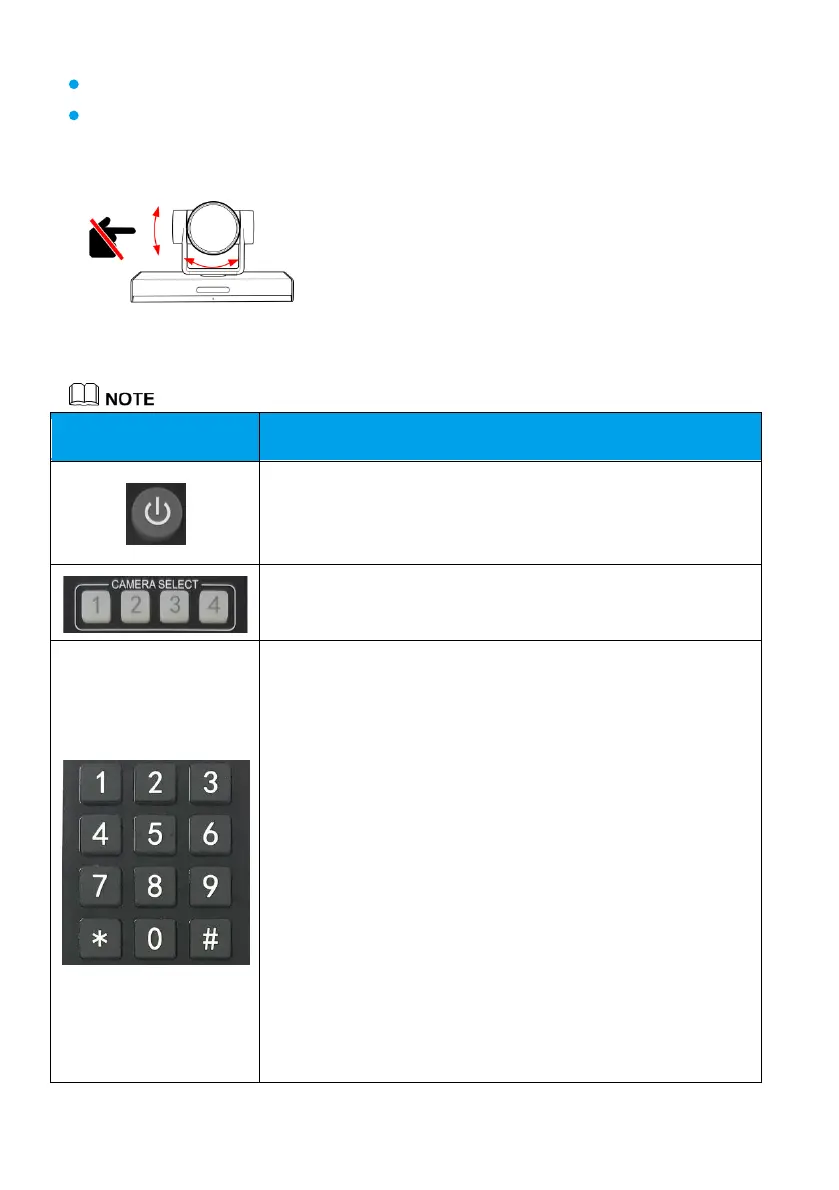
Do not manually rotate or stop the camera from rotating
when it is operating properly. Otherwise, the camera must
be restarted.



 To Next Page