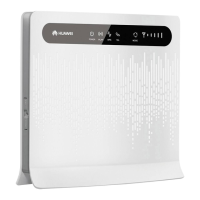
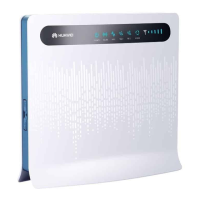
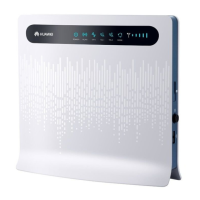
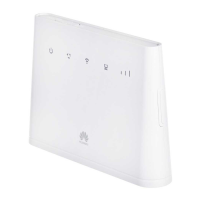
55
2
LEDs for signal strength
3
Slot for SIM card*
4
On/off switch
5
USB port
6
Socket for power cable
7 Port for telephone
Service not available in some countries.
8 Port for a computer or
network printer (LAN)
9
LED for LAN
10
WPS button
After activating WPS (Wi-Fi Protected Setup) in
your router’s setup management,* you can
connect computers to the wireless network with-
out a security key by pressing the WPS button.
11
Reset button
Press and hold down the button for more than
5 seconds to restore factory settings on your
4G router.
12
WLAN button
Press and hold down the button for 2–3 seconds
to activate/deactivate the WLAN function.
*) Use the right size! You should use the larger size of the sim card with your Huawei B593s 4G router. (The
smaller size of the SIM card is for pads only.)
*) The function is not activated in factory settings. The function is activated in the router’s setup management
(see next spread) – read more under WiFi and WPS.
1
LEDs (cont.)
MODE •White flashing light = Connection being established
•Blue light = Connected via 4G
•Green Llght = Connected via 3G
•Orange light = Connected via 2G
•Red light = No connection to wireless network (WLAN).
•Purple light = Problem with SIM card or PIN code
Flashes when data is transferred



 To Next Page