5 Installation
Installing the E220 Mobile Connect Management
Program
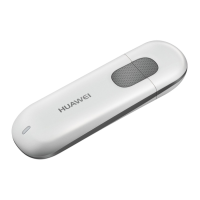
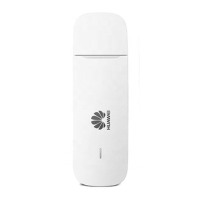
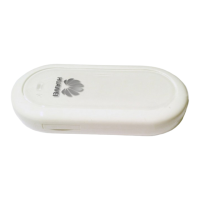
1. Connect E220 to the PC.
2. The setup program auto runs. Then the E220 installation interface appears.
Note:
If the auto-run program does not start, double-click the AutoRun.exe file
in the drive path to run it.
3. Select the language in the Choose Language dialog box and click Next.
4. Follow the remaining instructions.
5. Click Finish to complete the installation.
Note:
Do not disconnect E220 during the installation.
6. When the installation completes, the shortcut icon
of the Mobile
Connect management program (hereinafter referred to as Mobile Connect)
appears on the desktop.
Disconnecting E220 from the PC
Before disconnecting E220, stop it through the hardware removing function of
Windows.
Do the following:
1. Double-click
on the lower right corner of the PC screen and the Safely
Remove Hardware dialog box is displayed.
2. Select Huawei Mass Storage USB Device to stop E220.
3. After the system prompts you that it is safe to remove the device, disconnect
E220.
HUAWEI
9



 To Next Page