13
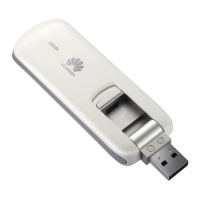
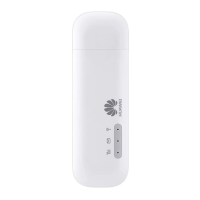
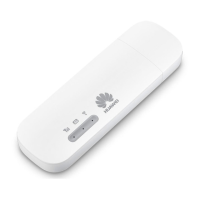
Using the LTE E8372 as a Wi-Fi hotspot connected to your
computer
(Connection scenario 2)
To manage your LTE E8372’s Wi-Fi functions, login to the device management web page at
http://huawei.setup or http://192.168.8.1 to configure the Wi-Fi functions.
Setting Up a Wi-Fi Connection
1. Insert LTE E8372 into computer (or power adapter)..
2. Ensure that the LTE E8372's Wi-Fi function is on. The Wi-Fi indicator light should be on.
3. Search for Wi-Fi from your Wi-Fi device or computer to find the LTE8372’s Wi-Fi SSID, as
detailed in the “Getting Started” section.
4. Select the wireless network connection with the LTE E8372's SSID and click Connect.
5. Enter the Wi-Fi Network key as detailed in the “Getting Started” section.
Note:
Before establishing a Wi-Fi connection, ensure that the computer is equipped with a
wireless network adapter. If the computer indicates a wireless network connection, the


 To Next Page