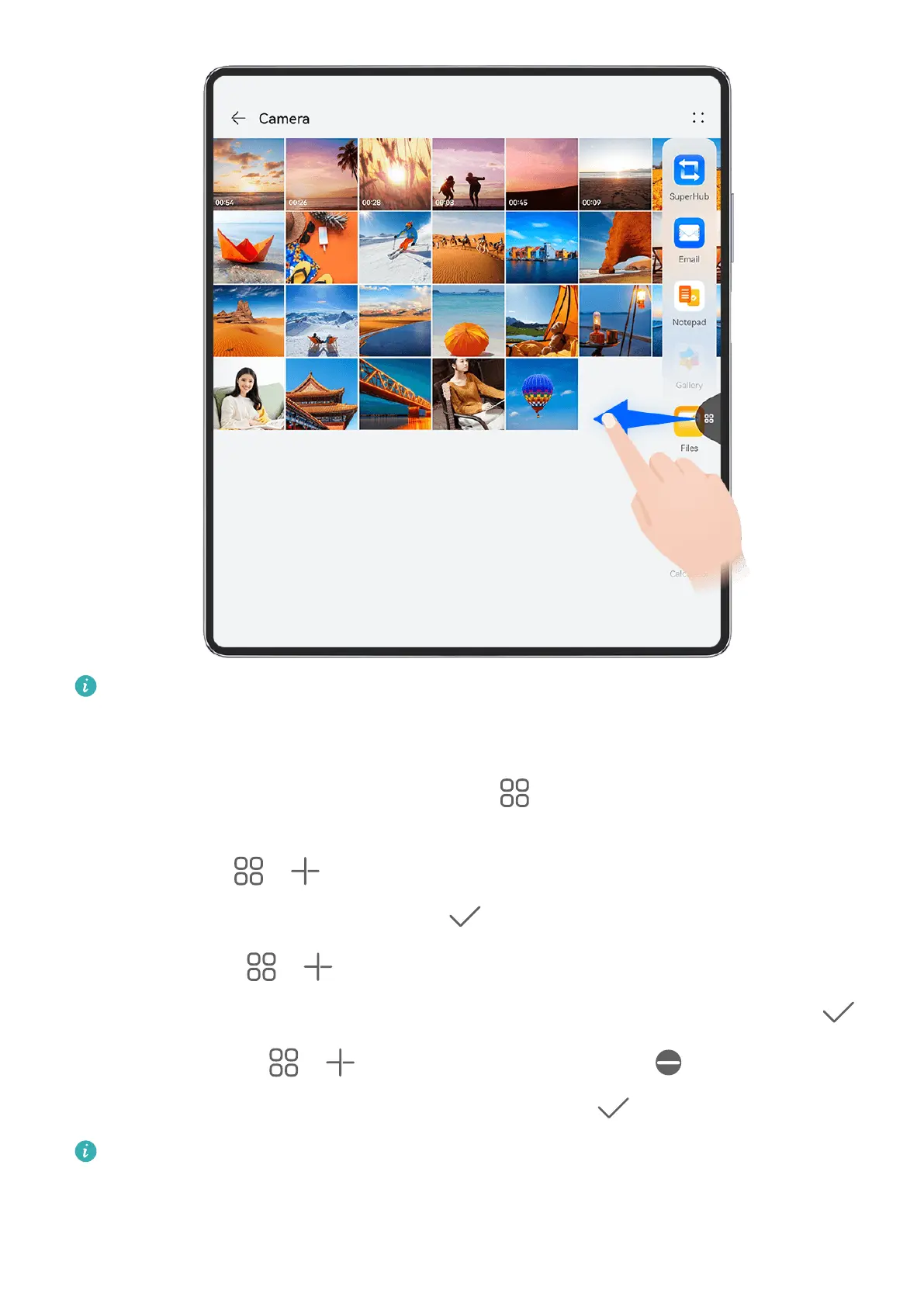
The gures are for reference only.
Swipe inward from the left or right edge of your device and hold to bring up the Multi-
Window dock. From there, feel free to:
• View apps that support Multi-Window: Touch
to nd apps that support Multi-
Window in the More apps section.
• Add apps: Go to > to enter the editing screen. Then touch the apps you wish to
add to the Multi-Window dock, and touch .
• Move apps: Go to > to enter the editing screen, touch and hold down on an app
icon in the Multi-Window dock, drag it to your desired position in the dock, and touch
.
• Remove apps: Go to > to enter the editing screen, touch in the upper right
corner of an app icon in the Multi-Window dock, and touch .
The recommended apps in the Multi-Window dock can't be deleted.
The Multi-Window dock is enabled by default. To disable it, go to Settings > Accessibility
features > Multi-Window, and turn o the Multi-Window dock switch.
Essentials
35



 To Next Page