EasyManua.ls Logo

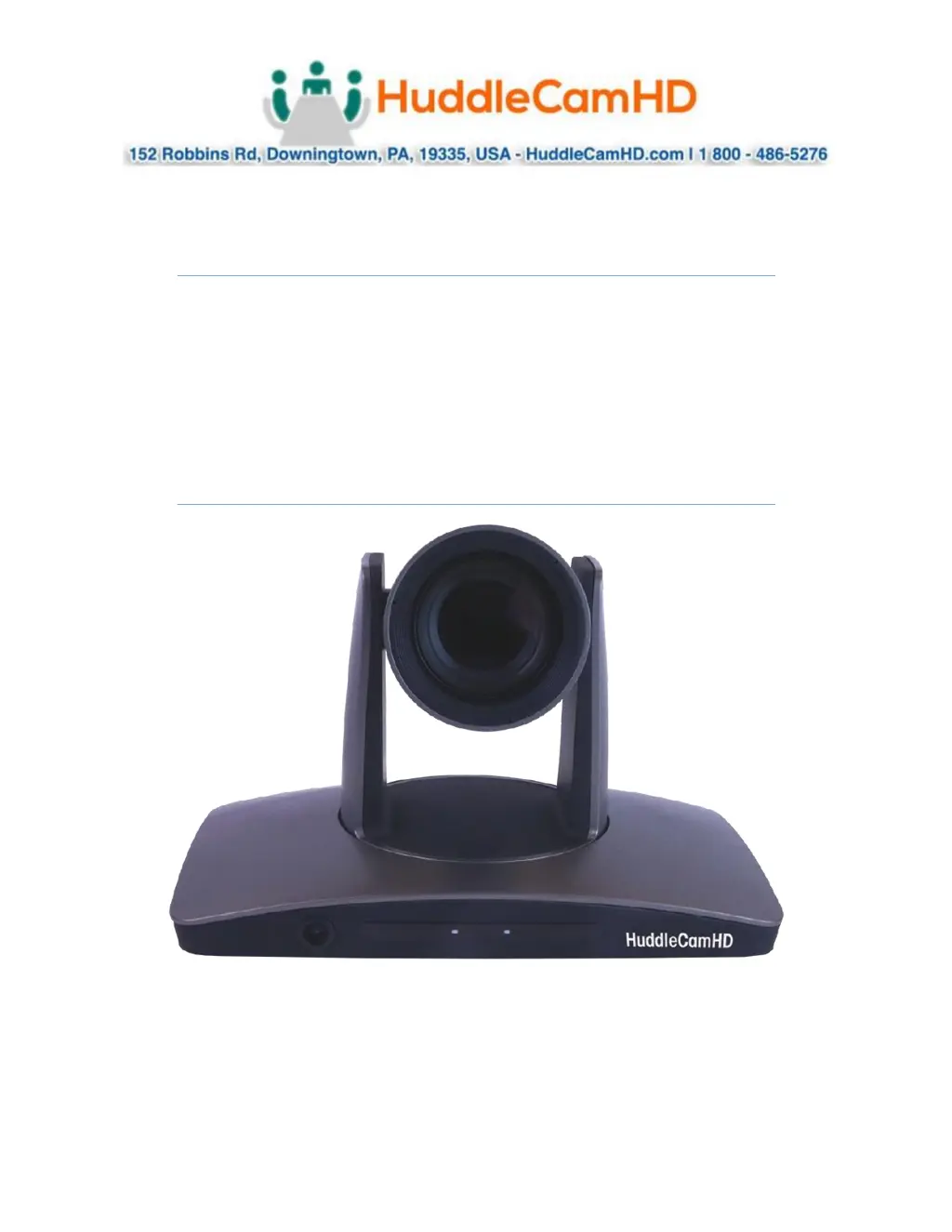
HuddleCamHD HuddleView - User Manual

HuddleCamHD HuddleView
30 pages
Print Icon
To Next Page IconTo Next Page
Loading...
Ver. 1.1 4-19
Page1
HuddleCamHD
HuddleView
Auto Framing Camera
Installation & Operation Manual

Questions and Answers

  • B
    bushdennisAug 12, 2025
    Why HuddleCamHD HuddleView Digital Camera has video loss when pans/tilts/zooms?
    • K
      Karen MejiaAug 12, 2025
      Video loss during pans, tilts, or zooms with your HuddleCamHD Digital Camera can occur due to insufficient power. Check and reconnect the power cable to ensure a stable power supply. Alternatively, the video cable might not be properly connected. In this case, replace it with a tested cable.
  • T
    thorntonsuzanneAug 15, 2025
    What to do if HuddleCamHD HuddleView Digital Camera auto tracking has locked on the wrong subject?
    • K
      Kayla LeonardAug 16, 2025
      If your HuddleCamHD Digital Camera's auto-tracking locks onto the wrong subject without motion, it could be due to inadequate lighting. Increase the lighting on the intended subject or stage. If the problem continues, try moving the camera closer. It may also be caused by a too complex scene with slightly improper lighting.
  • A
    amy94Aug 20, 2025
    How to find HuddleCamHD Digital Camera on the network?
    • M
      Matthew DunnAug 20, 2025
      If you're having trouble finding or connecting to your HuddleCamHD Digital Camera on the network, it might be due to the absence of a DHCP Server. To resolve this, connect to the camera and set a static IP address in the Configuration interface. Another potential cause is multiple network connections. Disable any secondary or tertiary network connections on your Windows PC.
  • A
    Ashley HansonAug 25, 2025
    What to do if HuddleCamHD HuddleView has no movement after power on?
    • J
      Joseph BentleyAug 25, 2025
      If your HuddleCamHD Digital Camera shows no movement or image after powering it on, the cause may be a power supply failure. Check the power supply. It could also be a damaged power adapter, in which case you should replace it. A loose power cable connection can also cause this problem, so check and reconnect the power cable.
  • M
    Matthew JohnsonAug 27, 2025
    Why HuddleCamHD HuddleView Digital Camera is not controllable after self-test?
    • A
      Albert HallAug 27, 2025
      If your HuddleCamHD Digital Camera completes the self-test successfully after powering on but is not controllable, the issue might be due to an incorrect address, protocol, or baud rate. Check and reset these settings. Alternatively, there might be a wrong connection or an open circuit in the RS-485/RS422 or RS-232 cable; check and reconnect the cable.
  • T
    Tina PooleAug 31, 2025
    Why HuddleCamHD HuddleView tracking is off from the reference camera settings?
    • D
      Denise MccartyAug 31, 2025
      If the tracking of your HuddleCamHD Digital Camera seems off compared to the reference camera settings, it could be because the camera has been moved. Manually move the camera back into place or rebuild the tracking zones. Also, a manual tracking/reference camera recalibration might be needed. Enter the Advanced Parameters settings and click the Pos Correct button. Once the tracking camera stops moving, align the crosshairs of the tracking camera to match the crosshairs of the reference camera.
  • M
    Monica OrtegaSep 4, 2025
    What to do if HuddleCamHD Digital Camera tracking is slightly above the subject?
    • E
      Eric ClarkSep 4, 2025
      If your HuddleCamHD Digital Camera is tracking slightly below or above the subject, a manual height recalibration may be needed. Enter the Advanced Parameters settings and click the Debug button. Have your subject stand in place facing the tracking camera. Once a rectangle is around the face, use the Up and Down buttons to adjust tracking height.
  • S
    scottmichaelSep 7, 2025
    Why HuddleCamHD HuddleView Digital Camera has no self-testing after powered on?
    • M
      mendezerikaSep 7, 2025
      If your HuddleCamHD Digital Camera shows no self-testing after being powered on, or if there is motor noise, it might not be getting enough power. Check and reconnect the power cable connection. Another possibility is a mechanical failure, in which case you should send it for authorized repair.

HuddleCamHD HuddleView Specifications

General IconGeneral
Frame Rate30fps
Sensor1/2.7" CMOS
ConnectivityUSB 2.0
Video OutputUSB
PresetsNo
CompatibilityWindows, Mac, Linux
Resolution1920x1080
Video FormatMJPEG, YUV
Audio InputBuilt-in Microphone
Mounting OptionsTripod

Related product manuals