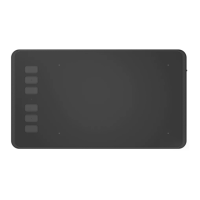
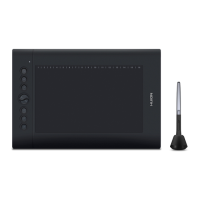
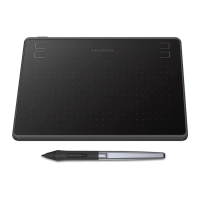
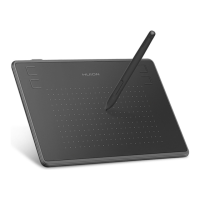
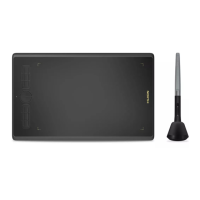
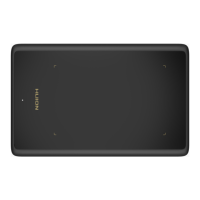
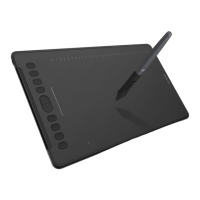
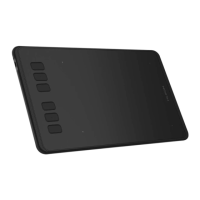
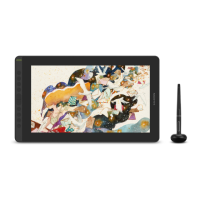
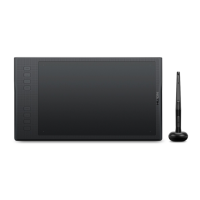
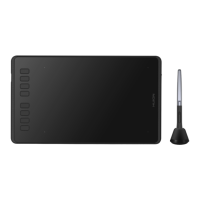
The HUION INSPIROY H640P/H950P is a professional battery-free graphics tablet designed to enhance painting and creative work efficiency. It allows users to freely paint and write, depicting various lines and colors, simulating the experience of a pen on paper. This user manual provides comprehensive instructions for understanding and utilizing the tablet, with information applicable to both Windows and Macintosh systems unless otherwise specified.
Function Description
The graphics tablet functions as an input device for computers and Android phones, enabling digital drawing, painting, and writing. It uses a battery-free pen to interact with the tablet's active area, translating pen movements and pressure into digital input. The tablet features customizable press keys and a working area that can be mapped to single or multiple monitors.
Usage Features
Product Overview and Accessories:
The package includes the Pen Tablet (H640P or H950P model), a Battery-free Pen, a Micro USB Cable, a Pen Holder (integrated with a nib clip), Replacement Nibs (stored inside the pen holder), and a Quick Start Guide. The tablet itself features press keys, an LED indicator, a working area, and a press key lock.
Connecting to a Computer:
To connect the tablet to a computer, use the provided Micro USB cable. The tablet supports Windows 7 or later and macOS 10.11 or later. Before use, the driver must be downloaded from the HUION website (www.huion.com/download) and installed. After successful installation, a driver icon will appear in the system tray, changing color when the tablet is recognized. It is crucial to uninstall any other similar product drivers and close all graphics and anti-virus software before installation to prevent conflicts.
Connecting to an Android Phone:
The tablet can also be connected to Android phones or pads running OS 6.0 or later. For some models, the "OTG" function needs to be enabled in the phone's settings. The appropriate OTG Adapter (included in the package) should be used to connect the pen tablet to the phone. In phone mode, the tablet automatically enters a specific working area (138x86.2mm), and the pen can only operate within this gray area. Note that the press keys on both the tablet and the digital pen are not supported in phone mode, and no driver installation is required for phone use.
Using the Pen:
The pen should be held like a normal pen or pencil, allowing easy access to the side switch with the thumb or forefinger without accidental presses during drawing or positioning. When not in use, the pen should be placed in its case or on the desk, not on the tablet surface, to avoid interfering with other cursor positioning equipment or preventing the computer from entering sleep mode.
Cursor Positioning and Clicking:
To position the cursor, move the pen slightly above the active area without touching the screen. The cursor will move accordingly. To make a selection or register a click, press the pen tip on the screen with sufficient pressure. Tapping once highlights or selects an item, while double-tapping opens it.
Moving Objects:
To move an object, select it and then slide the pen tip across the screen.
The pen's side buttons are customizable and can be set to two different functions. These buttons can be used when the pen tip is within 10mm of the tablet's active area, and it is not necessary to touch the pen tip to the tablet to activate them.
Function Setting:
The driver interface allows for various function settings:
- Device Connection Prompt: Indicates whether the tablet is connected and recognized by the computer.
- Working Area Setting: Defines the mapping relationship between the tablet's active area and the monitor screen. By default, the entire active area maps to the entire monitor. For multiple monitors in extended mode, users can select a specific monitor to map to. In mirror mode, the tablet maps to the entire space on each monitor, and the cursor appears simultaneously on all screens. Users can also define a customized area by entering coordinate values or dragging the corners of a graphic.
- Rotate Working Area: The tablet's working area can be rotated by 0°, 90°, 180°, or 270° to accommodate left or right-hand operation.
- Press Keys Function Setting: The tablet's press keys can be customized. Users can place the cursor on a key or click it to see its default function, then select a new function from a pop-up dialog box and apply it. Press keys can also be enabled or disabled.
- Pen Buttons Function Setting: Similar to press keys, the pen's buttons can be customized by selecting functions from a pop-up dialog box and applying them.
- Pressure Sensitivity Setting: The pen's pressure sensitivity can be adjusted by dragging a slider up or down. A smaller value indicates higher pressure sensitivity.
- Pen Pressure Testing: A "start pressure test" feature allows users to gradually apply pressure to the stylus on the screen to test the pressure level. The "Clear" button clears all ink from the test area.
- Enable Windows Ink Feature: This feature enables extensive support for pen input in Microsoft Windows applications such as Microsoft Office, Windows Journal, Adobe Photoshop CC, and SketchBook 6.
- Data Export and Import: The driver allows users to export and import custom configuration data, which is useful for using different software or avoiding repetitive settings.
Maintenance Features
Pen Nib Replacement:
Over time, the pen nib will wear out and needs to be replaced. To do this:
- Rotate the pen holder anticlockwise to open the cover and retrieve a new nib.
- Insert the old pen nib into the hole at the bottom of the holder and tilt the pen to pull it out.
- Insert the new nib straight into the pen, pushing it slowly and firmly until it stops.
Cleaning:
Before cleaning the tablet, unplug the power cord. Wipe the tablet with a soft, damp cloth. Do not use any detergents.
Safety Precautions:
- Avoid exposing the product to water or other liquids to prevent malfunction or electrical shock.
- Do not place the tablet in unstable or high locations where children can easily reach it, to prevent danger.
- Prevent children from swallowing the pen nib or side switch, as these parts can be pulled out if bitten.
- Power off the tablet in locations where electronic devices are not allowed, such as airplanes, to prevent interference with other devices.
- Do not disassemble or modify the tablet or pen, as this can cause heat generation, ignition, electronic shock, or other damage, and will void the warranty.
- When replacing components, ensure that the repairman uses manufacturer-specified substitutes to avoid fire, electric shocks, or other dangers.
- Do not insert foreign material into the USB port or any other opening of the product, as this can cause malfunction, burnout, or electronic shock.
Troubleshooting:
The manual provides solutions for common issues:
- No pressure in graphics software but cursor moves: This often indicates conflicts with other tablet drivers or drawing software. Uninstall all drivers, close drawing software, reinstall the Huion driver, and restart the computer.
- Pen does not work: Ensure the original pen is being used and the driver is installed correctly.
- Press Keys do not work: Verify that the Press Keys function is enabled in the driver, that the keys are correctly defined, and that the press lock switch is in the unlock position.
- Computer can't enter sleep mode: Avoid leaving the pen on the tablet surface when not in use, as this keeps the computer awake.
- Side button of the pen doesn't work: Ensure the pen nib is not touching the tablet surface and is within 10mm of the surface when pressing the side button.
- Computer can't recognize the tablet or wireless receiver: Check if the USB port is functional and try another USB port if necessary.


 To Next Page
 General