EasyManua.ls Logo

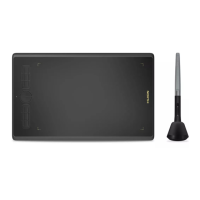
Huion INSPIROY H640 - User Manual

Huion INSPIROY H640
15 pages
Print Icon
To Next Page IconTo Next Page
Loading...
H640P/H950P Battery-free Pen Tablet
User Manual
For Windows and Macintosh OS

Questions and Answers

  • B
    Barbara JacobsonJul 27, 2025
    What to do if my Huion INSPIROY H640 is not recognized by the computer?
    • S
      stewartdanielJul 27, 2025
      If your Huion Tablet is not being recognized by your computer, ensure that the USB port you are using is working correctly. If it isn't, try a different USB port.
  • S
    Sean HansonAug 1, 2025
    Why doesn't the side button of the Huion INSPIROY H640 Tablet pen work?
    • R
      Robert HowardAug 1, 2025
      If the pen's side button on your Huion Tablet isn't working, ensure the pen nib isn't touching the tablet surface when pressing the side button. Also, make sure the distance between the pen nib and the tablet surface is within 10mm.
  • M
    Megan MosleyAug 7, 2025
    What to do if the Huion Tablet pen does not work?
    • A
      Angela RiceAug 7, 2025
      If the pen for your Huion Tablet isn't working, ensure that: 1. You are using the pen that originally came with your tablet. 2. You have installed the driver correctly.
  • P
    Paula WernerAug 11, 2025
    How to fix no pressure in Huion INSPIROY H640?
    • M
      Mark BernardAug 12, 2025
      If there is no pressure in the graphics software while the cursor moves when using your Huion Tablet, you might have installed other tablet drivers or opened the drawing software during driver installation. To resolve this: Uninstall all tablet drivers. Close the drawing software. Reinstall the Huion driver. Restart your computer after installation.
  • C
    Christopher BrownAug 16, 2025
    How to fix Huion INSPIROY H640 Tablet press keys not working?
    • S
      Scott MurphyAug 16, 2025
      If your Huion Tablet's press keys are not functioning, verify the following: 1. Ensure the Press Keys function is enabled in the driver. 2. Confirm that you have correctly defined the functions for the Press Keys. 3. Check if the press lock switch is in the unlock position.
  • S
    shellymyersAug 21, 2025
    Why doesn't my computer go to sleep mode when using the Huion INSPIROY H640?
    • L
      Leon HendersonAug 21, 2025
      If your Huion Tablet prevents your computer from entering sleep mode, avoid placing the pen on the tablet surface when not in use. Leaving the pen on the surface will keep the computer awake.

Summary

Precautions

Product Overview

Driver Installation

Steps for downloading and installing the necessary driver software.

Product Basic Operation

Function Setting

Working Area Setting

Configuring the tablet's active area mapping to monitor screens.

Press Keys Function Setting

Customizing the functions assigned to the tablet's press keys.

Pen Buttons Function Setting

Customizing the functions assigned to the pen's side buttons.

Specifications

Trouble Shooting

Possible Breakdowns Related to TABLET

Solutions for common issues with the tablet hardware and functionality.

Possible Breakdowns Related to SYSTEM

Solutions for issues related to the computer system and its recognition of the tablet.

Huion INSPIROY H640 Specifications

General IconGeneral
Active Area6.3 x 3.9 inches
Pressure Sensitivity8192 levels
Report Rate266 RPS
Resolution5080 LPI
ConnectionUSB
CompatibilityWindows 7 or later, macOS 10.12 or later
Pen TechnologyBattery-free Electromagnetic Resonance
Express Keys6 customizable keys
Pen ModelPW100
Reading Height10mm
Tilt Support±60 degrees

Related product manuals