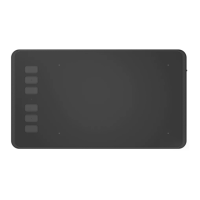
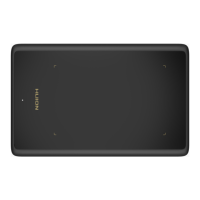
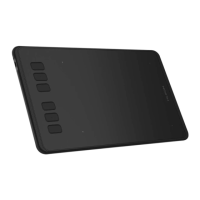
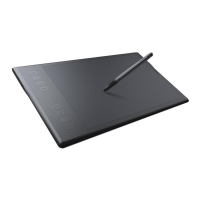
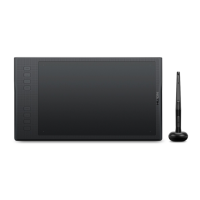
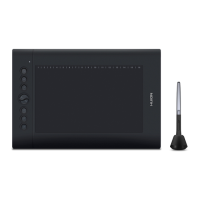
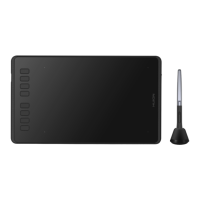
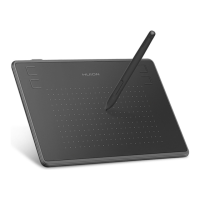
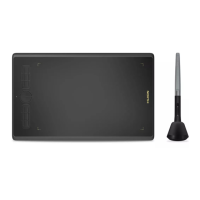
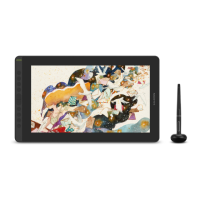
The HUION Inspiroy H1161 is a creative pen tablet designed to enhance digital art and design workflows for users on Windows and macOS operating systems. This professional, battery-free drawing tablet aims to improve work efficiency and provide an enjoyable creative experience, allowing users to draw and write with precision, much like using a pen on paper.
Function Description
The core function of the Inspiroy H1161 is to serve as an input device for digital drawing, painting, and graphic design. It translates pen movements and pressure on its active surface into digital input on a connected computer or Android phone. The tablet features a large working area, providing ample space for creative expression. It comes equipped with a battery-free pen, eliminating the need for charging and ensuring uninterrupted use.
The tablet includes a set of customizable press keys and soft keys, along with a touch bar, which can be programmed to execute various functions, shortcuts, or commands within creative software. This allows users to streamline their workflow by keeping frequently used tools and actions readily accessible. The pen itself also features two customizable side buttons, further enhancing efficiency.
The device supports a wide range of pressure sensitivity levels, enabling artists to create lines with varying thickness and opacity based on the pressure applied to the pen. This mimics the natural feel of traditional art tools, offering greater control and expressiveness in digital art. Additionally, the tablet supports tilt recognition, which allows for dynamic brush effects and shading, adding another layer of realism to the digital drawing experience.
Connectivity is versatile, with support for both computers (Windows 7 or later, macOS 10.12 or later) via a USB-C cable and Android phones (Android OS 6.0 or later) using an appropriate OTG adapter. When connected to an Android phone, the tablet automatically enters a dedicated phone mode, optimizing the working area for mobile use.
Usage Features
The Inspiroy H1161 is designed for intuitive and comfortable use. Holding the pen is similar to holding a traditional pen or pencil, with the side switch positioned for easy access by the thumb or forefinger without accidental presses. The pen's tip acts as the primary input, allowing users to position the cursor by hovering slightly above the active area and to make selections or clicks by tapping the tip on the surface. Double-clicking is achieved by tapping twice. Objects can be moved by selecting them and then sliding the pen tip across the screen.
The customizable press keys and soft keys on the tablet, along with the pen's side buttons, are key features for enhancing workflow. Users can assign specific functions, such as undo, redo, zoom, brush size adjustment, or application-specific shortcuts, to these keys through the driver settings. The touch bar offers a dynamic way to control parameters like brush size or canvas zoom, providing quick adjustments without needing to access menus.
The driver software provides extensive customization options for the working area. Users can define the tablet area that maps to the screen, choosing between the full active area or a customized section. For multi-monitor setups, the driver allows users to select which monitor the tablet maps to, or to have it map to all monitors simultaneously in mirror mode. The working area can also be rotated (0°, 90°, 180°, or 270°) to accommodate left-handed or right-handed users, or different ergonomic preferences.
Pen pressure sensitivity is adjustable via the driver, allowing users to fine-tune the tablet's response to their drawing style. A pen pressure testing feature is included to help users understand and calibrate the pressure levels. The tablet also supports Windows Ink features, which are beneficial for applications like Microsoft Office, Windows Journal, Adobe Photoshop CC, and SketchBook 6, enhancing compatibility and functionality within these programs.
Maintenance Features
Maintaining the Inspiroy H1161 is straightforward, focusing on cleanliness and proper handling to ensure longevity and optimal performance. Before cleaning, it is crucial to unplug the power cord. The tablet should be wiped with a soft, damp cloth, and detergents should be avoided to prevent damage.
Protection from liquids is paramount; the product should not be exposed to water or other liquids, and care must be taken to prevent spills on the tablet or pen, as this could lead to malfunction or electrical shock.
The pen nibs are designed to be replaceable, as they will wear down over time with regular use. The manual provides clear instructions for replacing nibs: anticlockwise rotating the pen holder to access new nibs, using the hole at the bottom of the holder to pull out old nibs, and then inserting new nibs firmly into the pen.
Users are advised against disassembling or modifying the tablet or pen, as such actions can cause heat generation, ignition, electronic shock, or other damage, and will void the product warranty. In the event of component replacement, it is recommended to use substitute components specified by the manufacturer to avoid potential hazards.
To prevent damage or malfunction, foreign materials should not be inserted into the USB port or any other openings of the product. When not in use, the pen should be stored in its case or on the desk, not on the tablet surface, to avoid interfering with other cursor positioning equipment or preventing the computer from entering sleep mode.
The driver software includes data export and import functionality, allowing users to save their custom configuration data. This is a convenient feature for transferring settings between different computers or for restoring preferred settings after a reinstallation, avoiding the need for repeated manual adjustments.
Troubleshooting guidance is provided within the manual to address common issues. For instance, if there is no pressure in graphics software, users are advised to uninstall other tablet drivers, close drawing software, and reinstall the Huion driver. If the pen does not work, checking if the correct pen is used and if the driver is installed correctly are the first steps. Issues with press keys are typically resolved by ensuring the function is enabled and correctly defined in the driver. If the computer doesn't enter sleep mode, it's often due to the pen being left on the tablet surface. For issues with the pen's side buttons, ensuring the nib is not touching the tablet surface and is within 10mm of the surface is important. If the computer fails to recognize the tablet, checking the USB port functionality is recommended.


 To Next Page
 General