EasyManua.ls Logo

Huion Inspiroy H950P - User Manual

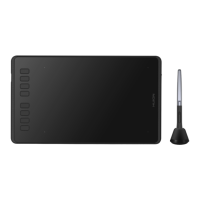
Huion Inspiroy H950P
17 pages
Print Icon
To Next Page IconTo Next Page
Loading...
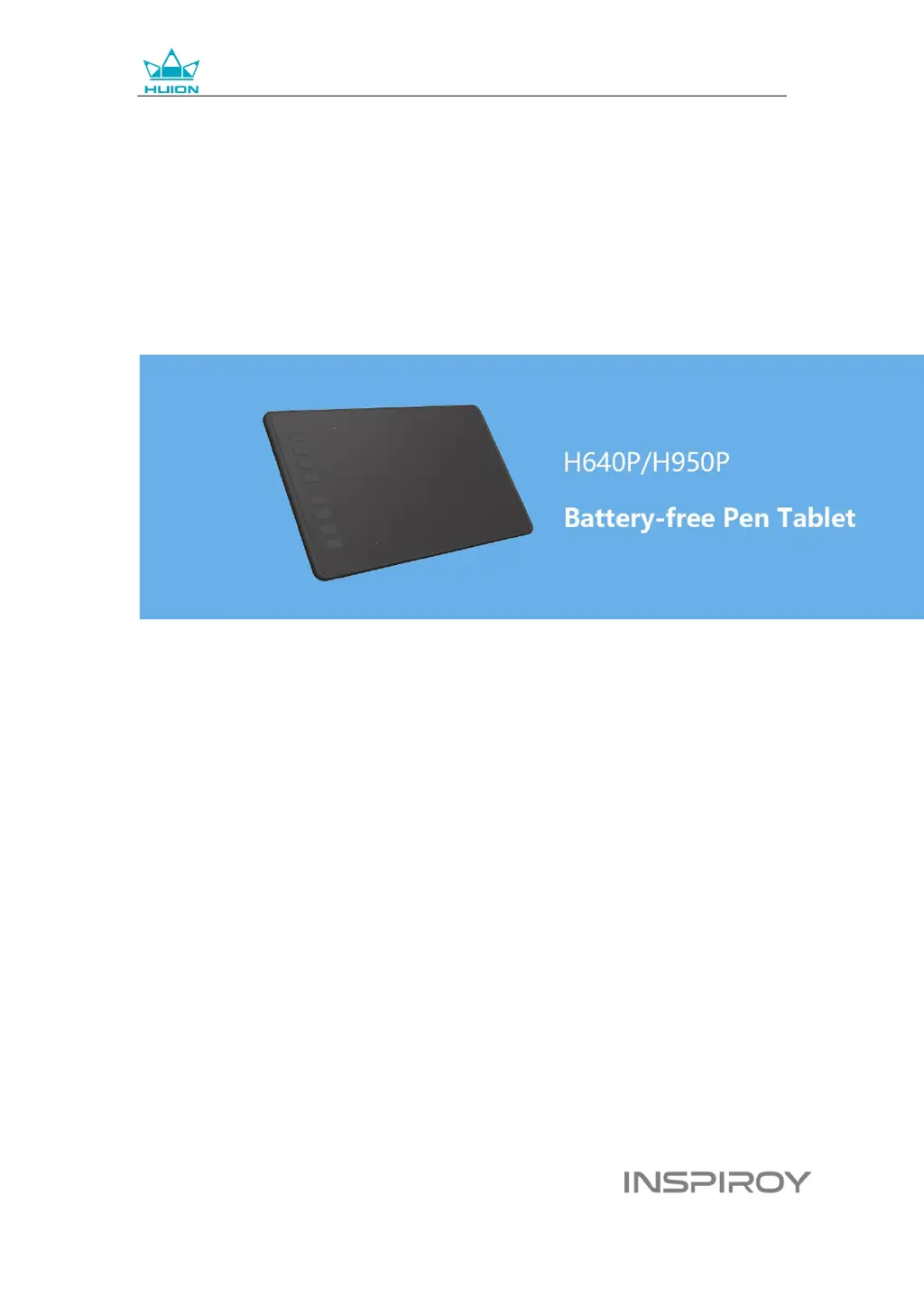
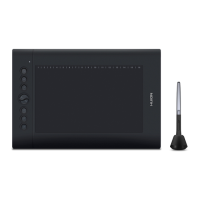
H640P/H950P Battery-free Pen Tablet
User Manual
For Windows and Macintosh OS

Questions and Answers

  • C
    Charles OwensJul 29, 2025
    What to do if Huion Tablet pen does not work?
    • M
      Maria CarrollJul 29, 2025
      If the pen of your Huion Tablet does not work, first, ensure you are using the pen that originally came with your tablet. Second, verify that you have installed the driver correctly.
  • D
    Dawn ShawAug 4, 2025
    How to fix no pen pressure on Huion Inspiroy H950P Tablet?
    • J
      Jessica AndersonAug 4, 2025
      If there is no pressure in the graphics software but the cursor moves on your Huion Tablet, you may have installed other tablet drivers or opened the drawing software when installing the driver. Uninstall all drivers and close the drawing software, then reinstall the Huion driver. Restart your computer after finishing the installation.
  • T
    Thomas MillerAug 9, 2025
    Why do press keys not work on Huion Inspiroy H950P?
    • R
      Richard Shannon PhDAug 10, 2025
      If the press keys on your Huion Tablet do not work, make sure the press keys function is enabled in the driver. Also, ensure you have correctly defined the press keys and check if the press lock switch is in the unlock position.
  • G
    Gregory RivasAug 16, 2025
    Why the side button of the pen doesn’t work on Huion Tablet?
    • J
      Joseph MasseyAug 17, 2025
      If the side button of the pen on your Huion Tablet doesn’t work, when pressing the side button, make sure that the nib didn’t touch the tablet surface and the distance between the nib and surface is within 10mm.
  • C
    Cody JacksonAug 22, 2025
    How to fix Huion Tablet preventing computer from sleeping?
    • J
      Jennifer TaylorAug 22, 2025
      When you are not using your Huion Tablet, do not put the pen on the tablet surface, which will keep the computer awake.

Summary

Product Overview and Setup

Tablet Introduction and Accessories

Overview of the HUION INSPIROY H640P/H950P graphics tablet, its features, and included accessories.

Device Connection and Driver Installation

Instructions for connecting the tablet to a computer via USB and installing necessary drivers for Windows and macOS.

Connecting to Android Phone

Guide on connecting the pen tablet to an Android phone, including OS requirements and OTG adapter usage.

Pen Nib Replacement

Step-by-step instructions on how to replace the pen nib when it wears out, using the provided pen holder.

Product Basic Operation

Using the Pen

Details on how to hold and use the pen, including positioning the cursor, clicking, moving objects, and using side buttons.

Function Settings and Customization

Device and Working Area Configuration

Settings for device connection prompts and configuring the tablet's working area for single or multiple monitors.

Pen and Button Customization

Instructions for setting custom functions for the tablet's press keys and the pen's buttons.

Pressure and Ink Settings

Adjusting pen pressure sensitivity and enabling Windows Ink features for enhanced pen input support.

Data Management

How to export and import custom configuration data for the product, simplifying setup across different software.

Specifications

Troubleshooting and Support

Tablet Troubleshooting

Solutions for common issues such as no pressure sensitivity, pen not working, or press keys malfunctioning.

System Troubleshooting

Addressing problems where the computer cannot recognize the tablet or its wireless receiver.

After-service Contact

Contact information for Shenzhen Huion Animation Technology Co., Ltd. for after-sales service and support.

Huion Inspiroy H950P Specifications

General IconGeneral
Active Area8.7 x 5.4 inches
Pressure Sensitivity8192 levels
Resolution5080 LPI
Pen TechnologyBattery-Free Electromagnetic Resonance
Weight497 g
Report Rate233 PPS
Accuracy±0.3 mm
Reading Height10 mm
InterfaceMicro USB
Pen ModelPW100
Express Keys8
ConnectivityUSB
CompatibilityWindows, macOS

Related product manuals