Basic Troubleshooting Instructions: eFloat Next
TG-EFLOATNEXTBASICTROUBLESHOOTING-R02 - Last Revision 8/16/2023
Page 2 of 2
Customer Care
TROUBLESHOOTING INSTRUCTIONS
B. Desktop Movement Troubleshooting
The following tips will help you identify and troubleshoot general issues with movement. If the hand switch displays an error code, continue onto the
next section, Programmable Hand Switch Error Code Troubleshooting.
If the issue is not resolved after taking the action listed: follow steps in the Additional Support section.
Issue Troubleshooting Steps
Table does not move Ensure all cords are fully secured and the outlet your table is plugged into has power.
Table moves at a slow rate
Follow Reset Procedure.
Hand Switch LED is red
Ensure all cables are fully secured. Follow Reset Procedure.
C. Programmable Hand Switch Error Code Troubleshooting
1. Is there visible damage to any table components?
Yes → Follow steps in the Additional Support section and include photos of the damaged component(s).
No → Continue onto Step 2.
2. Is the LED display on the handset illuminated (after any button is pushed)?
Yes → Continue onto Step 3.
No → Check all connections, including power and power outlet. If all connections are working, the desk may be overheated. Wait 20 minutes
and the desk should resume normal operation.
3. Does the handset display code H01?
Yes → The desk is overheated. Wait 20 minutes and the desk should resume normal operation.
No → Continue onto Step 4.
4. Does the handset display one of the following codes: RST, E01, E02, E03, E07, E08, E09?
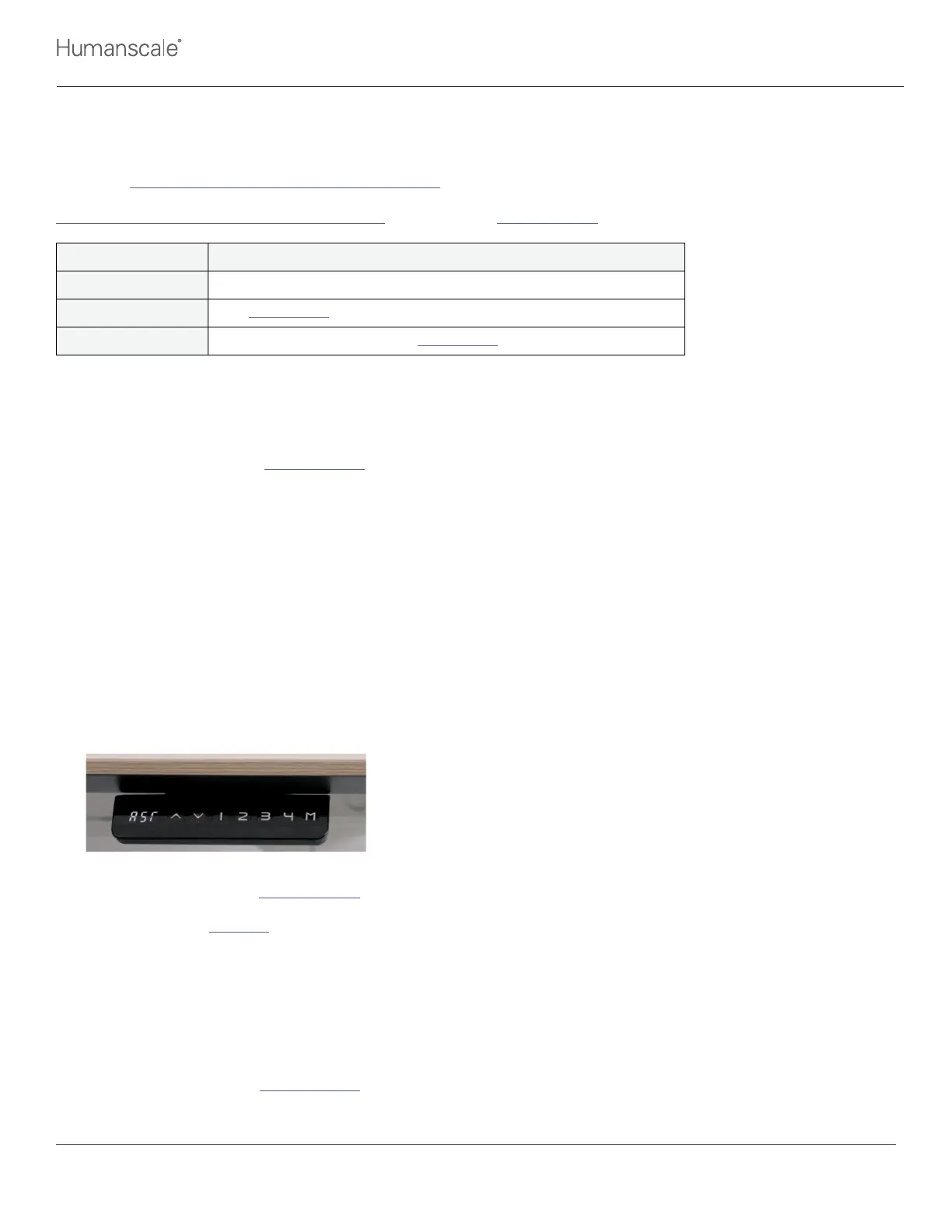
Note: “RST” will be displayed as shown in image below. Handset type on eFloat Next will differ from image shown.
Yes → Continue onto Step 5.
No → Follow steps in the Additional Support section for further assistance.
5. Perform a base reset (view video):
a. Press the Down button for up to 5 seconds until the LED display flashes code RST.
b. Press the Down button again until the bases lowers and slightly rises. The base has reset and is now ready for use
If steps above do not resolve issue, continue onto Step 6.
6. Does the handset display code ASR?
Yes → Re-press and hold Down button until reset occurs. The desk will jog up and display will show desk height.
No → Follow steps in the Additional Support section for further assistance, Indicate the troubleshooting steps were taken, and provide the
code displayed on the handset.


 To Previous Page