17
Using FishSmart
Touch Screen Overview
A
summary of the mobile device touch screen actions are shown here.
NOTE: Some of the information and instructions may not apply to all mobile devices. Refer to the instructions included with your
mobile device.
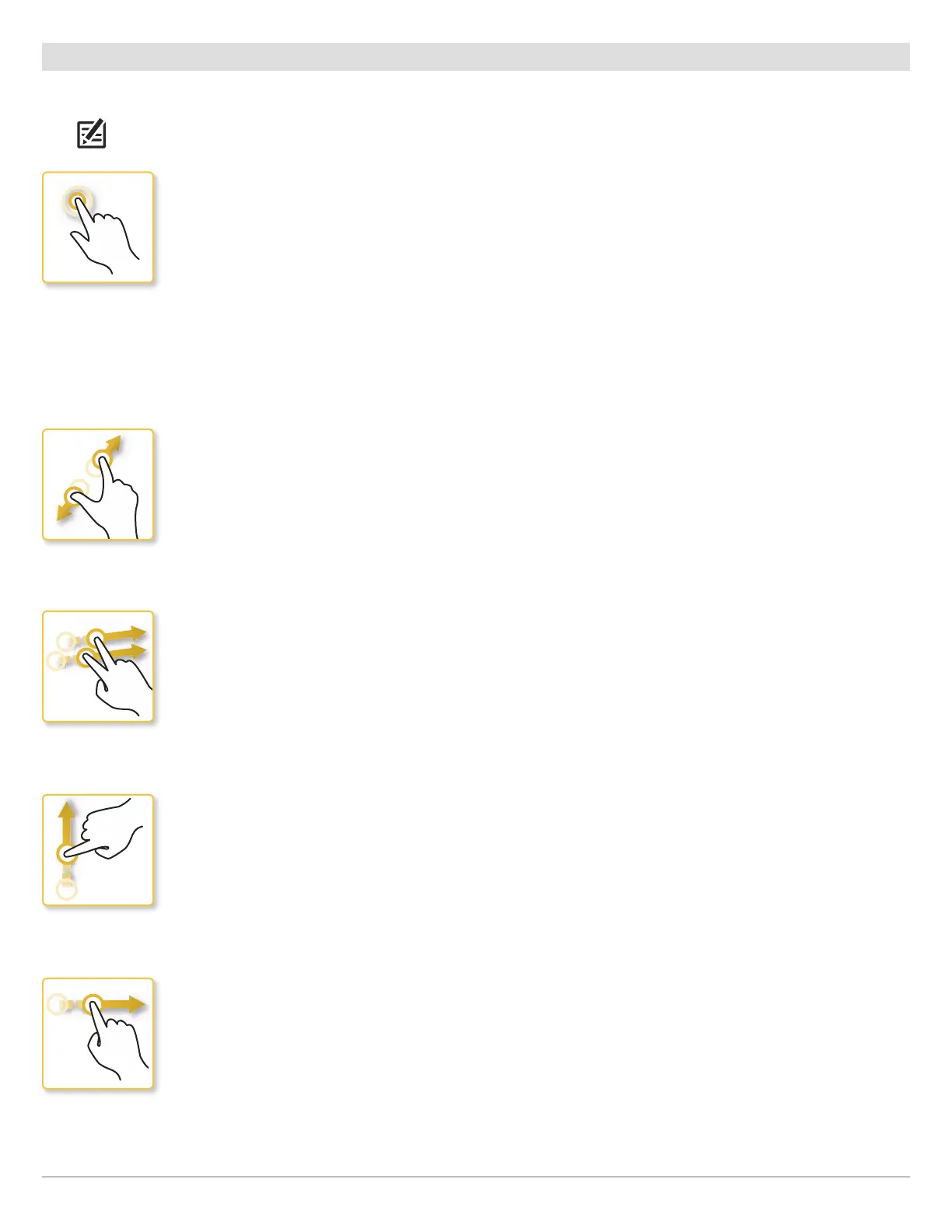
Tap or Press and Hold
Select a Menu or Icon: Tap the selection once.
Mark a Waypoint or Start a Route: Press and hold a position on the view to mark a waypoint or start a new route.
Zoom In: Tap the screen twice with one finger.
Zoom Out: Tap the screen once with two fingers.
Share or Delete a Saved Item (Google Android only): Press and hold a saved waypoint, route, track, or chart to
select the item to export or delete.
Pinch In/Out
Zoom In: Touch the screen with two fingers and move them apart.
Zoom Out: Touch the screen with two fingers and move them closer together.
Swipe Side to Side
Pan: Drag one or two fingers across the screen to see more of the chart that is displayed off-screen.
One Finger Swipe (Up or Down)
Browse Menus: Swipe with one finger to scroll through a menu list (up or down).
One Finger Swipe (Left or Right)
Select a Slider Bar Setting: Press and hold on the slider bar circle and drag it left or right to adjust the setting.
Pan: Drag one or two fingers across the screen to see more of the chart that is displayed off-screen.
Delete a Saved Item (Apple iOS only): Select a waypoint, route, track, or saved chart in the menu system and
swipe left. Tap Delete.





 To Next Page