EasyManua.ls Logo

Humminbird HELIX 9 - User Manual

Humminbird HELIX 9
191 pages
Print Icon
To Next Page IconTo Next Page
Loading...
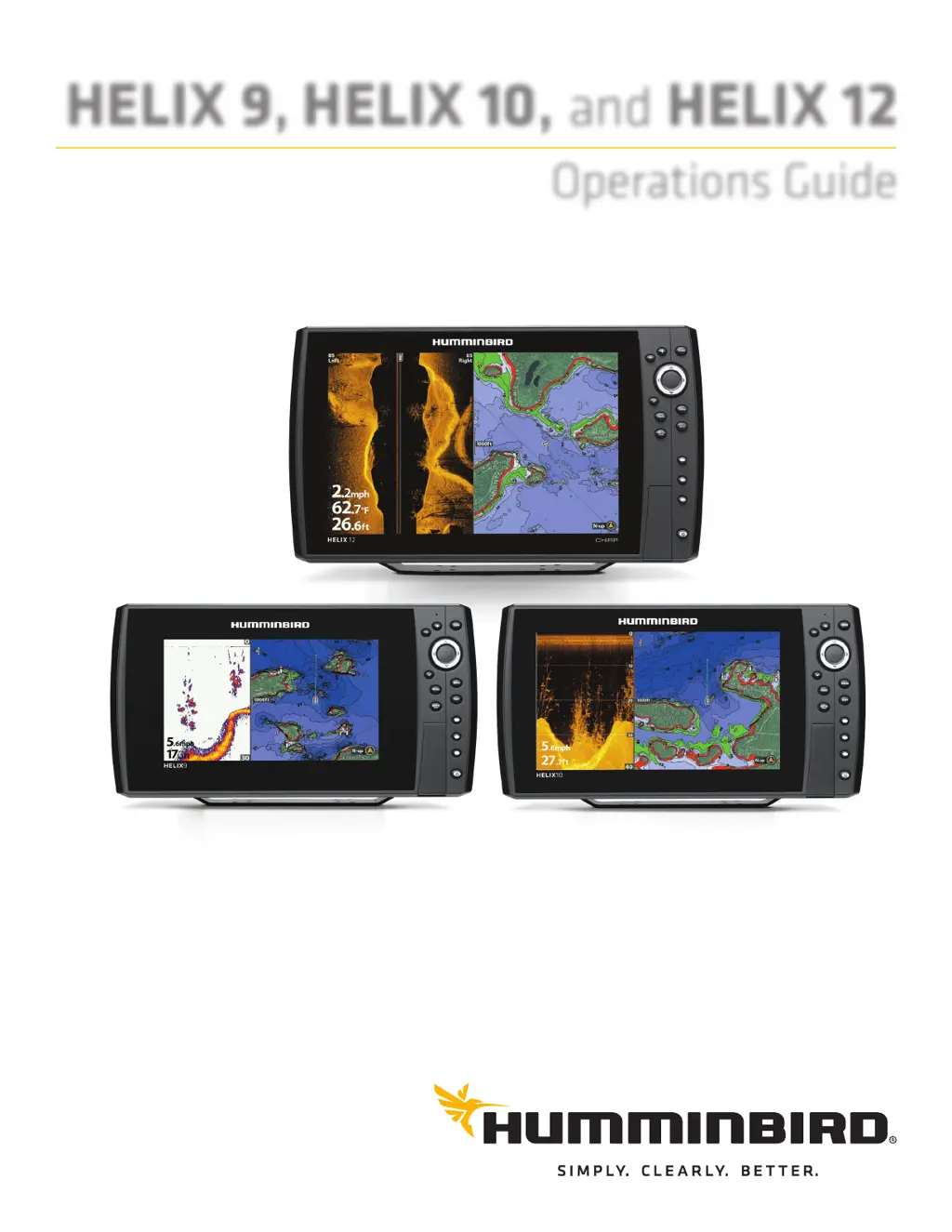
HELIX 9, HELIX 10, and HELIX 12
Operations Guide
532400-2EN_A

Table of Contents

Other manuals for Humminbird HELIX 9

Questions and Answers

  • S
    Sarah MillerAug 16, 2025
    What to do if my Humminbird HELIX 9 Fish Finder doesn't detect fish, even when they are in the water?
    • R
      Rachel MorenoAug 17, 2025
      The sonar readings may be affected by several factors. The transducer might not be positioned correctly or there could be mechanical interference. The transducer may be mounted at an angle, or the hull may be too thick for proper sonar transmission. Also, the bond between the transducer and the hull might not be airtight, or the transducer could be dirty. Low battery voltage or electrical noise from the boat's engine can also interfere with sonar reception. Adjust the transducer position, ensure it's clean, and check for electrical noise.
  • J
    Jason HughesAug 19, 2025
    How to fix a Humminbird Fish Finder when the control head doesn’t detect the connected transducer?
    • K
      Kari CortezAug 19, 2025
      Check that the transducer cable is securely connected to the control head. Reconnect if necessary. If available, replace the transducer with one that you know is working. Check the transducer cable for damage or corrosion, and replace the transducer if needed.
  • T
    Travis BassAug 22, 2025
    What to do if Humminbird Fish Finder control head doesn’t power up?
    • C
      Christopher RodriguezAug 22, 2025
      Confirm that the power cable is properly connected to the control head, wired correctly, and the fuse is working. Ensure the battery voltage at the power connector is at least 10 Volts. Correct any issues, such as removing corrosion from battery terminals or wiring, or replace the battery if needed.
  • W
    wallenAug 25, 2025
    What to do if Humminbird GPS control head doesn’t detect the connected transducer?
    • T
      Timothy MorganAug 25, 2025
      If your Humminbird GPS control head isn’t detecting the connected transducer, first ensure that the transducer cable is securely connected to the control head, referring to the transducer installation guide. Reconnect it if necessary and power the unit up again. If the issue persists, try replacing the transducer with a known working one to see if that resolves the problem. Also, inspect the transducer cable for any damage or corrosion, and replace the transducer if needed.
  • N
    Nancy GrayAug 27, 2025
    Why does my Humminbird HELIX 9 Fish Finder control head lose power at high speeds?
    • M
      Mr. Anthony LeAug 27, 2025
      If your boat's engine has unregulated power output, the Humminbird Fish Finder control head might be using its over-voltage protection feature. Ensure the input voltage doesn't go over 20 Volts.
  • C
    Christina TaylorAug 30, 2025
    What to do if the bottom disappears or weakens at higher speeds on my Humminbird HELIX 9 Fish Finder?
    • N
      Nicole OconnellAug 30, 2025
      The transducer position may need adjustment. A mix of air and water flowing around the transducer (cavitation) can interfere with sonar data interpretation. Also, electrical noise from the boat’s engine might interfere with sonar reception. Adjust the transducer position.
  • G
    garysuarezSep 2, 2025
    What to do if my Humminbird HELIX 9 Fish Finder control head doesn’t detect a connected accessory?
    • N
      nguyenmelissaSep 2, 2025
      First, check that the accessory cable is securely connected to the control head; reconnect it if necessary. Next, confirm that the accessory is connected to a stable and reliable power source. As a last resort, power off all control heads and connected equipment, wait 10 seconds, and then power everything back on.
  • C
    Christina MillerSep 4, 2025
    How to fix Humminbird GPS control head that doesn't power up?
    • J
      jessica07Sep 4, 2025
      If your Humminbird GPS control head isn't powering up, consult the installation guide to verify that the power cable is correctly connected to the control head and wired properly, ensuring the red wire is connected to the positive battery terminal and the black wire to the negative terminal or ground. Also, check that the fuse is working and the battery voltage at the power connector is at least 10 Volts. Correct any issues, such as removing corrosion from battery terminals or wiring, or replacing the battery if needed.
  • L
    Leah RubioSep 7, 2025
    Why my Humminbird GPS control head doesn’t detect a connected accessory?
    • A
      Austin KennedySep 7, 2025
      If your Humminbird GPS control head isn’t detecting a connected accessory, ensure that the accessory cable is securely connected to the control head; reconnect if necessary. Also, confirm that the accessory is connected to a stable and reliable power source. As a last resort, try an entire system restart: power off all control heads and connected equipment, wait 10 seconds, and then power everything back on.
  • A
    Alicia StewartSep 10, 2025
    What to do if the bottom disappears on Humminbird GPS at high speeds?
    • A
      Andre WilkinsSep 10, 2025
      If the bottom disappears or weakens on your Humminbird GPS at higher speeds, or the display contains gaps, it may be necessary to adjust the transducer position. Consult the transducer installation guide for instructions. Also, electrical noise from the boat’s engine may be interfering with sonar reception; see Finding the Cause of Noise for more information.

Summary

Introduction to Humminbird Operations

How to Use This Manual

Instructions on navigating and searching within the PDF manual for efficient use.

Getting Started with Your Humminbird Device

Powering On the Control Head

Step-by-step instructions for powering on the Humminbird control head unit.

Selecting Operating Mode

Procedure to select the operating mode for on-the-water use (Normal, Simulator, System Status).

Initial Quick Setup Configuration

Essential initial setup settings including language, depth, and transducer connection.

Verifying Accessory Connections

Steps to confirm that connected accessories like Radar and AIS are detected.

Checking GPS Reception Status

Procedure to confirm the control head's GPS signal strength and fix type.

Configuring Alarms and Alerts

Setting up audible or visual alerts for conditions like depth, battery, or course deviation.

Managing Triplog and Sound Settings

Instructions for resetting the triplog and managing sound notifications.

Adjusting Backlight and Powering Off

How to adjust display brightness and safely power down the control head.

Humminbird Control Head Interface

Understanding Control Head Keys

Description and function of the main physical buttons on the control head unit.

Using the MARK, MENU, and GOTO;MOB Keys

Functions of key buttons for marking waypoints, accessing menus, and navigation.

SD Card Slot Functionality

Information regarding the SD card slot for software updates and data storage.

Navigating the Menu System

Accessing X-Press and Main Menus

Procedures for opening the context-sensitive X-Press menu and the main menu.

Selecting and Changing Menu Settings

How to navigate menus, select options, and adjust settings.

User Mode and Closing Menus

Switching between Normal/Advanced modes and exiting the menu system.

Displaying and Managing Views

Displaying Different Views

How to select and display various views like Sonar, Chart, or Radar.

Managing Digital Readouts

Customizing which data (speed, depth, temp) is displayed on screen.

Working with Combo Views

Displaying multiple views simultaneously and adjusting their layout.

Sonar Overview and Setup

Understanding Sonar Technologies

Overview of DualBeam PLUS, Side Imaging, Down Imaging, and CHIRP sonar.

Setting Up Sonar Functions

Configuring transducers, noise filters, and display settings.

Customizing Sonar Views

Adjusting display settings like surface clutter, SwitchFire mode, and color palettes.

Adjusting Sensitivity and Ranges

Fine-tuning sonar sensitivity, upper/lower ranges, and chart speed.

Reviewing Sonar History and Zooming

Freezing sonar history and magnifying specific areas of the display.

Down Imaging Sonar Operations

Displaying Down Imaging Views

How to display the Down Imaging view and combo views.

Understanding Down Imaging Display

Interpreting the visual elements and data on the Down Imaging screen.

Customizing Down Imaging View

Adjusting depth lines, temperature graph, and color palettes.

Adjusting Down Imaging Settings

Tuning sensitivity, contrast, sharpness, and depth ranges for Down Imaging.

Side Imaging Sonar Operations

Displaying Side Imaging Views

How to display the Side Imaging view and combo views.

Understanding Side Imaging Display

Interpreting the visual elements and data on the Side Imaging screen.

Customizing Side Imaging View

Controlling SI range lines, digital readouts, and color palettes.

Adjusting Side Imaging Settings

Tuning sensitivity, range, and chart speed for Side Imaging.

Managing Screen Snapshots and Recordings

Enabling Snapshot and Recording Features

Prerequisites for using screen snapshot and recording functions.

Taking and Managing Screen Snapshots

Capturing, viewing, and deleting still images of the screen display.

Recording and Playing Back Sonar Data

Using the feature to record sonar data and play it back for analysis.

Chart Overview and Customization

Understanding Chart Views

Overview of chart display, including Contour XD maps.

Selecting and Installing Chart Sources

Procedures for installing SD map cards and selecting chart sources.

Customizing Chart Appearance

Adjusting chart details, colors, orientation, and indicators.

Displaying LakeMaster Contour Lines

Displaying and adjusting contour lines and depth ranges for LakeMaster maps.

Navigation Features

Overview of Navigation Functions

Introduction to marking waypoints, creating routes, and starting navigation.

Setting Up Navigation Alarms

Configuring alarms for off-course, arrival, and drift conditions.

Man Overboard (MOB) Navigation

Activating and managing Man Overboard navigation for rescue.

Managing Waypoints, Routes, and Tracks

Customizing Waypoint Display Settings

Adjusting how waypoints appear on the chart view.

Creating and Editing Waypoints

Marking new waypoints and editing existing ones.

Managing Saved Routes

Creating, editing, saving, and deleting navigation routes.

Managing Tracks

Editing, saving, and deleting recorded tracks.

Data Management and Organization

Searching and Organizing Navigation Data

Searching items by criteria and duplicating or moving them.

Importing and Exporting Navigation Data

Transferring data to/from the unit and deleting all navigation data.

AutoChart Live Mapping

Overview and Planning Your Map

Introduction to AutoChart Live and tips for planning map creation.

Preparing the Control Head for Mapping

Setting map source and confirming transducer configuration.

Recording Your Custom Map

Initiating and managing the custom map recording process.

Adjusting Map Display Settings

Modifying depth range, contour lines, and map position.

Managing Your Control Head Settings

GPS Receiver and Output Configuration

Selecting GPS receivers and setting GPS output frequency.

NMEA 0183 Output Settings

Enabling NMEA 0183 output for compatible devices.

Display and Readout Format Adjustments

Changing display language, readout formats, and units of measurement.

Restoring System Defaults

Resetting all control head settings to factory defaults.

Software Updates and Maintenance

Updating Control Head Software

Downloading and installing software updates for the unit.

Control Head and Transducer Maintenance

Cleaning and care procedures for the control head screen and transducer.

Troubleshooting Common Issues

Control Head Power and Detection Issues

Troubleshooting steps for power-up failures and connectivity problems.

Resolving Display Problems and Noise

Diagnosing display issues and identifying sources of electrical noise.

Product Specifications

HELIX 9 Series Specifications

Technical details for HELIX 9 models including Sonar, DI, and SI.

HELIX 10 Series Specifications

Technical details for HELIX 10 models including Sonar, DI, and SI.

HELIX 12 Series Specifications

Technical details for HELIX 12 CHIRP models including DI and SI.

Control Head Physical Dimensions

Measurements for HELIX 9, 10, and 12 control heads in gimbal and in-dash mounts.

Linux Operating System Information

Contacting Humminbird Customer Service

Humminbird HELIX 9 Specifications

General IconGeneral
Tracks50
Track Points20, 000
ChartplotterYes
LakeMaster CompatibilityYes
AutoChart LiveYes
NetworkingEthernet
Waterproof RatingIPX7
Display Size9 inches
Display Resolution800 x 480 pixels
Sonar TypeCHIRP, DualBeam PLUS, Side Imaging, Down Imaging
GPSBuilt-in GPS
Power Output500 watts RMS
TransducerIncluded

Videos

How to Restore Humminbird HELIX 9 to Factory Settings

Related product manuals