EasyManua.ls Logo

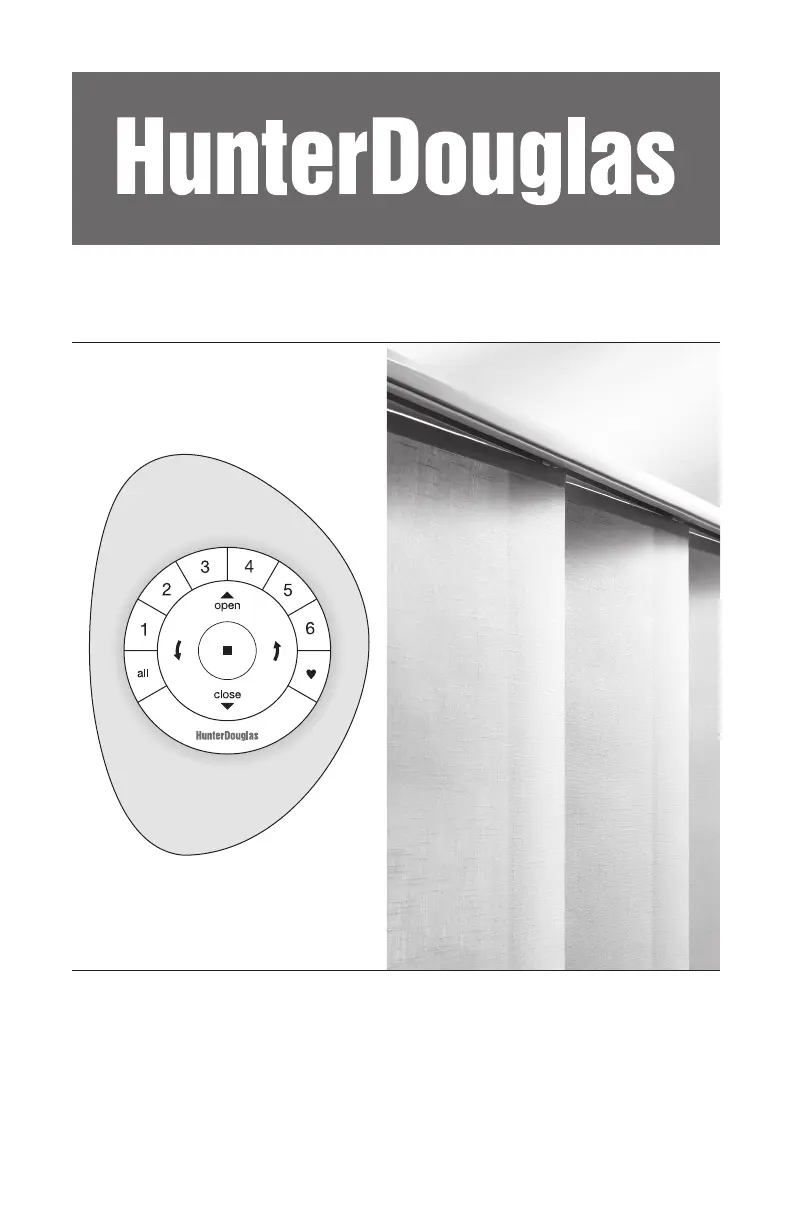
HunterDouglas Skyline PowerView - User Manual

Default Icon
60 pages
Print Icon
To Next Page IconTo Next Page
Loading...
Installation
Operation
Care
Skyline
®
Gliding Window Panels
PowerView
Motorization

Questions and Answers

  • D
    Dylan RodgersAug 4, 2025
    What to do if HunterDouglas Indoor Furnishing shade is not responding to remote?
    • J
      jasonsanchezAug 5, 2025
      If your HunterDouglas Indoor Furnishing shade isn't responding to the PowerView™ remote, ensure the shade is joined to a group. A shade will not operate until it is. Also, verify that the correct group number is selected and that the batteries in the remote are correctly inserted and are fresh. The LEDs that backlight the remote should come on full bright when the STOP button is pressed.
  • B
    Benjamin DanielsAug 9, 2025
    Why HunterDouglas Skyline PowerView Indoor Furnishing doesn't traverse correctly?
    • W
      Wendy IrwinAug 9, 2025
      If your HunterDouglas Indoor Furnishing unit doesn't traverse at all, doesn't traverse fully, or doesn't traverse correctly, check that the mounting brackets are level, that their front edges are aligned, and that there are no obstructions to the movement of the panels. You can also try resetting the unit.
  • C
    Curtis EatonAug 15, 2025
    What to do if HunterDouglas Skyline PowerView Indoor Furnishing shade doesn't operate with manual control?
    • J
      jason79Aug 16, 2025
      If the HunterDouglas Indoor Furnishing shade does not operate using the manual control button, try unplugging the power cable from the motor and then plugging it back in. A green LED inside the manual control button housing should flash to indicate the motor has power. Check that the DC power supply is securely connected to the barrel connector on the motor. Also, check that the receiver is securely connected into the motor housing.
  • A
    ashleyspenceAug 22, 2025
    How to determine panel orientation of HunterDouglas Skyline PowerView?
    • N
      nschroederAug 22, 2025
      To determine the panel orientation (whether it was made as right or left facing) for your HunterDouglas Indoor Furnishing, check the carriers in the headrail (where the panels hook in). WHITE carriers indicate a right-facing headrail, while GRAY carriers indicate a left-facing headrail. Note that panels will fall out of the headrail if installed improperly from the purchased configuration.
  • T
    Tyrone CampbellAug 27, 2025
    How to fix HunterDouglas Skyline PowerView panel that doesn't hang correctly?
    • T
      tracyadamsAug 28, 2025
      If the HunterDouglas Indoor Furnishing panel does not hang correctly, check that the panel is installed correctly. Panels should be angled compared to the track, with each panel hanger connected to a carrier in both the front and back channels. Ensure that the headrail is level and that the bottom weight snap slides are installed and operating correctly. The bottom weights should slide together easily when connected using the snap slides. Also, make sure there are no obstructions to the movement of the panels and replace protruding window cranks with T-cranks. Wrinkling and folds in the panel fabric, due to packaging, will usually drop out within a few days.

Summary

GETTING STARTED

Key Installation Components and Hardware

Details on required brackets, clips, and fasteners for installation.

PowerView Motorization System Setup

Covers DC power supply, remote, and receiver setup for motorization.

INSTALLATION

Headrail and Cassette Mounting Procedures

Steps for mounting headrails and fabric-wrapped large cassettes.

Fabric Panel Assembly and Stacking Procedures

Guides for assembling fabric panels in different configurations (stacking).

Motorization System Connection and Testing

Connecting the receiver, DC power supply, and testing operation.

OPERATION

Troubleshooting Shade Operation Issues

Solutions for problems like panels not hanging correctly or shade not responding.

CARE

HunterDouglas Skyline PowerView Specifications

General IconGeneral
CategoryIndoor Furnishing
BrandHunter Douglas
ProductSkyline PowerView
Voice ControlAmazon Alexa, Google Assistant, Apple HomeKit
OperationMotorized
Power SourceBattery or Wired Power
ControlRemote, App, Voice
Control MethodPowerView Automation
ConnectivityWi-Fi
App IntegrationPowerView App
CustomizationFabric Choice
CompatibilityPowerView Hub required for smart home integration
Fabric OptionsVariety of colors and materials

Related product manuals