HYFIX MobileCM Base-station Manual Page 5 of 12
2. WiFi Connection and Internet Setup
WiFi is the default connection for both configuring the MobileCM and transmitting
data to GEODNET. When first configuring the MobileCM, you make a local WiFi network
between your PC or MAC to the MobileCM. This is called AP mode, and there is No Internet
connectivity in this phase. Once configuration of step 2.1is completed, the MobileCM will
restart and attempt to securely connect to your local WiFi network and begin transmitting.
This is called Station mode.
2.1. Configure MobileCM Network Connection (AP Mode)
Prior to connecting to the Internet, the MobileCM is in Access Point (AP) mode. The
network SSID will be MobileCM_xxxxxx where the xxxxx code is the last 6-digits of the 12-
digit Station Serial Number. The Password is the full Station Serial Number listed on the
bottom of the device.
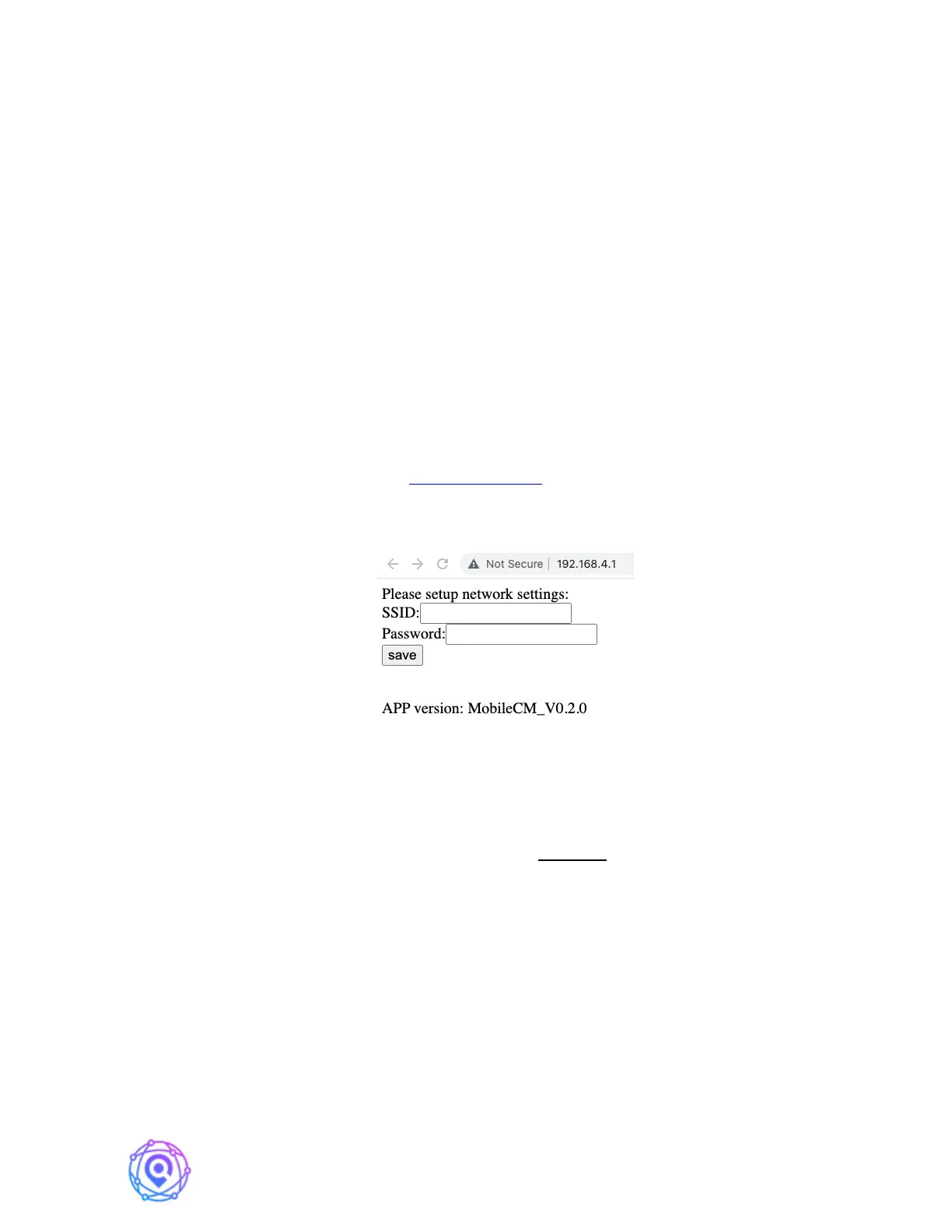
A MobileCM webpage may automatically appear on a MAC. More likely you will
need to manually enter the IP address http://192.168.4.1 . In AP mode, the the MobileCM is
acting as the router in this simple two device network. Enter this local IP address into a web-
browser and the following screen should appear.
As shown above, enter the SSID and Password of the WiFi network you would like to
use for data transmission. This network should be stable.
IMPORTANT! Enter the SSID and Password carefully, as this will speed up process
and avoid hassle. You may want to test the SSID and Password on another device prior to
hitting Save, if you are unsure of the values. Also avoid SSID names that have special
characters in it e.g., for example punctuation marks.
If the connection was successful, the GREEN LED will turn solid after a few seconds
of blinking rapidly (max time should be 1 minutes). Move to Step 2.2 if the GREEN LED
remains solidly lit.
If the connection was not successful, the GREEN LED will eventually stop blink and
begin blinking slowly … reverting to AP Mode. While slowly blinking, repeat step 2.1
double checking your SSID and Password for the WiFi network.


 To Next Page