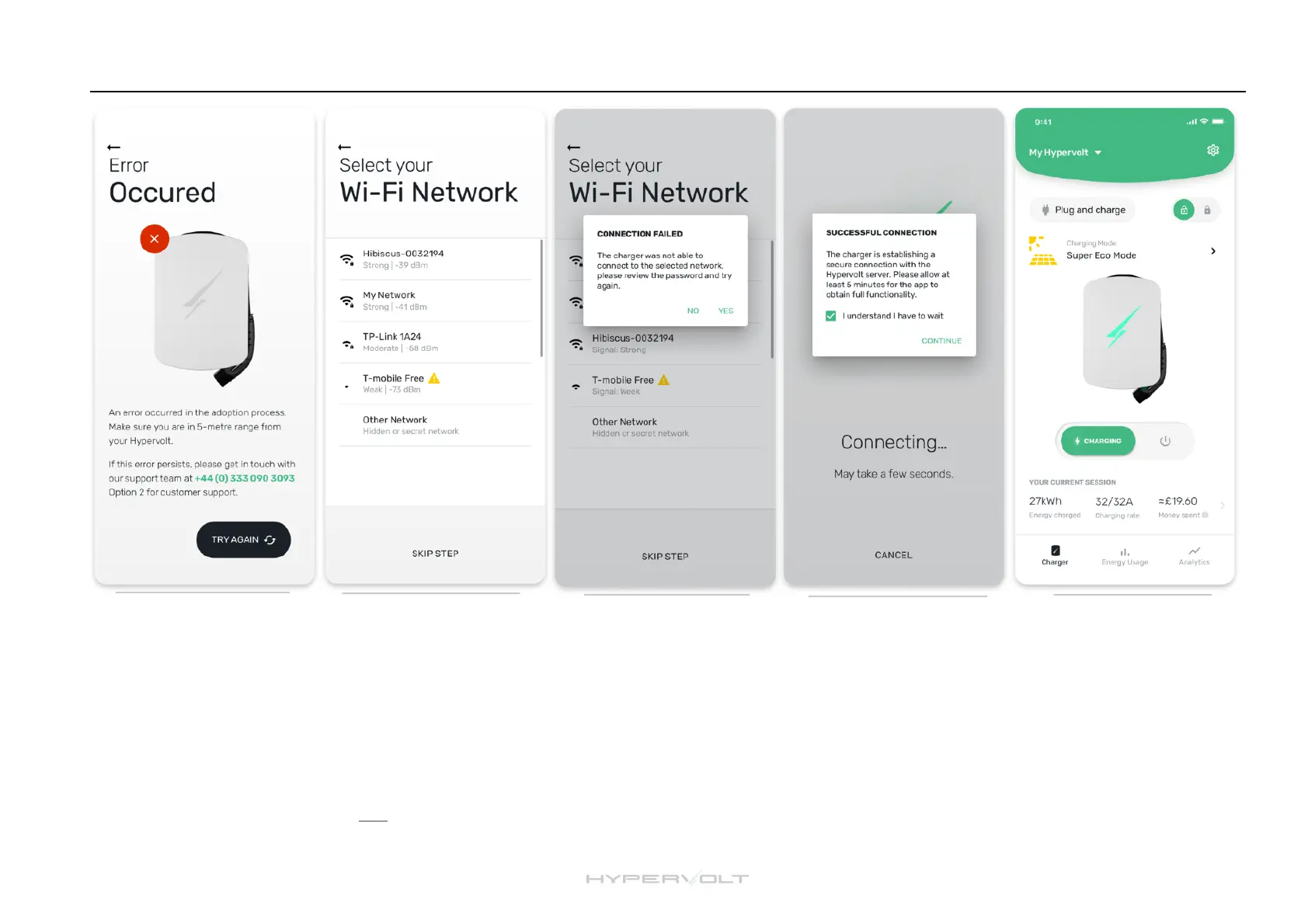
Success!
Once the Wi-Fi network
has been connected the
LED ring around the
Hypervolt will change from
pulsing white to solid blue."
You now need to wait 5
minutes for the app to be
useable. Tick the box to
confirm you know to wait.
Installation: App Setup (continued)
Adoption Issues
It will take a few seconds to
get your charger adopted.
Don’t walk away from the
Hypervolt during this process.
If you get an “Error” screen
just move closer and click try
again.
Connect
Once the Hypervolt is
adopted the next screen
will disp l a y t h e W i - F i
networks available in your
area."
Choose the Wi-Fi network
you wish to connect your
Hypervolt to, type in the
password and hit “Connect. "
Its very important that the
signal strength is below
-7 0 dB m f or a rel i ab l e
connection.
Connection Issues
If the network is not
available or you have
typed in the password
wrong you will see this
screen. "
Just click continue to try
again.
Ready to Go
Now the app is connected
you can control any of the
functions from anywhere in
the world so long as your
phone has an in ter net
connection. "
To confirm all is good why
not try changing the LED
mode or brightness?


 To Next Page