
 Need help?
Do you have a question about the HYPERVOLT Home 2.0 and is the answer not in the manual?
Installer and end-user must understand safety instructions. Disregard may lead to injury or damage.
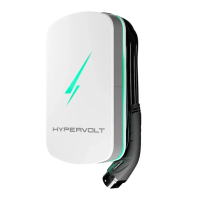
Document is a reference guide; product images are illustrative. Changes reserved without notice.
Proper disposal according to Directive 2012/19/EC. Not to be disposed of as urban waste.
Lists components like Charging Unit, Cable, CT Clamp, and Mounting Screws.
Must be installed by qualified personnel following BS7671 and IET guidance. Unit registration required.
Identifies 18 key components of the Hypervolt charger with numbered references.
Illustrates and labels the three main parts: Back Box (A), LED Plate (B), and Front Enclosure (C).
Mount on a flat surface, away from influences, close to EV. Height between 0.5m and 1.5m.
Use template to mark holes. Drill 4 holes, fit top 2 screws, hang unit. Recommend SDS drill, plugs, screws for brick.
Insert bottom 2 screws, tighten all 4. Ensure unit is level and adjust if needed.
Remove LED plate by pulling top tabs. Disconnect white cable connector. Store plate safely.
Connect power cables to terminals (1) tighten to 2Nm. Use ferrules for stranded cables. Use CTS gland for incoming cable.
Connect Cat5 cable to CT green plug (8). Use brown pair for CT. Orange/Green pairs for RJ45 socket (9) for hardwired internet.
Details two methods for electrical supply connection and two wiring methods (1-Wire, 2-Wire).
Use suitably sized protective device. Requires Type A RCD/RCBO (30mA) and potentially MCB for overload.
Reconnect white cable connector. Align top tabs of LED plate, push bottom into place. Avoid trapping cables.
Slide front enclosure on. Secure with four M4 screws. Avoid cross-threading; do not use powered tools.
Fit CT clamp to measure main load and solar export. Arrow direction and wire connection (White/Black) are critical.
Requires individual Type A Double Pole RCD or RCBO (30mA) for AC protection, as Hypervolt has only 6mA DC protection.
Built-in protection for PME (TN-C-S) services, isolating conductors if PEN conductor is damaged. No additional earth rod needed.
Built-in temperature sensors reduce current to prevent damage from overheating.
Step-by-step guide to test ALM functionality using an EV testing adaptor and increasing house load.
Use internal dip switches (11) to permanently derate the unit for specific amperage outputs (10A, 16A, 24A, 32A).
Explains the meaning of solid and pulsing states for Blue, Green, Purple, Yellow, Orange, and Red LEDs.
Instructions for creating an account via email or Google/Apple.
How to log in to an existing account, including password recovery.
Steps to adopt the charger, requiring proximity and Wi-Fi connection.
Choosing the available charger from the list to link to the account.
Advice for errors during adoption, suggesting moving closer or contacting support.
Guide to selecting a Wi-Fi network and entering the password for charger connection.
Steps to take if the network is unavailable or password is incorrect.
What to expect after successful Wi-Fi connection and how to use the app features.
Overview of app sections including settings, charger management, and basic controls like charging modes and locking.
Details on viewing real-time session data, energy consumption, and cost.
Adjust LED modes/brightness, Wi-Fi, timezone, and electricity tariffs for optimal operation.
Set maximum current limit, view charger specific information, and manage account details.
Charger starts automatically when plugged in.
Setting specific times for charging to optimize tariffs and costs.
Options include 'Super Eco', 'Eco', and 'Boost' for solar energy utilization.
How to navigate to the schedule charging section in the app.
Creating or modifying charging sessions with start and stop times.
Reviewing total charging time and saving the configured schedule.
Guide to creating an account and adopting the charger via the web portal using an adoption token.
Navigating to the dashboard after signing in to view usage and settings.
Viewing charger usage, settings, and accessing schedule charging via the dashboard.
Steps to connect the charger using the hotspot method, including phone and network settings.
Guide to selecting network, entering password, and confirming successful connection.
Reminds installers to reset default settings after testing for compliance.
Explains the default 'Schedule Charge' and how to change it.
Details the random start feature for charging sessions and how to disable it.
Details on model, capacity, dimensions, power, frequency, and electrical properties.
Covers Wi-Fi, Bluetooth, standards, safety compliance, and environmental ratings.
Lists protection mechanisms, key features, and additional usage notes.
Resolving issues with controlling the charger via the app, both locally and remotely.
Addressing problems like the charger appearing off or failing to start a charging session.
Troubleshooting cable disconnection, incomplete charges, and extended charging times.
Addressing low power charging and interpreting the pulsing red LED error indicator.
 General
| Brand | HYPERVOLT |
|---|---|
| Model | Home 2.0 |
| Category | Battery Charger |
| Language | English |

 To Next Page

