Using your Charger: Getting Online via the Hotspot
There is a secondary method that you can used to get your Hypervolt Online. We call this the “Hotspot Method”. It’s useful is you are having Bluetooth
connection issues or don’t have an account. This is best done on a smart phone.
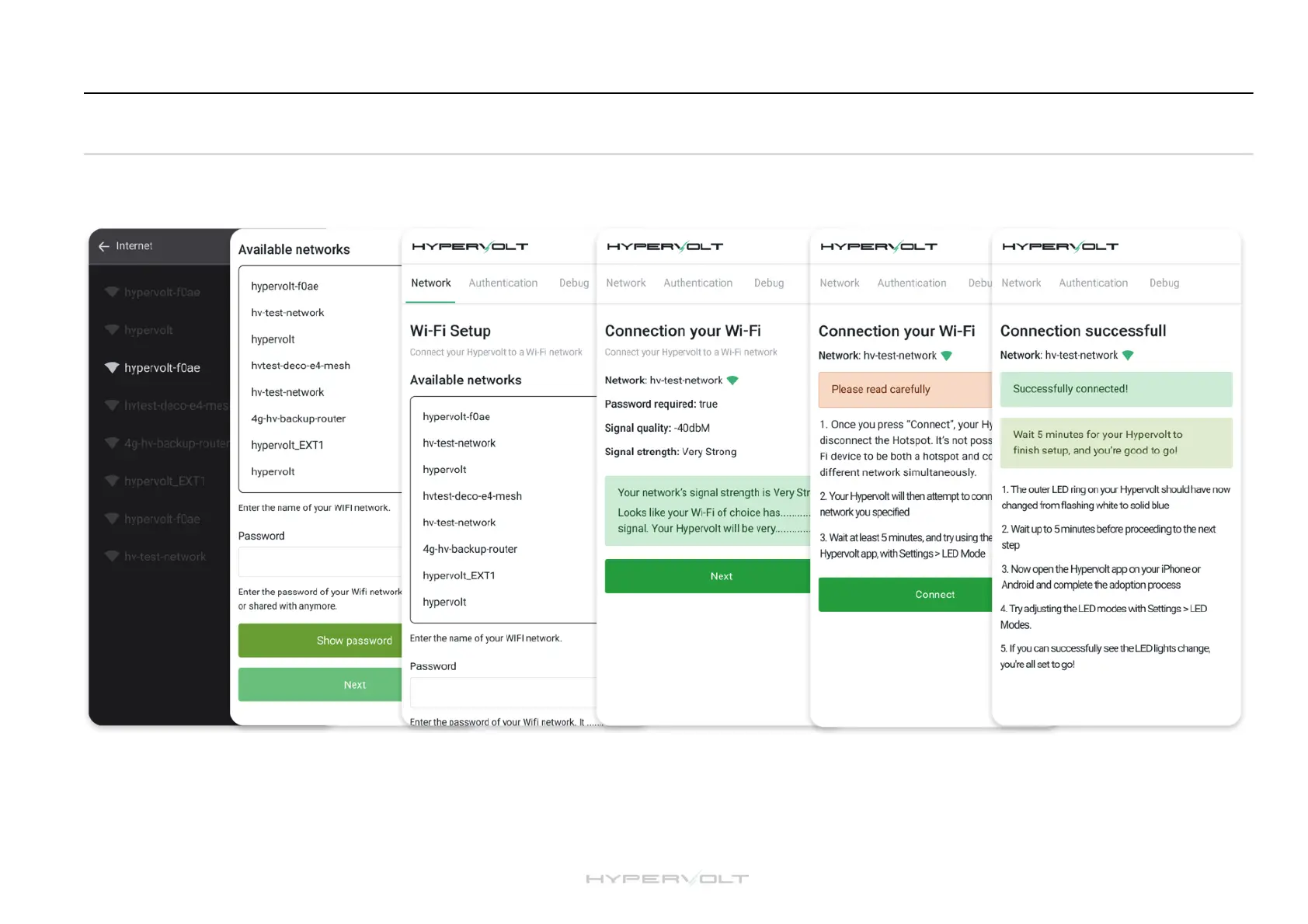
1. Adjust your settings
If you are connected to a Wi-Fi network temporarily turn off ‘auto connect’ or tap ‘forget the network’ and ensure your mobile data is turned off as well. #
Note: Before tapping 'forget the network’ make sure you have your network password noted so you can reconnect it later.
3. Connecting to the hotspot
Next open your browser i.e. Safari or
Google Chrome and type in the address
bar ‘hypervolt.energy’. When the page
loads check you are in the ‘network’ tab.
Alternatively use this IP address:
172.16.73.1
4. Connecting to Wi-Fi
Tap on the Wi-Fi network you
want to connect to and fill in the
password in the box below.
5. Review
Tap ‘next’ and an information
page will come up giving you
a n i n d i c a t i o n o f s i g n a l
strength. Make a note of this
and tap ‘next’. It needs to be
better than -70dBm.
6. Confirmation and charger status
You w ill be pres ented with the
confirmation page, please read through
and then tap ‘connect’. The ring around
your Hypervolt charger will change from
pulsing white to solid blue to confirm
connection.
2. Finding the hotspot
Go to your wifi settings and search for
a new Wi-Fi network, amongst your list
of connections your hotspot should
appear as ‘Hypervolt-xxxx’ (note xxxx
represents a mixture of numbers and
letters).


 To Next Page