EasyManua.ls Logo

Hyundai TUSON - User Manual

Hyundai TUSON
72 pages
Print Icon
To Next Page IconTo Next Page
Loading...
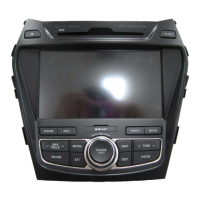
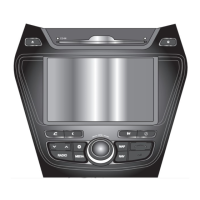
Car Navigation System
OWNER’S MANUAL
TUSON
ENGLISH
*XXXXXXXXX*

Table of Contents

Questions and Answers

  • S
    sreyesAug 2, 2025
    How to fix a Hyundai TUSON Car Navigation system that does not turn on?
    • E
      erin59Aug 2, 2025
      If the Hyundai Car Navigation system's power doesn't turn on, it might be due to a disconnected fuse. Replace it with a suitable fuse. However, if the fuse disconnects again, it is recommended to contact your authorized Hyundai dealer. Alternatively, the device might not be properly connected; ensure that all connections are correctly and securely in place.
  • C
    chloejohnsonAug 7, 2025
    What to do if the sound does not work on my Hyundai Car Navigation system?
    • C
      Christopher KennedyAug 7, 2025
      If the sound on your Hyundai Car Navigation system isn't working, first, check the volume level and ensure it's not set to the lowest. Also, verify that all connections are properly and securely connected. If the device is fast-forwarding, rewinding, scanning, or playing in slow mode, sound output will be disabled during these operations.
  • A
    Annette TerryAug 12, 2025
    Why is my Hyundai TUSON Car Navigation system not playing?
    • R
      Russell BeanAug 12, 2025
      If your Hyundai Car Navigation system isn't playing, it might be due to a low vehicle battery. If this is the case, charge the battery. If the problem continues after charging, contact your authorized Hyundai dealer.
  • S
    Stephanie OlsonAug 17, 2025
    What to do if Hyundai Car Navigation system does not recognise iPod?
    • R
      Robert SpencerAug 17, 2025
      If your Hyundai Car Navigation system isn't recognizing your iPod even after it's connected, it could be due to several reasons. Ensure that your iPod contains MP3 files downloaded and saved using iTunes. Also, verify that your iPod's firmware is up to date by using iTunes to update it, then reconnect the iPod. If the iPod still isn't recognized, try resetting the iPod and then reconnecting it to the system.
  • A
    Amanda MannAug 22, 2025
    Why is my Hyundai TUSON USB not working?
    • D
      Dwayne MitchellAug 22, 2025
      If your Hyundai Car Navigation system's USB isn't working, it could be due to several reasons. First, ensure that the USB memory is formatted to FAT 16/32, exFAT, or NTFS. Remove any foreign substances from the USB memory's contact surface and the multimedia terminal. If you're using a USB hub or extension cable, connect the USB memory directly to the multimedia terminal on the vehicle. Avoid using non-metal cover type USBs, HDD type, CF, or SD memory; use a standard USB memory instead. Finally, ensure that the USB contains supported music files (MP3, WMA, OGG, FLAC, and WAV).
  • T
    Tina PottsAug 27, 2025
    How to improve image quality on Hyundai Car Navigation system?
    • T
      Traci MillerAug 27, 2025
      If the image colour or tone quality of your Hyundai Car Navigation system is low, it may be because the brightness, saturation, and contrast levels are not properly adjusted. Correctly adjust these settings through the display setup menu.

Summary

Precautions for safety

Name of Each Component

Head Unit Description

Description of the main control unit and its buttons.

Steering Wheel Remote Control

Description of the controls on the steering wheel.

Basic Operation

System Startup and Shutdown

Procedures for initial setup, powering on, and powering off the system.

Adjusting the Volume

Instructions on how to control the audio volume.

Resetting the System

Procedure to reset the system in case of errors.

Home Screen Operations

Navigating and configuring the main Home screen interface.

Radio Operation

Listening to AM Stations

How to tune into AM radio stations.

Listening to FM Stations

How to tune into FM radio stations.

USB Operation

Playing USB Music

How to play music files from a USB device.

Controlling USB Playback

How to pause, skip, search, and seek within USB media files.

iPod Operation

Playing and Controlling iPod

Connecting, playing, and managing music playback from an iPod.

Bluetooth Audio

Playing and Controlling Bluetooth Audio

Connecting, playing, and managing music via Bluetooth.

Getting Started with Navigation

Safe Driving Precautions

Important safety guidelines for using the navigation system while driving.

Understanding GNSS and Satellite Signals

Explanation of GNSS, satellite signals, and acquisition steps.

Operating the Navigation Screen

Overview of the information displayed on the navigation map screen.

Main and Sub-Menu Operation

Navigating the main and sub-menus of the navigation system.

Searching for Destination

Address Search

How to find destinations by searching for an address.

Points of Interest (POI) Search

How to search for destinations using Points of Interest.

Searching POI by Nearby and Phone

Finding POIs by location or associated phone contacts.

Managing Favorite Destinations

Accessing, saving, and locating favorite destinations.

Viewing, Editing, and Deleting Favorites

Procedures for managing saved favorite destinations.

Using the Route Menu

Itinerary Management

Creating, saving, and viewing itinerary waypoints and map details.

Route Options Customization

How to customize route calculation preferences.

Turn List and Cancel Route

Viewing turn-by-turn directions and stopping active route guidance.

Settings for Navigation

Audio and Display Settings

Adjusting audio effects, volume, screen brightness, and visual appearance.

Android Auto;Apple CarPlay - Option

What is Android Auto;Apple CarPlay?

Explanation of smartphone integration features.

Cautions for Smartphone Integration

Important warnings and precautions for using these features.

Bluetooth Wireless Technology

Understanding Bluetooth Technology

General information, safety, and prerequisites for Bluetooth usage.

Connecting a Bluetooth Phone

Steps and precautions for pairing and connecting a Bluetooth device.

Answering, Rejecting, and Ending Calls

How to manage incoming and active phone calls.

Settings

Sound Settings

Adjusting audio effects, position, equalizer, and volume.

Display Settings

Adjusting screen brightness, dimming, contrast, and display ratio.

Bluetooth and Phone Connectivity Settings

Managing Bluetooth devices, phone calls, and automatic connection.

Using Rear Camera

Rear Camera System Overview

Explanation of the rear camera parking guide system and its features.

Before Thinking There Is a Product Defect

Troubleshooting

Hyundai TUSON Specifications

General IconGeneral
BrandHyundai
ModelTUSON
CategoryCar Navigation system
LanguageEnglish

Related product manuals