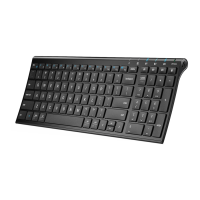
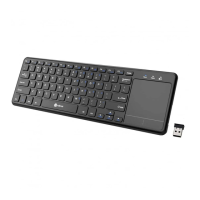
This document describes the iClever Multi-Device Dual-Mode Ultra Slim Wireless Keyboard, model IC-DK03. This keyboard offers versatile connectivity and a slim design, making it suitable for various operating systems and devices.
Function Description
The iClever IC-DK03 is a multi-device, dual-mode wireless keyboard designed for seamless switching between different devices and connection types. It supports both 2.4G wireless and Bluetooth connectivity, allowing users to pair it with up to three devices simultaneously (one 2.4G device and two Bluetooth devices). This dual-mode capability enhances flexibility, enabling the keyboard to be used with a wide range of operating systems including Windows, Mac, iOS, and Android.
The keyboard features a full layout with dedicated function keys (F1-F12) that can be toggled between standard F-key functions and media/hotkey functions. These media keys provide quick access to common tasks such as brightness adjustment, volume control, play/pause, and track navigation. A dedicated "fn lock" function allows users to swap between these two sets of functions as needed. System-specific layout keys (Mac/iOS and Windows/Android) are also included to optimize the keyboard's functionality for different operating environments.
Indicator lights are integrated into the keyboard to provide visual feedback on its status. These include indicators for power, Caps Lock, 2.4G wireless channel, Bluetooth channels (1 and 2), and charging status. The Caps Lock indicator also doubles as a power reminder, flashing to indicate remaining battery levels (less than 25%, 50%, 75%, or 100%).
Usage Features
Connectivity and Pairing:
- 2.4G Wireless Connection: To connect via 2.4G, simply plug the provided USB receiver into your computer's port, power on the keyboard, and press the 2.4G key. The indicator will turn green for 3 seconds. Users must then select their system (fn+Q for iOS/Mac OS, fn+W for Windows/Android). If connection fails, a re-pairing process involves turning the keyboard off and on, pressing the 2.4G key, holding Esc + = for 5 seconds until the 2.4G indicator flashes green, and then immediately plugging the USB receiver into the computer within 10 seconds while keeping the keyboard close to the receiver (within 30cm).
- Bluetooth Wireless Connection: The keyboard supports pairing with two Bluetooth devices. To pair with the first device, power on the keyboard, hold and press the Bluetooth channel 1 key for 5 seconds until its indicator flashes blue. Then, search for "iClever IC-DK03 KB" on your Bluetooth device and connect. The process for pairing a second device is similar, using the Bluetooth channel 2 key.
- Switching Devices: Users can easily switch between connected devices by pressing the 2.4G, Bluetooth channel 1, or Bluetooth channel 2 keys.
- Re-pairing Bluetooth: If a Bluetooth connection is lost or needs to be re-established, users can hold and press the respective Bluetooth channel key for 5 seconds to re-enter pairing mode.
Keyboard Functions:
- Function Key Toggle: The keyboard's F-keys (F1-F12) can be used for either standard F-key functions or media/hotkey functions. By default, they access media and hotkey functions. To switch to direct F-key access, press the dedicated function lock key.
- System Layouts: Dedicated keys allow users to switch between Mac/iOS and Windows/Android layouts, optimizing key assignments for the chosen operating system. For example, the "win" key functions as "win" in Windows layout and "option" in Mac layout, while the "alt" key functions as "alt" in Windows layout and "cmd" in Mac layout.
- Input Method Change: A specific key is provided for changing input methods, working with Windows 10, iOS, and Mac only.
- Number Lock/Clear: The "numlk clear" key functions as "number lock" in Windows layout and "clear" in Mac layout (not supported for iOS and Android).
Power Management:
- Sleep Mode: The keyboard enters sleep mode after 30 minutes of inactivity to conserve battery. Pressing any key will wake it up after a 3-second delay.
- Charging: The keyboard is charged via the included Micro USB cable. The charging indicator stays red during charging and typically takes less than 2 hours for a full charge.
Maintenance Features
Troubleshooting:
The manual provides comprehensive troubleshooting steps for common issues:
- Connection Failure (2.4G/Bluetooth): Includes steps like ensuring the receiver is directly connected, charging the keyboard, trying different USB ports/devices, and re-pairing.
- Delay Typing (Windows 10): Suggests adjusting "Repeat delay" and "Repeat rate" settings in Keyboard Properties via the Control Panel, and enabling "Filter Keys" in Ease of Access settings.
- Multiple Letters Typing (Mac): Advises adjusting the "Key Repeat" slider setting to "Off" in System Preferences > Keyboard.
- Frequent Disconnection/Laggy Typing/Stuck Keys: Recommends restarting the Bluetooth device, ensuring close proximity to the computer, and moving the keyboard away from potential sources of wireless interference (microwaves, cordless phones, baby monitors, wireless speakers, garage door openers, WiFi routers, computer power supplies, metal objects/wiring).
- General Advice: Users are advised to ensure their operating system is up to date, check for background updates, and charge the keyboard for at least 30 minutes if experiencing connectivity issues due to low battery.
Care and Handling:
- Environmental Protection: Keep the keyboard away from oil, chemicals, liquids, and snacks to prevent malfunctions.
- Physical Protection: Avoid sharp objects that could damage the keyboard.
- Interference Avoidance: Keep the keyboard away from metal surfaces and other sources of wireless signals to maintain optimal performance.
- Water/Dust Resistance: The keyboard is explicitly stated as not waterproof or dustproof, emphasizing the need to protect it from liquid and debris.
Compatibility Notes:
- Bluetooth: Fully compatible with Windows 8/8.1/10 PCs and laptops with Bluetooth host, Mac, Android, and iOS. However, it is not fully compatible with Mac mini, smart TVs, and Xbox.
- 2.4G Wireless: Fully compatible with Windows 7/8/8.1/10 PCs and laptops.
- Macbook/iMac/iPhone/iPad: Specific keys like "scrlk," "pause," "insert," and "home" may not work fully with these Apple devices.
For further assistance, users can contact support@iclever.com.

 Need help?
 General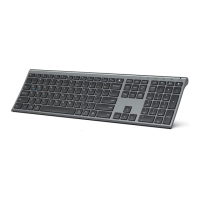

 To Next Page