Q:
How
to enable direct access to F-keys or how to make
F1-F12
keys
work
correctly.
A:
Your
keyboard has by default access to the Media and Hotkeys such as
Volume
Up, Play/Pause, Volume down, and so on.
If
you prefer
to
have direct access to your F-keys simply press key
of
~
on your keyboard to swap them.
Q:
My keyboard fails to connect by 2.4G mode.
• Ensure you already press the key
of
B .
• Verify the product
or
receiver is connected directly to the
computer
and
not to a hub, extender, switch,
or
something similar.
• Charge keyboard for 30 minutes.
• Move the receiver
to
a different
USB
port on
your
computer.
• Try on a different
computer
.
• Read above "Pairing Instruction" to re-pair
your
keyboard.
Q:
My
keyboard fails to connect by Bluetooth mode.
• Ensure the device you are trying to pair with is Bluetooth wireless-capable.
• Delete/remove previous Bluetooth connection record and turn
off
the
Bluetooth function on
your
devices and turn it on again.
• Ensure you already hold and press the button
of
~
/ G for 5
seconds until the indicator flashing blue.
• Charge the keyboard for 30 minutes.
• Try a different device.
Q:
Delay typing
in
Win 10.
1. Use Windows shortcut keys Win + R to open Run.
, 2.
Type
into control and hit the Enter key. This will launch Control Panel.
(Note: If you cannot type into the proper letters, it is recommended
to
use the on-screen keyboard.)
3.
View
by Small icons. Click the Keyboard.
-8-
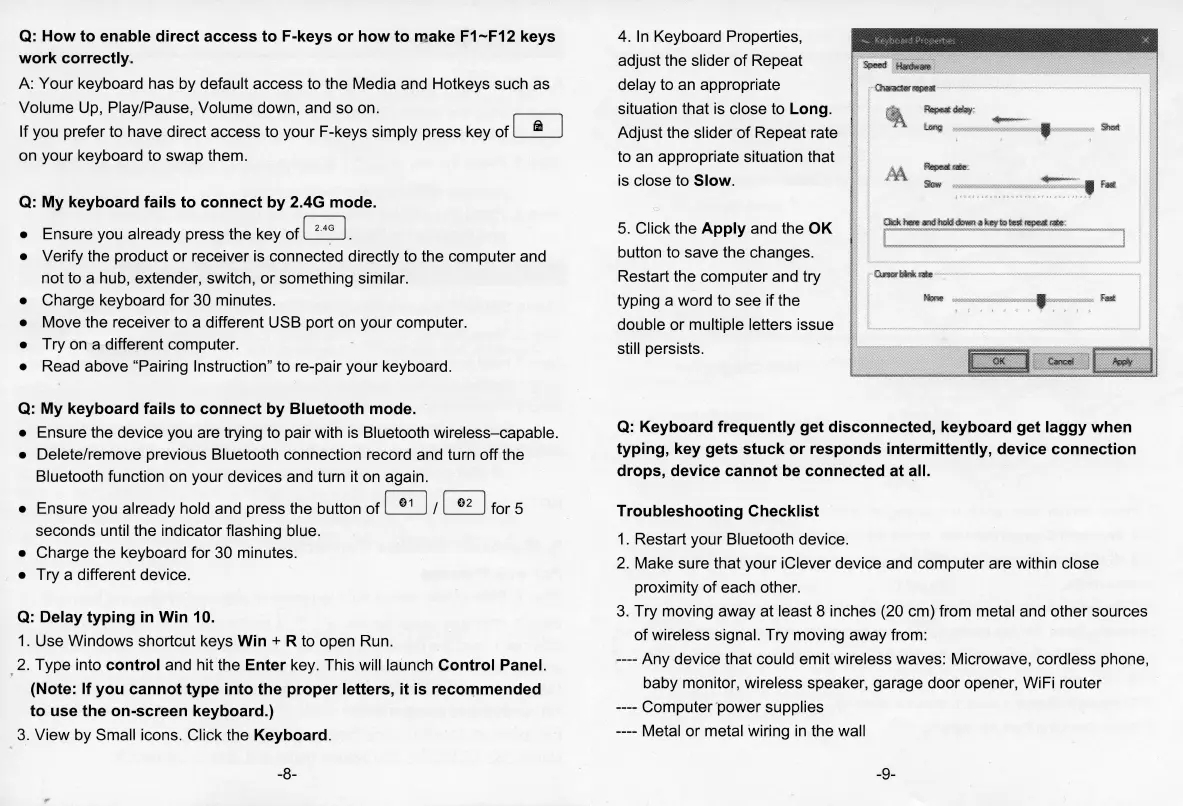
4.
In
Keyboard Properties,
adjust the slider
of
Repeat
delay to an appropriate
situation that is close to Long.
Adjust the slider
of
Repeat rate
to
an appropriate situation that
is close to
Slow
.
5.
Click the Apply and the
OK
button to save the changes.
Restart the computer and try
typing a word to see
if
the
double
or
multiple letters issue
still persists.
Q:
Keyboard frequently get disconnected, keyboard get laggy when
typing, key gets stuck
or
responds intermittently, device connection
drops, device cannot be connected at
.:111.
Troubleshooting Checklist
1. Restart your Bluetooth device.
2. Make sure that
your
iClever device and
computer
are within close
proximity
of
each other.
3. Try moving
away
at least 8 inches (20
cm)
from metal and other sources
of
wireless signal. Try moving
away
from:
----
Any
device that could emit wireless waves: Microwave, cordless phone,
baby monitor, wireless speaker, garage
door
opener, WiFi router
----
Computer
power
supplies
---- Metal
or
metal wiring in the wall
-9-


 To Next Page
 Loading...