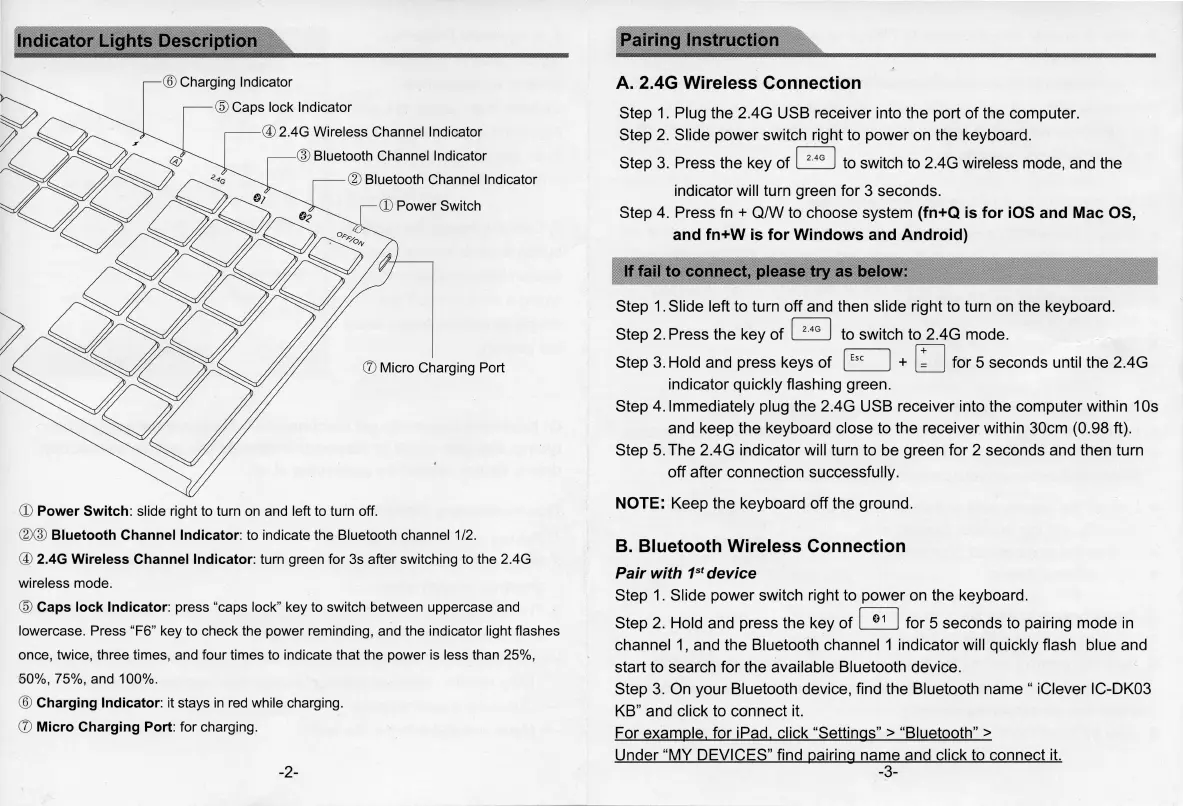
Indicator Lights
Descriptio11
® Charging Indicator
~
@ Caps lock Indicator
~~~~
2
4G
w,rel
: s
8
~;:;;;,;~;;;;,,arnm,
0
6q_(1c
//#-+------------
(?1)
(J)
Micro Charging Port
(!) Power Switch: slide right to turn on and left to turn off.
@®
Bluetooth Channel Indicator: to indicate the Bluetooth channel 1/
2.
@ 2.4G Wireless Channel Indicator: turn green for 3s after switching to the 2.4G
wireless mode.
® Caps lock Indicator: press "caps lock" key
to
switch between uppercase and
lowercase. Press "F6" key to check the power reminding, and the indicator light flashes
once, twice, three times, and four times to indicate that the power
is
less than 25
%,
60
%,
75
%,
and 100
%.
® Charging Indicator:
it
stays
in
red
while charging.
(J)
Micro Charging Port: for charging.
-2-
Pairing
Instruction
A.
2.4G Wireless Connection
Step
1.
Plug the 2.4G USB receiver into the port
of
the computer.
Step
2.
Slide power switch right to power on the keyboard.
Step 3. Press the key
of
D to switch to 2.4G wireless mode, and the
indicator will turn green for 3 seconds.
Step 4. Press
fn
+ Q/W
to
choose system (fn+Q
is
for iOS and Mac OS,
and fn+W
is
for Windows and Android)
-·
-----
-
-----
..,,.,
,.,...-----
-
-------
.......
lffail
to connect, please try as below:
Step
1.
Slide left to turn off and then slide right to turn on the keyboard.
Step
2.
Press the key
of
D to switch to 2.4G mode.
Step 3. Hold and press keys
of
~
+
LJ
for 5 seconds until the 2.4G
indicator quickly flashing green.
Step 4. Immediately plug the 2.4G USB receiver into the computer within 1
Os
and keep the keyboard close to the receiver within 30cm
(0
.98 ft).
Step 5. The 2.4G indicator will turn to be green for 2 seconds and then turn
off after connection successfully.
NOTE: Keep the keyboard off the ground.
B.
Bluetooth Wireless Connection
Pair with 1
st
device
Step 1. Slide power switch right to power on the keyboard.
Step
2.
Hold and press the key
of
G for 5 seconds to pairing mode
in
channel 1, and the Bluetooth channel 1 indicator will quickly flash blue and
start to search for the available Bluetooth device.
Step 3. On your Bluetooth device, find the Bluetooth name " iClever IC-DK03
KB
" and click to connect
it.
For example, for iPad, click "Settings" > "Bluetooth" >
Under "MY DEVICES" find pairing name and click to connect
it.
-3-


 To Next Page
 Loading...